You are here:
Program Based Business Workflow
Understand the high-level steps for setting up and using Program Based Business.
Required Editions
| Available in: Lightning Experience |
| Available in: Enterprise, Unlimited, and Developer Editions |
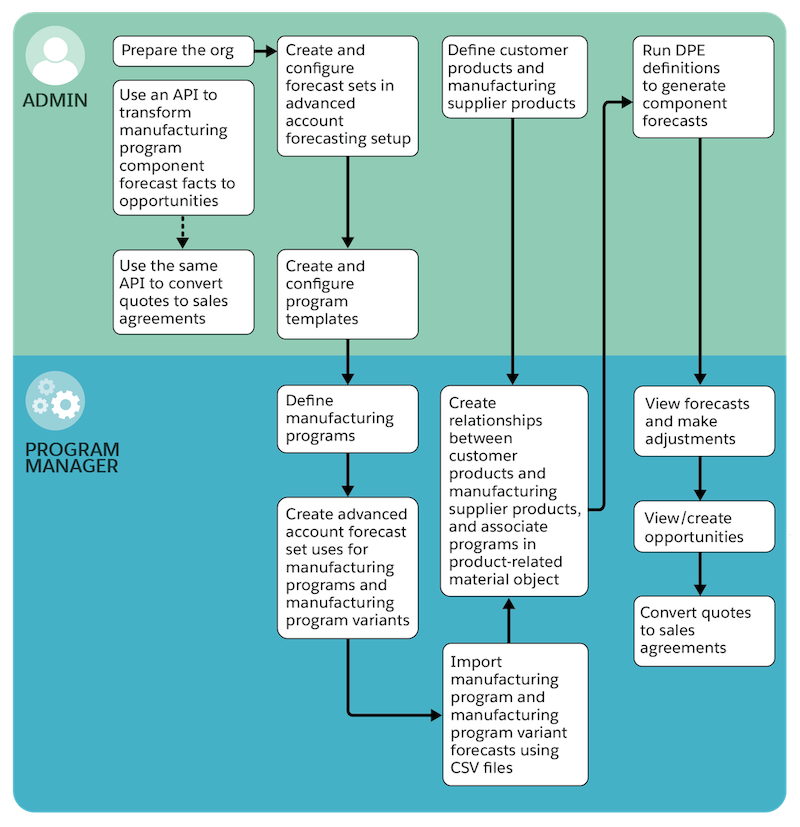
- Enable Program Based Business, Advanced Account Forecasting, and Data Pipelines in Setup. See Enable Features for Manufacturing Cloud.
- Assign permission sets and object access to user profiles. See Assign Permission Sets for Program Based Business.
- Create Forecast Sets
Define forecast sets with configuration details for the manufacturing program, the program variants, and related components. See Create a Forecast Set for Program Based Business, Create a Period Group for Program Based Business, and Create a Dimension for Program Based Business.
- Create Program Templates
Create program templates to define a structure for your manufacturing programs. Then your program managers can quickly and easily set up customer-specific programs using those templates. You define the template sections with associated forecast sets that contain configuration details for the manufacturing program, the program variants, and related components. Also map the forecast fact object that stores the data for the program, variants, or components to the respective forecast sets. For example, you can create a template called Auto Program Template to generate forecasts for parts and accessories associated with a vehicle manufacturer program. See Create a Program Template.
- Define Manufacturing Programs
Your program managers create customer-specific programs using program templates. See Create a Manufacturing Program.
- Create Advanced Account Forecast Set Uses
Advanced Account Forecast Set Use object defines the relationship between an advanced account forecast set and another object (for example, a manufacturing program) whose record serves as the context for generating forecasts. Create two Advanced Account Forecast Uses — one for the manufacturing program and another one for the manufacturing program variant. See Create an Advanced Forecast Set Use.
- Import Data Using CSV Files
Program managers import data from separate CSV files for the manufacturing program and the manufacturing program variant. See Create a .CSV File and Import Data from a .CSV File.
- Define Customer Products and Manufacturing Supplier Products
Define your customers’ products and the manufacturing supplier products. Use the Product Purpose field to differentiate between your products and theirs. For example, select product purpose as Plan for customer products and product variants, and Sell for product components. See Add Customer and Supplier Products.
- Create Relationships between Customer and Supplier Products
Associate your products with your customer’s products by using the Product Related Material object. See Create Relationships Between Customer Products and Manufacturing Supplier Products.
- Generate Component Forecasts with Data Processing Engines
Run Data Processing Engine templates for the component forecast calculations. See Calculate Component Forecasts with Data Processing Engine Templates for Program Based Business and Generate Component Forecasts Using Flows.
- Transform Manufacturing Program Forecast Facts to Opportunities or Quotes to Sales
Agreements
Use the business transformation APIs with Program Based Business to convert the forecast fact records into opportunities or quotes into opportunities. Define mappings between the fact and opportunity objects or the quote and sales agreement objects using the ObjectHierarchyRelationship metadata API. See Transform Forecast Data and Transformations.
