
You are here:
Configure the Proration and Subscription Element
To calculate time-based pricing, use the Proration and Subscription elements.
Required Editions
| Available in: Lightning Experience |
| Available in: Enterprise, Unlimited, and Developer Editions of Revenue Management (formerly Revenue Cloud) with the Revenue Cloud Growth license or the Revenue Cloud Advanced license. |
| User Permissions Needed | |
|---|---|
| To create, update, and delete pricing procedures: | Salesforce Pricing Design Time |
Let's consider a cloud storage subscription service with a standard monthly price of $150. If a customer starts their subscription mid-month, the pricing model accurately prorates the cost based on the remainder of that month.
- Create a pricing procedure. To create a pricing procedure, follow the first 5 steps in Configure Your Pricing Procedure.
-
Now, add the Pricing Setting element and map these variables.
- Input Variables
- Line Item: LineItem
- Output Variables
- Price Waterfall: price_water_fall
- Net Unit Price: NetUnitPrice.
- Subtotal: ItemNetTotalPrice
- Input Variables
-
Add the Proration element to adjust the price for a partial pricing period and map
these variables.
- Input Variables
- Effective From: EffectiveFrom
- Effective To: EffectiveTo
- Proration Period: PricingTermUnit
- Start Proration Period: StartProrationPeriod
- Start Proration Period Day: StartProrationPeriodDay
- StartProration Period Month: StartProrationPeriodMonth
- Allow Partial Proration Periods: AllowPartialProrationPeriods
- Selling Model Type: ProductSellingModel
- Subscription Term Unit: ItemSubscriptionTermUnit
- Subscription Term: ItemSubscriptionTerm
- Output Variables
- Proration Multiplier: PricingTermCount
- Input Variables
-
Click
 and select Include in Output.
- Set your preferences for profile access.
-
Add the Subscription element to calculate the total subscription price based on the
input unit price and pricing term count. Map these variables.
- Input Variables
- Quantity: LineItemQuantity
- Proration Multiplier: PricingTermCount
- Net Unit Price: ListPrice
- Output Variables
- Total Subscription Price: ItemNetTotalPrice
- Subscription Net Unit Price: NetUnitPrice
- Input Variables
-
Click and select Include in Output.
- Finally, set your preferences to view pricing information, profile access, and rank information.
- Save your procedure.
- Click Simulate to test your procedure.
- Enter the input values for your laptop product and click Simulate again.
| scenario | period(effective from to effective to) | total days | multiplier | list price | quantity | calculated price |
|---|---|---|---|---|---|---|
| Full Monthly Period | Apr 18, 2021 – Dec 17, 2021 | 8 full months | 1.0000 (each month) | $150 | 1 | $1,200.00 |
| Partial Period | Dec 18, 2021 – Dec 31, 2021 | 14/ 31 | 0.4516 | $150 | 1 | $67.74 |
| Partial Period (Leap Year) | Feb 10, 2024 – May 9, 2024 | 81/ 90 | Mixed (3 periods: 0.6897, 1.0000, 1.0000) | $150 | 5 | $2,234.98 |
| Full Period (Leap Year) | Jan 18, 2024 – May 17, 2024 | 121 | 1.0000 (all months) | $150 | 5 | $3,000.00 |
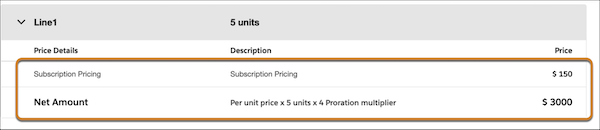
The price waterfall shows where subscription pricing was applied based on a full leap year's pricing period, confirming your procedure is working as expected.
Did this article solve your issue?
Let us know so we can improve!
