You are here:
Map Context Tag Data Using Assignment Element
Dynamically set or change the values of pricing variables by mapping data between context tags or from a variable directly into a context tag.
Required Editions
| Available in: Lightning Experience |
| Available in: Enterprise, Unlimited, and Developer Editions of Revenue Management (formerly Revenue Cloud) with the Revenue Cloud Growth license or the Revenue Cloud Advanced license. |
| User Permissions Needed | |
|---|---|
| To create, update, and delete pricing procedures: | Salesforce Pricing Design Time |
The Assignment element supports a wide variety of data types, including currency, numbers, date and time, and dates. You'll find this element especially useful for defining pricing procedures and managing data flows within your pricing process. It's powerful because it operates by using outputs from preceding pricing elements, all without touching the Salesforce database.
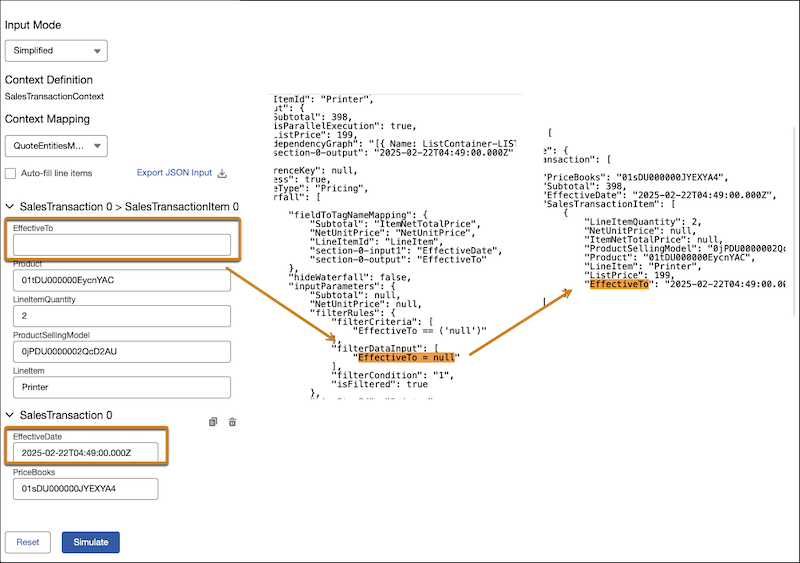
Let’s look at a scenario where if a product's Effective To date is null, you can use the Assignment element to automatically populate it with the Effective To date from the quote. Since this element relies on the output of previous pricing elements, you'll need to set a condition for the data values using the List Group element. Then, add the List Price element to fetch the product's base price using the quote's date.
- Configure a pricing procedure.
-
Click
 to add the Pricing Setting element and map these variables.
- Input Variables
- Line Item: LineItem
- Output Variables
- Price Waterfall: price_water_fall
- Net Unit Price: NetUnitPrice.
- Subtotal: ItemNetTotalPrice
- Input Variables
-
Add the List Group element to the pricing procedure and set the following
condition.
- Filter Condition Requirements: All Conditions are Met (AND)
- Resource: EffectiveTo
- Operator: Is Null
- Within the List Container, add the Assignment element.
-
Modify the tag values of the input and output variables based on how you want the
variable values to be consumed.
- Input Variable: EffectiveDate
- Output Variable: EffectiveTo
-
Add the List Price element to fetch the base price of the product based on the modified
date variable.
Under Lookup Table Details, select the Price Book Entries decision table and map these variables.
- Input Variables
- Product: Product
- Price Book: PriceBooks
- Product Selling Model: ProductSellingModel
- Input Variables
- Quantity: LineItemQuantity
- Output Variables
- List Price: ListPrice
- Input Variables
-
Simulate and activate your pricing procedure.
The JSON output shows how the variables were modified to fetch the list price for your product based on the quote’s date.
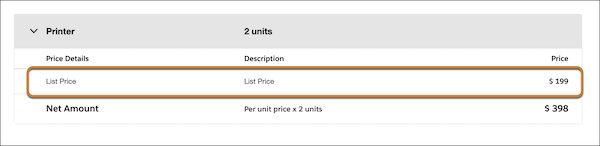
The price waterfall shows the list price generated for the quote’s EffectiveTo date even though the line product’s EffectiveTo date was null.