
You are here:
Calculate Contract-Based Pricing
Before you begin to calculate contracted prices, do the following.
Required Editions
| Available in: Lightning Experience |
| Available in: Enterprise, Unlimited, and Developer Editions of Revenue Management (formerly Revenue Cloud) with the Revenue Cloud Growth license or the Revenue Cloud Advanced license. |
| User Permissions Needed | |
|---|---|
| To create pricing procedures: | Salesforce Pricing Design Time |
- Link your products to a contract.
- Calculate the base contracted prices. Use the Contract Pricing Entries decision table for this calculation.
- Enable contract-based pricing. In the relevant elements, select the Use contract-based pricing option.
- Set the Contract Pricing variable. When you enable contract-based pricing, you must provide a value for your Contract Pricing boolean variable. This variable determines if contracted prices will be generated.
- Filter the line items. Use the List Group element to filter out the line items that aren’t configured for additional discounts on their contracted price.
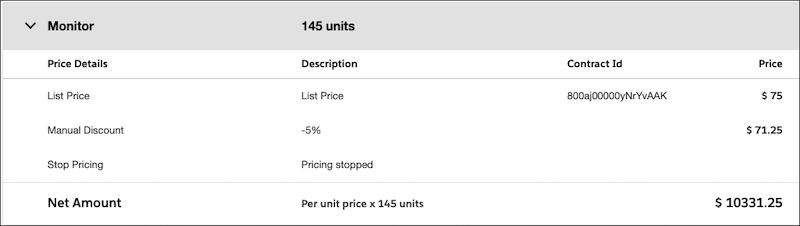
Let’s consider a scenario where we provide our customer with a flat base price of $75 for every monitor purchased. We’ll provide an additional 5% manual discount if our customer purchases 100 monitors.
Define Contracts
- From App Launcher, find and select Contracts.
- Click New.
-
Specify these details.
- Account Name: GenePoint (This is based on our example only)
- Contract Start Date: 7/1/2025
- Contract Term (months): 12
- Save your changes.
Define Contract Item Prices
- On the Related tab of the contract you just created, go to Contract Item Prices, and click New.
-
Specify these details.
-
Under Item, select Product.
Search for and select Monitor.
- Product Selling Model: One Time
- Price: $75
- Start Date: 7/2/2025, 12:00 PM
- End Date: 10/31/2025, 12:00 PM
- Adjustment Method: Range
-
Under Item, select Product.
- Save your changes.
Activate Your Contract
- From App Launcher, find and select Contracts.
- Select the contract you created.
- On the approval flow, select Activated.
- Select Mark Status as Complete.
Refresh Your Decision Tables
Refresh your decision table to ensure the latest contract-specific data is available for pricing.
- To refresh your decision table, from Setup, in the Quick Find box, search for and select Decision Tables.
- Select Contract Pricing Entries, and click Refresh.
Calculate the Contract-Based Price Using a Pricing Procedure
- Create a pricing procedure. To create a pricing procedure, follow the first 5 steps in Configure Your Pricing Procedure.
-
Click
 to add the Pricing Setting element and map these variables.
- Input Variables
- Line Item: LineItem
- Output Variables
- Price Waterfall: price_water_fall
- Net Unit Price: NetUnitPrice.
- Subtotal: ItemNetTotalPrice
- Input Variables
-
Add the List Price element to fetch the base price of the product.
Under Lookup Table Details, select the Contract Pricing Entries decision table.
- Select Use contract-based pricing.
-
Map these variables.
- Input Rule Variables
- Contract: ItemContract
- Item: Product
- Product Selling Model: ProductSellingModel
- Selling Model Type: SellingModelType
- Start Date: StartDate
- Output Rule Variables
- Discount Type: ItemContractDiscountType
- Discount Value: ItemContractDiscountValue
- Input Variables
- Quantity: LineItemQuantity
- Output Variables
- List Price: NetUnitPrice
- Contract Pricing: IsContracted
- Input Rule Variables
- Save your changes.
-
Add the List Group element.
Configure the list operation to filter out all the line items with the configured contract prices. Based on our example, define a condition where if a contracted base price is found, then look for a contract based volume discount and apply it.
- Filter Condition Requirements: All Conditions Are Met (AND)
- Resource: IsContracted
- Operator: Equals
- Value: true
-
Within the list container, search for and add the Manual Discount element and map these
variables.
- Adjustment Type: AdjustmentType.
- Adjustment Value: AdjustmentValue
- Quantity: LineItemQuantity
- Input Unit Price: NetUnitPrice
- To stop pricing, within the list container, and under the Manual Discount element, add the Stop Pricing element.
-
Click
 and select Include in Output.
- Finally, set your preferences to view pricing information, profile access, and rank information.
- Save your procedure.
- Click Simulate to test your procedure.
-
Enter the input values for your monitor product and click Simulate
again.
The price waterfall shows the contracted price used to calculate the monitors' final price, including the flat 5% discount applied for purchasing over 100 units, confirming that your procedure is working as expected.
Did this article solve your issue?
Let us know so we can improve!
