You are here:
Calculate the Derived Price of Product
Use the discovery procedure and the derived price element in a pricing procedure, to calculate a product’s price from another product or asset.
Required Editions
| Available in: Lightning Experience |
| Available in: Enterprise, Unlimited, and Developer Editions of Revenue Management (formerly Revenue Cloud) with the Revenue Cloud Growth license or the Revenue Cloud Advanced license. |
| User Permissions Needed | |
|---|---|
| To create pricing procedures: | Salesforce Pricing Design Time |
| To run pricing procedures: | Salesforce Pricing Run Time |
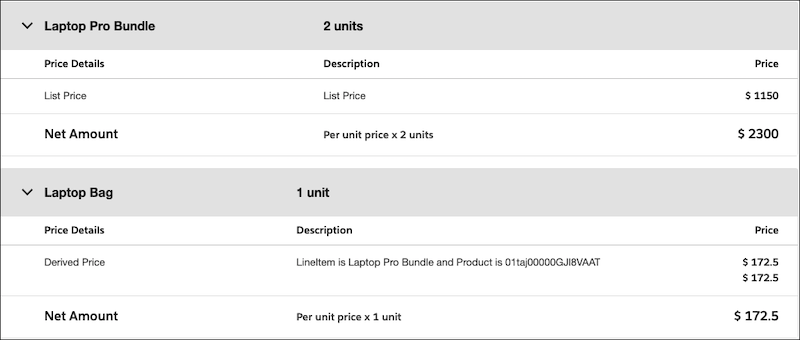
Let's calculate the price of a laptop bag when a user purchases a Laptop Pro Bundle. Our pricing strategy is to tie the price of the laptop bag to the Laptop Pro Bundle. We'll price the laptop at 10% of the Laptop Pro Bundle's price.
Create Derived Products
Before you begin, remember these key pieces of information.
- The derived and source products must belong to the same price book. In our example, we’re using the predefined Standard Price Book.
- If you select Header (Quote Line) as your pricing source, you don’t need to provide a source product. You can calculate the derived price of a product from the total cart values.
- From the App Launcher, find and select Products.
- Under the Product Name, click Laptop Bag.
- On the Related tab, under Price Books, select Add Standard Price.
-
Specify these details.
- Is Derived: Selected
- List Price: $0.00
- Product Selling Model: Evergreen Yearly
- Save your changes.
Create Derived Price Record
To determine the formula used to calculate the derived price of a product, you’ll need to create derived price records. The pricing data from the derived price records is stored in the Derived Pricing Entries decision table.
- From the App Launcher, find and select Derived Prices.
- Click New.
-
On the New Derived Price page, specify these details:
- Derived Pricing Scope: Transactional
- Pricing Source: Product
- Price Book: Standard Price Book
- Derived Product: Laptop Bag
- Source Product: Laptop Pro Bundle
- Formula: ListPrice * 0.10
- Effective From: 01-01-2025
- Save your changes.

Refresh the Derived Pricing Entries and the Price Book Entries V2 decision tables to ensure that the derived pricing records are available for pricing.
Configure Your Discovery Procedure
- From the App Launcher, find and select Discovery Procedures.
- Select the Default Discovery Procedure.
- Delete the Asset Discovery element. Since our scenario is transactional, we don’t need this element.
-
Save the discovery procedure as new discovery procedure and provide a name.
For our example, you can name your discovery procedure as Discovery Procedure for Derived Pricing.
- Click Simulate.
-
Provide your input values.
Remember that the Laptop Pro Bundle's DerivedPricingAttribute field must be set to false, because it is the source product. The Laptop Bag's DerivedPricingAttribute fields must be set to true because we’ll derive it's price from the source product.
You’ll not see the results in waterfall view. The purpose of simulating the discovery procedure is to fetch all the contributing factors and write them back into the context definition.
Create a Pricing Procedure for Derived Price
- Create a pricing procedure. To create a pricing procedure, follow the first 5 steps in Configure Your Pricing Procedure.
-
Click
 to add the Pricing Setting element and map these variables.
- Input Variables
- Line Item: LineItem
- Is Derived: DerivedPricingAttribute
- Output Variables
- Price Waterfall: price_water_fall
- Net Unit Price: NetUnitPrice.
- Subtotal: ItemNetTotalPrice
- Input Variables
-
Add the List Price element to fetch the base price of the product.
Under Lookup Table Details, select the Price Book Entries V2 decision table and map these variables.
- Input Rule Variables
- Product: Product
- Price Book: PriceBooks
- Product Selling Model: ProductSellingModel
- Input Variables
- Quantity: LineItemQuantity
- Output Variables
- List Price: ListPrice
- Subtotal: ItemNetTotalPrice
- Input Rule Variables
-
Add the Derived Price element to calculate the derived price. Map these input variables.
- Quantity: LineItemQuantity
- Contributing Net Unit Price: ContributorUnitPrice
- Contributing Sub Total: ContributorTotalPrice
- Contributing Source: ContributorSource
- Contributing Scope: ContributorScope
- Transactional List Price: ListPrice
- Non-Transactional List Price: ContributorListPrice
- Derived Formula: ContributorFormulaInput
- Contributor: Contributor
- Contributing Product: ContributorProduct
- Header Total: TotalAmount
-
Click
 and select Include in Output.
- Finally, set your preferences to set profile access and rank information.
- Save your procedure.
- Click Simulate to test your procedure.
-
Enter the input values for your contributor product (Laptop Pro Bundle) and the derived
product (Laptop Bag). Click Simulate again.
The price waterfall shows the Laptop Bag’s price was derived from the Laptop Pro Bundle, confirming that your procedure is working as expected.