You are here:
Roll Up Pricing Using the Aggregate Price Element
Calculate the total price of a group of products using the Roll Up Price option using the Aggregate Price element. When you enable roll up price, the element first determines the price of each child product, and then, adds the total to a parent product.
Required Editions
| Available in: Lightning Experience |
| Available in: Enterprise, Unlimited, and Developer Editions of Revenue Management (formerly Revenue Cloud) with the Revenue Cloud Growth license or the Revenue Cloud Advanced license. |
| User Permissions Needed | |
|---|---|
| To create, update, and delete pricing procedures: | Salesforce Pricing Design Time |
Let's look at a scenario where we want to roll up the prices of individual (child) products into the parent product of a bundle. With the Roll Up Price feature, we can determine the total price of the entire bundle, both child and parent products, using the Aggregate element. Here, the parent bundle is LaptopPro bundle and the child products are laptop and mouse.

- Configure a pricing procedure.
-
Click
 to add the Pricing Setting element and map these variables.
- Input Variables
- Line Item: LineItem
- Output Variables
- Price Waterfall: price_water_fall
- Net Unit Price: NetUnitPrice.
- Subtotal: ItemNetTotalPrice
- Input Variables
-
Add the List Price element to fetch the base price of the product.
Under Lookup Table Details, select the Price Book Entries decision table and map these variables.
- Input Rule Variables
- Product: Product
- Price Book: PriceBooks
- Product Selling Model: ProductSellingModel
- Input Variables
- Quantity: LineItemQuantity
- Output Variables
- List Price: ListPrice
- Subtotal: ItemNetTotalPrice
- Input Rule Variables
- Add the Aggregate Price element.
- Select Roll Up Price.
- Set the variable for the Parent Product as ParentReference.
-
Specify the formula variables.
- Formula: SUM (NetUnitPrice)
- Output Variable: ItemNetTotalPrice
-
Click
 and select Include in Output.
- Finally, set your preferences to view pricing information, profile access, and rank information.
- Save your procedure.
- Click Simulate to test your procedure. Enter the input values for your products and click Simulate again.
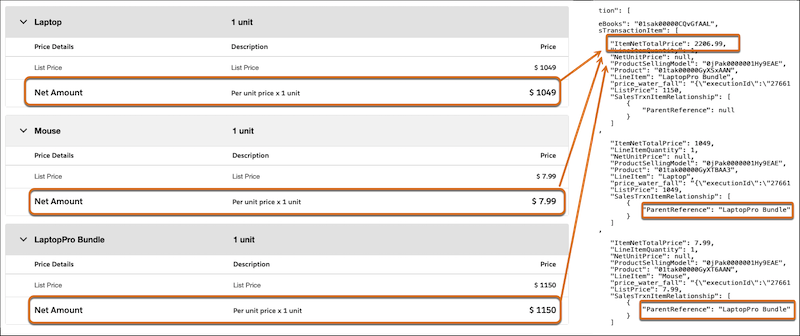
Aggregate pricing changes can't be viewed in the waterfall view. However, the JSON output provides insight into how the aggregate price of the bundle of products was calculated. Based on our example, the aggregate price of products belonging to the LaptopPro Bundle is the total price of the Laptop, the Mouse, and the Laptop Pro Bundle itself.
The sum of these products ($1,049 + $7.99 + $1,150) is stored in the ItemNetTotalPrice variable, which displays the amount as $2,206.99. This confirms that your procedure is working as expected.