
You are here:
Simulate and Activate Your Pricing Procedure
Test and validate that your pricing rules and values added to your pricing procedure return accurate results. If your procedure doesn’t work as expected, edit your values or variables, and try again. When you’re satisfied, activate your pricing procedure.
Required Editions
| Available in: Lightning Experience |
| Available in: Enterprise, Unlimited, and Developer Editions of Revenue Management (formerly Revenue Cloud) with the Revenue Cloud Growth license or the Revenue Cloud Advanced license. |
| User Permissions Needed | |
|---|---|
| To create, update, and delete pricing procedures: | Salesforce Pricing Design Time User |
| To use pricing procedures: | Salesforce Pricing Run Time User |
- Open a pricing procedure in the Pricing Procedure builder.
- Add your elements, map them to the appropriate tags, choose a rank, enable the option to include the output, and then save your pricing procedure.
-
Click Simulate.
To view the Simulate button, users may need to deactivate, save, and reactivate procedures that include List Price or Price Adjustment Matrix elements.
-
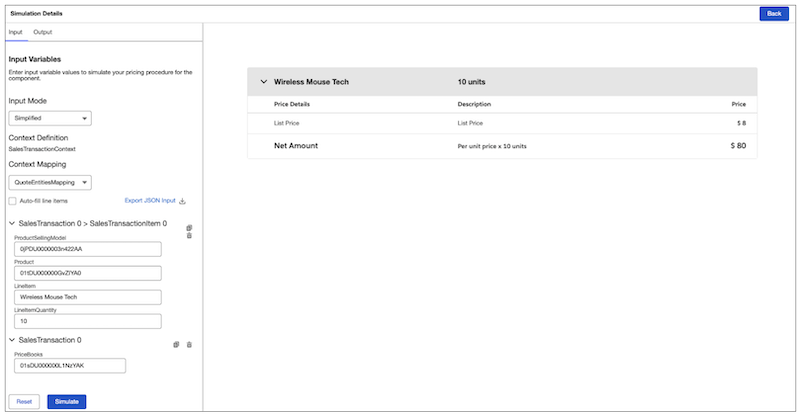
Select an input mode to pass simulation data to the pricing procedure.
- Simplified: Enter values for the variables defined in the pricing procedure.
- Advanced: Enter the values for the variables in JSON format in the JSON Input box. Modify the values directly or download the JSON input file, modify its values, and paste it back in the box.
- To verify if the pricing procedure can be simulated with various context definition data, select a context definition from the list.
-
If you want to pass line item details automatically as input variables, select
Auto-fill line items and provide the object ID.
 Note Only tags with sObject mapping and a corresponding field value in the record will auto-fill the line items.
 -
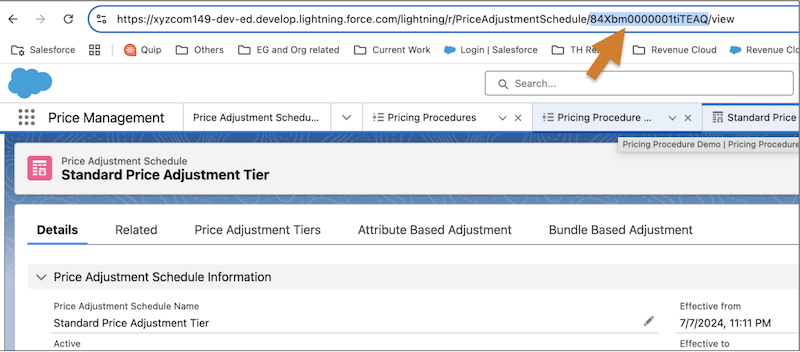
You can locate the value of your variable by going to the associated record. For
example, to locate a price adjustment schedule ID, open the price adjustment schedule
record page. The price adjustment schedule ID is shown in the browser’s URL.
-
If you make more edits, click Simulate again.
The Waterfall View shows every step of the pricing calculation from the list price, the discounts applied, and the changes or taxes on the product to arrive at its final net price. If you’ve set up profile access, only the profiles that you selected at the element-level can see the pricing information displayed.
-
When you’re happy with the simulation result, click
Activate.
Did this article solve your issue?
Let us know so we can improve!
