
You are here:
Product Relationship Management in Revenue Management
Bundle products consist of components such as groups, products, and product classifications. These components are related to each other through product relationships.
Required Editions
| View supported products and editions. |
The first product in a product hierarchy is the root product (1). All components added to the root product are its children (2).
A root product can have multiple root groups or multiple products as its immediate level-one child components. A root group can have either multiple child groups, or multiple products, or a single product classification component as its immediate child component.
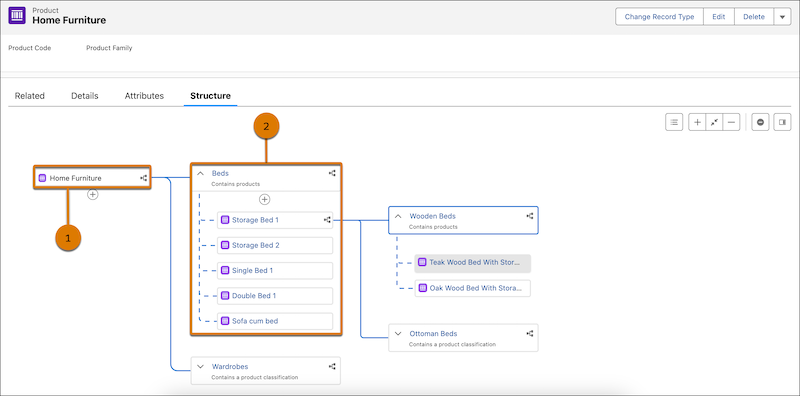
You define a Product Relationship Type when you add a product or a product classification component to a bundle.
Specify Component Detail Fields

| Field | Description |
|---|---|
| Child Product | The name of the child product that you add to the bundle. This field is empty when you add a product classification to a group. |
| Child Product Classification | The name of the product classification that you add to a group. This field is empty when you add products to a group. |
| Sequence | The display order of the product in the run-time cart |
| Quantity | The default quantity of the product or products based on the product classification in the run-time cart |
| Product Relationship Type | When you add a product, the product relationship type is Bundle to Bundle Component Relationship. When you add a product classification, the product relationship type is Bundle to Product Classification Component Relationship |
| Group | The group under which you add the product or product classification |
| Require this component | To make the product a required component in the bundle, select Require this component. Ensure that Require this component is deselected for product classification components. |
| Include component by default | To include the product in the bundle by default, select Include component by default. Ensure that Include component by default is deselected for product classification components. |
| Allow Quantity Changes | To allow users to change product quantities during run time, select Allow quantity changes. If Allow Quantity Changes is deselected, you can’t enter a minimum and maximum quantity |
| Min Quantity | The minimum number of products that you can select in the bundle at run time |
| Max Quantity | The maximum number of products that you can select in the bundle at run time |
Additional Product-Related Component Fields
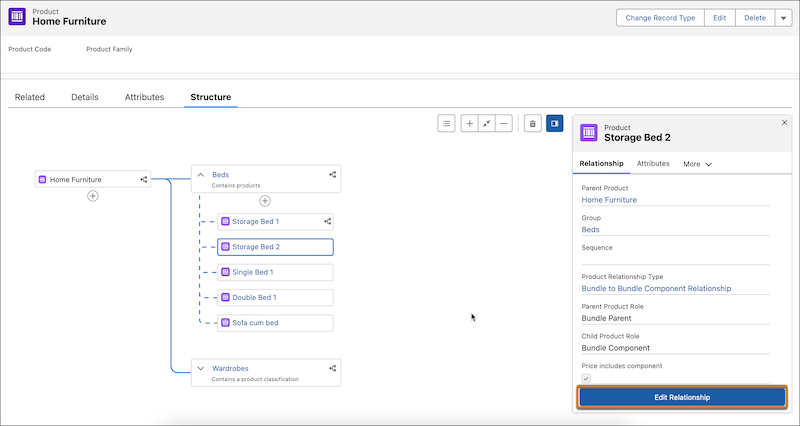
To edit the product relationship, click the product tile from the Structure tab and click Edit Relationship under the Relationship tab in the right pane.
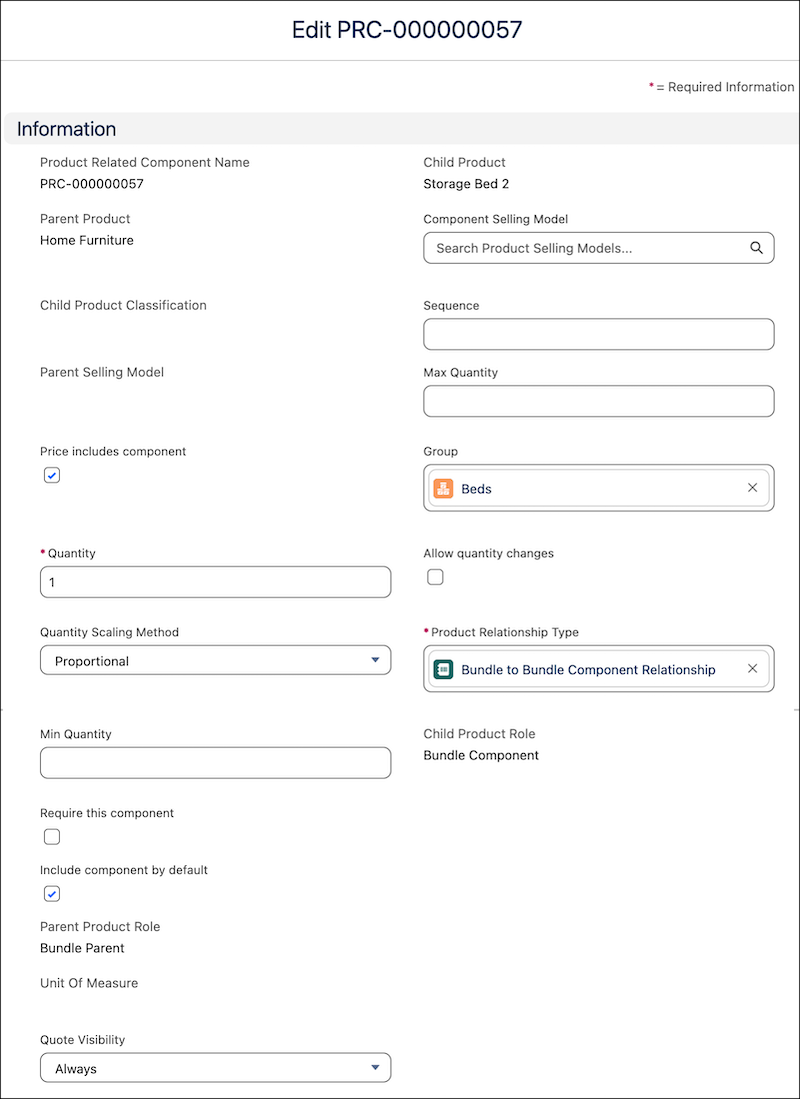
| Field | Description |
|---|---|
| Component Selling Model |
|
| Quantity Scaling Method | Defines how the child product quantity changes as the quantity of the parent product changes in the runtime cart. This field can have these values:
|
| Quote Visibility | The value in this field controls whether a child product is shown in Transaction Line Editor, quote documents, both, or neither:
If you don’t select a value, child products appear in quotes and quote documents. If you hide a bundled product, its child products are also hidden. If you show a bundled product, its child products are shown based on their individual visibility settings. |

- When the Quantity Scaling Method is Constant or Default, child product quantities are read-only in the runtime cart, even for legacy products where Allow Quantity Changes is selected. To enable edits, change the scaling method to None or Proportional.
- When the Quantity Scaling Method is Proportional and Allow Quantity Changes is enabled, child product quantities are editable only in the configurator during new sales. The quantity field is read-only in the sales transaction line editor because it displays the final calculated quantity stored on the quote line item, not the editable per-parent unit quantity.
- When the Quantity Scaling Method is Proportional and Allow Quantity Changes is enabled, child product quantities are read-only in the configurator during Amend, Renew, or Cancel transactions. The original parent-to-child ratio remains fixed throughout the asset lifecycle. To adjust the child product quantity, change the parent product's quantity instead. The child quantity updates proportionally.
