You are here:
Configuration Rules in Business Rules Engine
Configuration rules streamline the product configuration experience and reduce configuration errors.
Required Editions
| Available in: Lightning Experience |
| Available in: Enterprise, Unlimited, and Developer Editions of Revenue Management (formerly Revenue Cloud) with the Revenue Cloud Growth license or the Revenue Cloud Advanced license |
Rule Scope
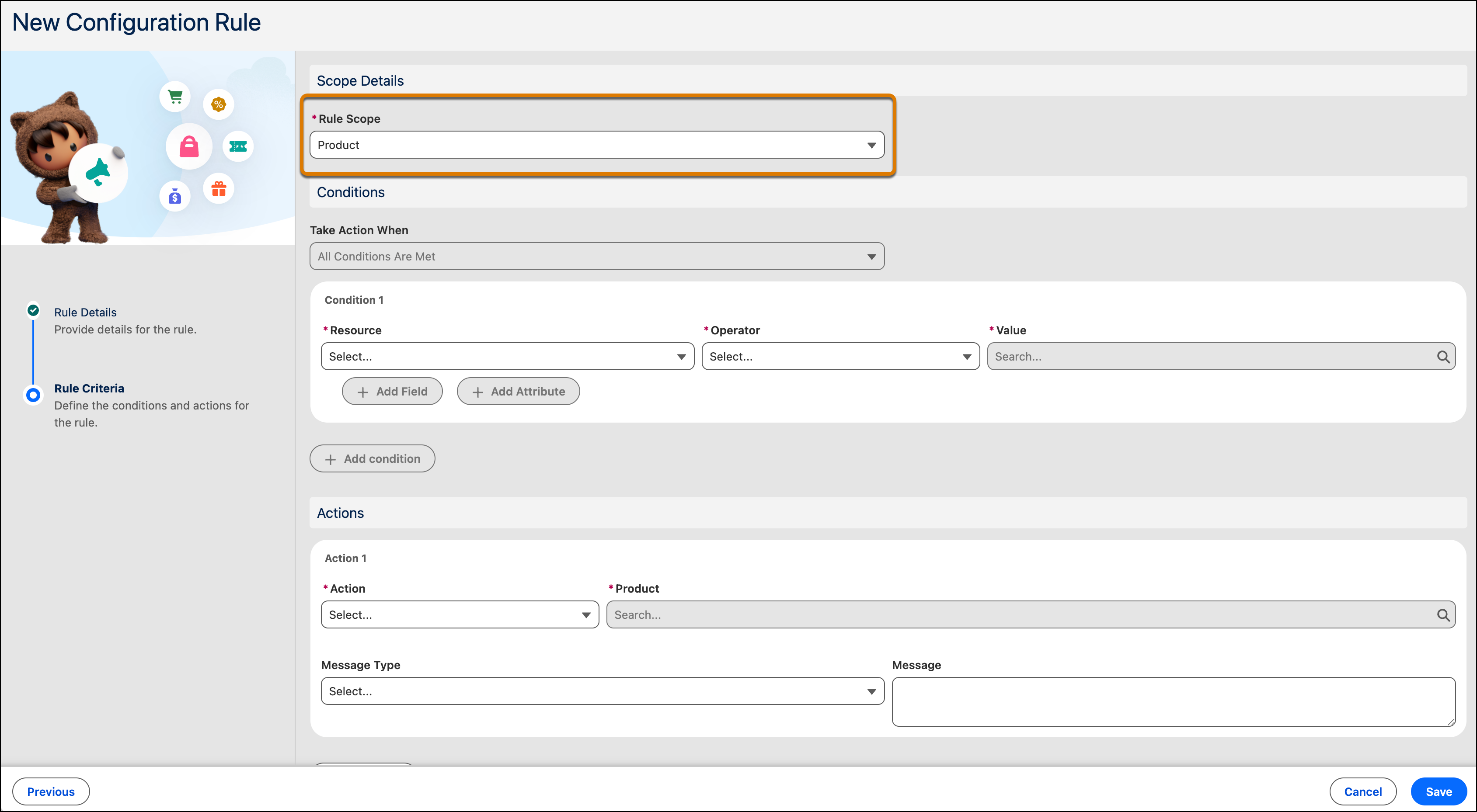
You can apply configuration rules at three levels.
- When the rule scope is Product, the rule applies to the attributes of a single product, irrespective of its hierarchy in the quote or order.
- When the rule scope is Bundle, the rule applies to all the child products within the root product of a bundle.
- When the rule scope is Transaction, the configuration rule applies across all the line items in a transaction, such as a quote or an order.
For example, you create a transaction-level rule stating that the Standard Warranty product can't be included with the Premium Support Package product in the same order or quote. Your quote includes the Server Configuration bundle and the Network Equipment bundle. The Network Equipment bundle contains the Premium Support Package product. So, if a sales rep tries to add the Standard Warranty product to the Server Configuration bundle, a warning appears because the Standard Warranty and Premium Support Package can't be in the same quote.
Actions
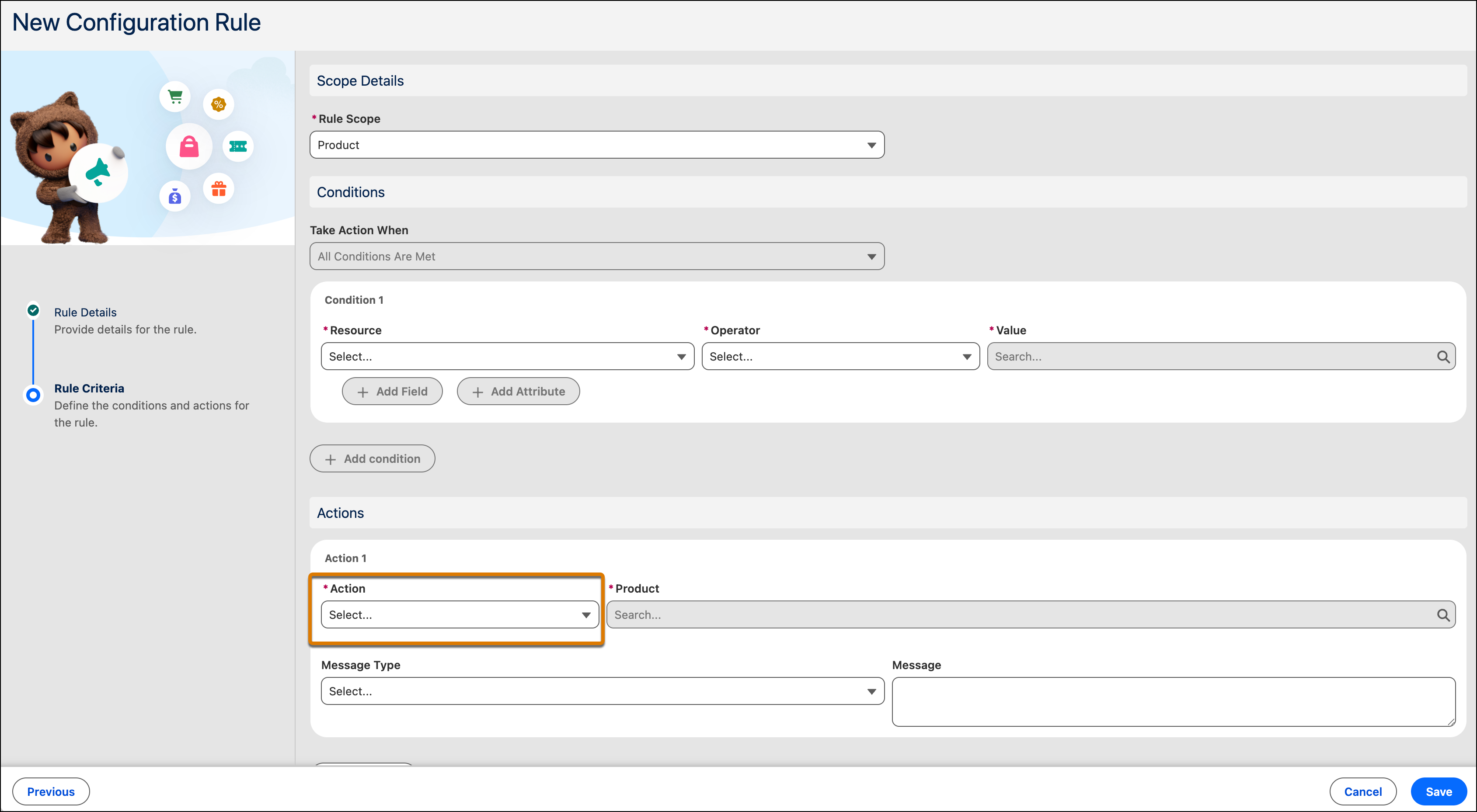
Product Configurator supports different actions based on the rule scope of the configuration rule.
| Action | Description | Rule Scope | Example |
|---|---|---|---|
| Auto-Add | Automatically add a product to the bundle when the rule runs. | Bundle, Transaction | If a sales rep adds 5 laptops and the customer is a gold status customer, then automatically add a keyboard. |
| Auto-Remove | Automatically remove a product from the bundle when the rule runs. | Bundle, Transaction | If a sales rep selects a laptop with Refurbished as the type, then automatically remove the 1 Year Warranty product. |
| Disable Product | Disable the product from the user interface when the rule runs. | Bundle | If a sales rep selects a laptop with Basic as the configuration type, then disable the 1 Year Warranty product. |
| Disable Attribute Value | Disable one or more attribute values from the user interface when the rule runs. | Product, Bundle | If a sales rep selects a laptop with Basic as the configuration type, then disable the Wireless value for the Mouse attribute. |
| Exclude | Exclude a product along with its attributes and show a message to the user. | Bundle, Transaction | Sales reps can't select USB-C chargers when they select Micro-USB phones in a bundle. |
| Hide Product | Hide the product from the user interface when the rule runs. | Bundle | If a sales rep selects a laptop with Basic as the configuration type, then hide the 1-Year Warranty product. |
| Hide Attribute | Hide the attribute from the user interface when the rule runs. | Product, Bundle | If a sales rep selects a laptop with Basic as the configuration type, then hide the Storage attribute. |
| Hide Attribute Value | Hide one or more attribute values from the user interface when the rule runs. | Product, Bundle | If a sales rep selects a laptop with Basic as the configuration type, then hide the Wireless value for the Mouse attribute. |
| Require | Include a product along with its attributes and show a message to the user. | Bundle, Transaction | Sales reps user must select a specific ink cartridge when they select a specific printer as part of the printer bundle. |
| Set Attribute | Set one or more attributes of a product to the appropriate value. | Product, Bundle | If a sales rep selects a laptop with Advanced as the configuration type, then set the value of the Power Adapter attribute to 96 W. |
| Set Quantity | Set the quantity of a product to a certain numerical value. | Product, Bundle | If a sales rep selects a limited edition laptop, then automatically set the quantity of the product to 1. |
| Set Default Attribute | Set a default attribute for a product. | Product | If a sales rep selects a laptop, then select the 15-inch display by default in the display option group. Users can still choose the 13-inch or 17-inch display. |
| Set Default Attribute Value | Set a default value for a specific attribute of a product. | Bundle | If a sales rep selects a laptop bundle, then automatically set the RAM attribute to a default value of 16GB. |
| Set Default Product | Set a product within a bundle to be automatically included when the user adds the bundle. This configuration is useful to make sure that a preferred product is selected by default. | Bundle | If a sales rep selects a laptop pro bundle, then automatically include the Premium Support product in the bundle by default. |
| Validate | Validate whether a product and its attributes are correctly configured and show a message to the user. | Product, Bundle, Transaction | If a sales rep selects a laptop of brand Apex as part of a laptop bundle, then the docking station must be brand Vertex, and the headphones must be brand SoundPro. If the bundled product doesn't meet these criteria, then the user sees a validation error message. |
You eliminate fallout due to faulty product configurations when you use the validation, exclusion, and require rules. A perfect product configuration ensures accurate quotes and orders, and a smooth customer experience.
Messages
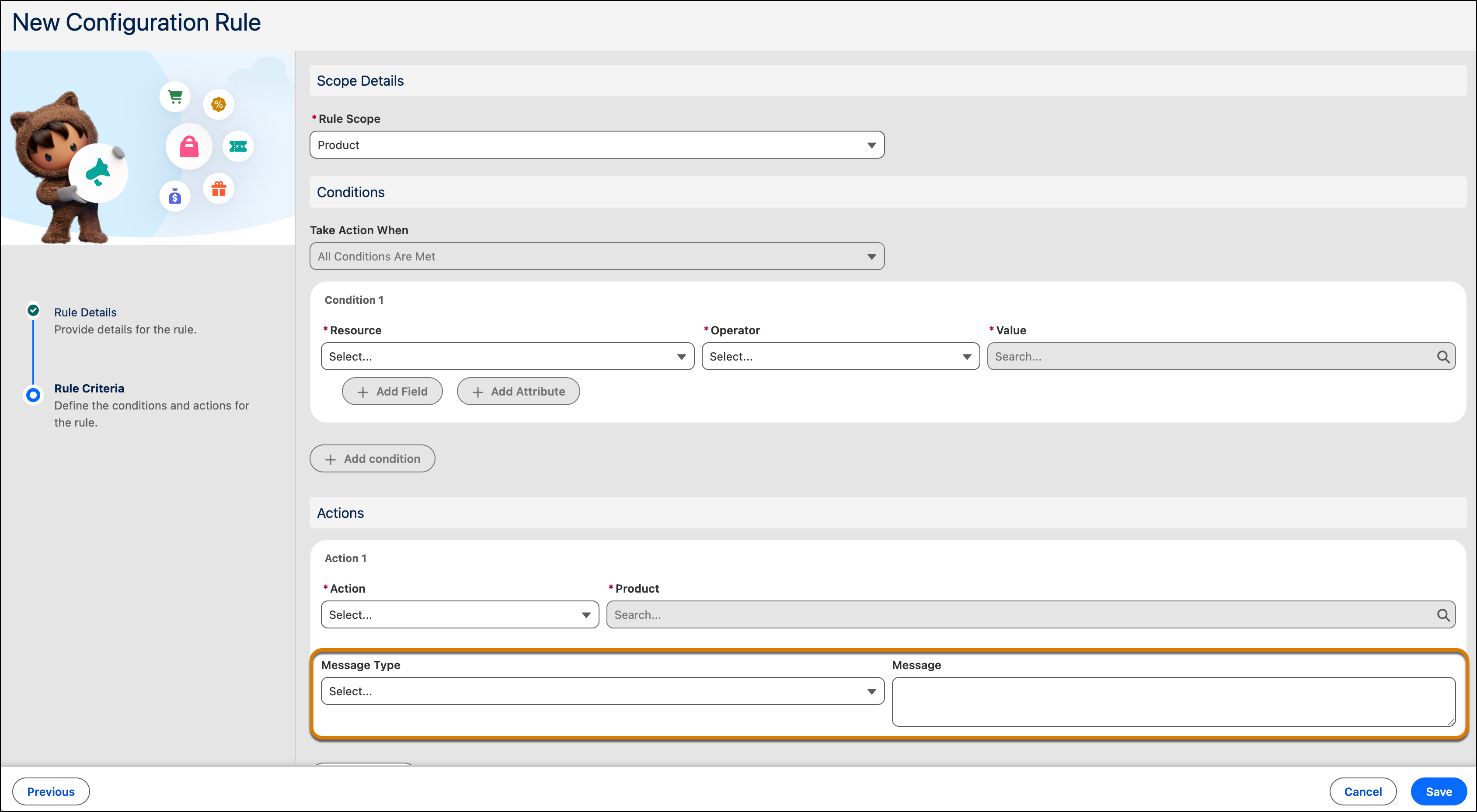
When you set up configuration rules, you can also define the messages that your sales reps see when the rule runs. Your sales reps can use the messages to rectify product selections and significantly reduce the time to market of the product.