
You are here:
Configure Bundled Products
Configure a bundled product to update the quantity of products, and view the default options within option groups and the default values of attributes. You can select attributes for the parent bundle and child products.
Required Editions
| Available in: Lightning Experience |
| Available in: Enterprise, Unlimited, and Developer Editions of Revenue Management (formerly Revenue Cloud) with the Revenue Cloud Growth license or the Revenue Cloud Advanced license |
| User Permissions Needed | |
|---|---|
| To configure a product: | Product Configurator |

Note When you create a configuration rule on a product bundle to apply on a product, such as
adding the product to the bundle, the configuration rule fails if the product has default
attribute values that prevent the user from configuring the product.
Note If you amend and cancel a child product, the line item quantity doesn’t update.
- From the App Launcher, find and select Quotes or Orders.
-
From the list view, open the record that contains the line item that you want to
configure.
If necessary, edit the record to change the transaction type. The selected type determines which rules engine runs product configuration rules. The Transaction Type field is available only if Transaction processing for quotes and orders is turned on.
-
To view the line item that you want to configure, perform one of these actions based on
your selection.
- On the quote record details page, go to the Quote Line Items tab.
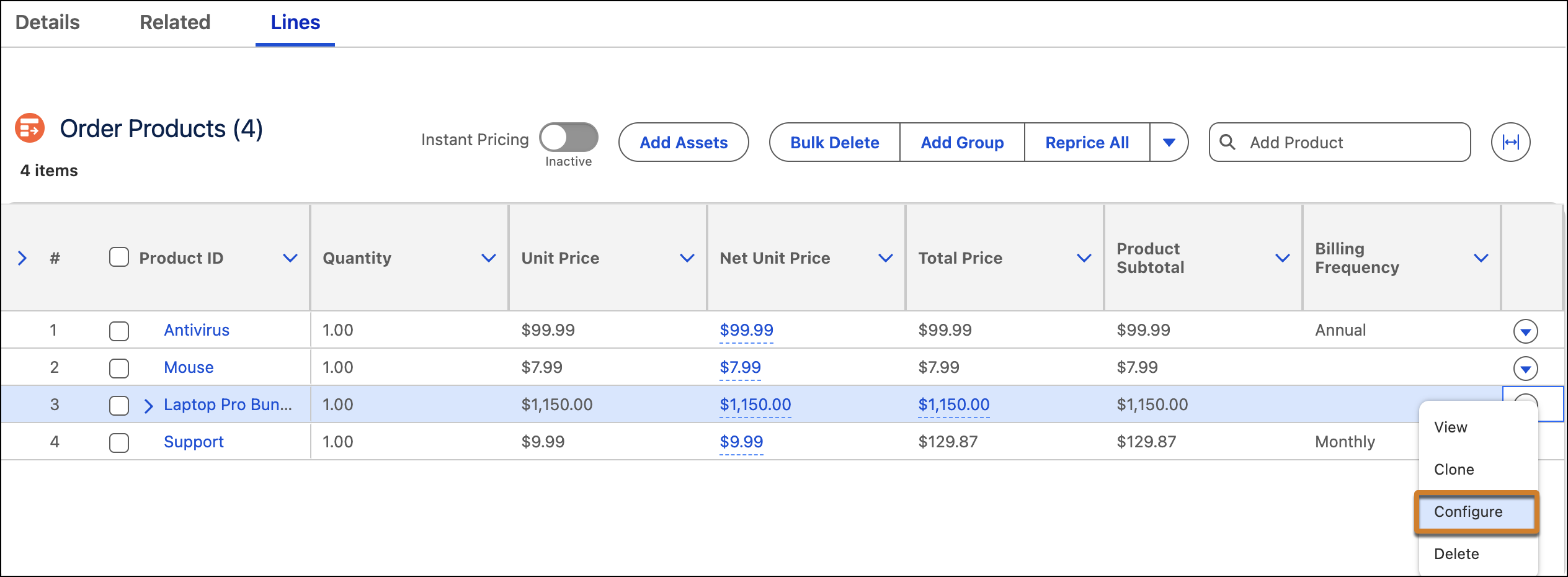
- On the order record details page, go to the Lines tab.
-
From the quick action menu of the line item that you want to configure, select
Configure.
The Product Configurator appears.
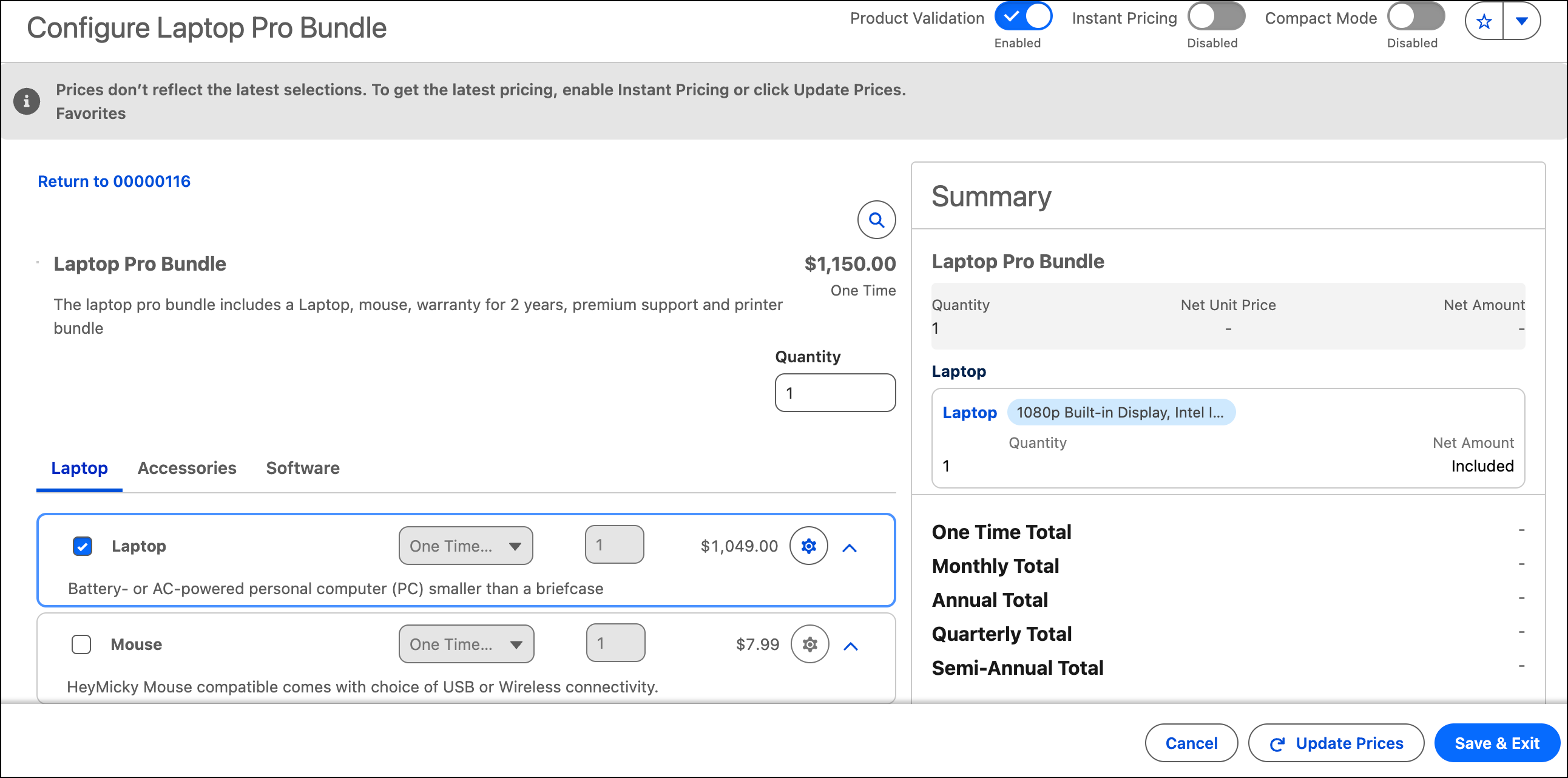
- To reduce screen clutter and see key information at a glance, turn on Compact Mode.
-
Configure the product by using one of these methods.
- To reuse a saved configuration, click
 , and then select Load Configuration. From the list of
saved configurations, select the configuration that you want to load. See Save and Reuse Configurations.
, and then select Load Configuration. From the list of
saved configurations, select the configuration that you want to load. See Save and Reuse Configurations.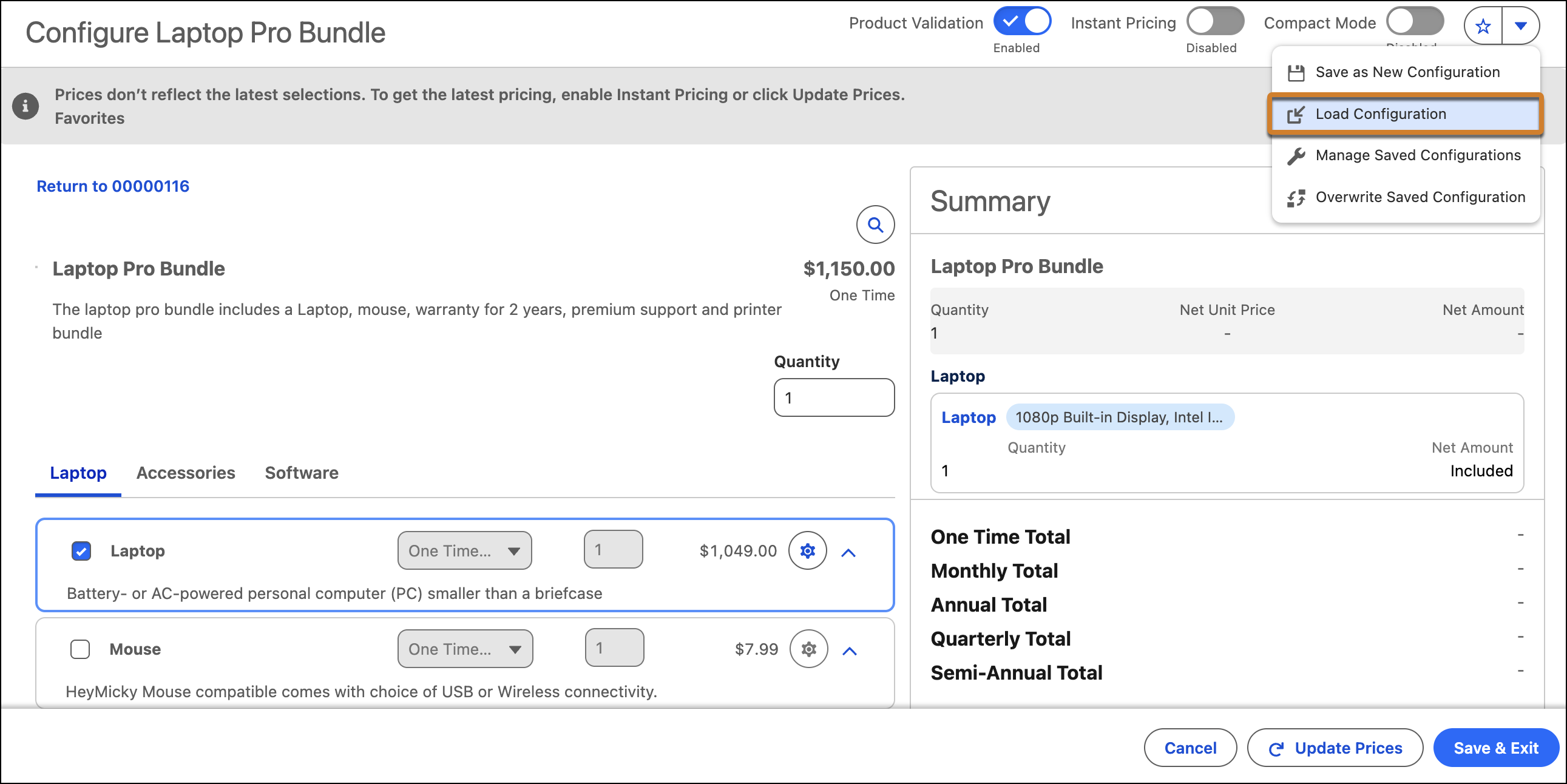
- Specify the configuration manually.
- To reuse a saved configuration, click
-
Add products dynamically to the configuration.
-
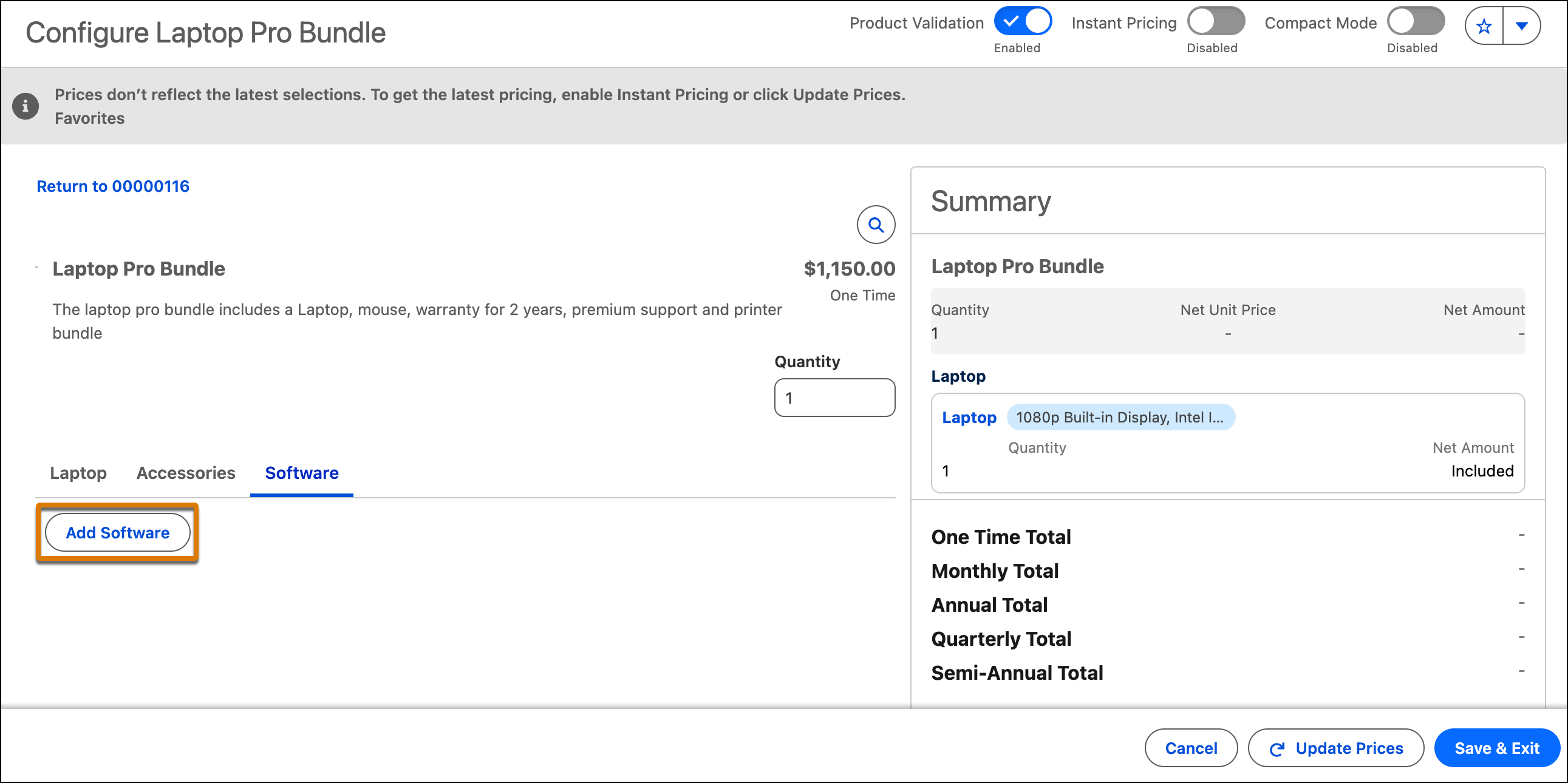
From the product component group tab that you want to add products from, click
Add <Product Component Group Name>.
-
Select the products, specify the number of instances you want to add for each
product, and then click Add.
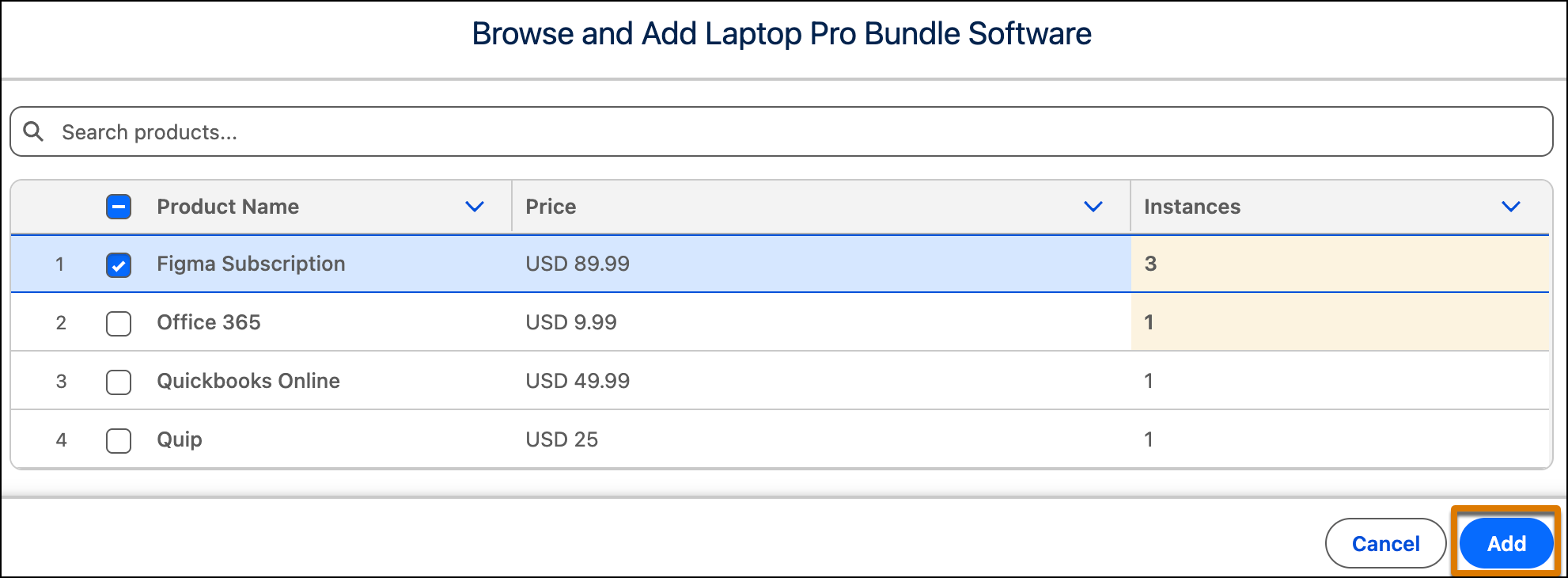
You can add the same product multiple times with a unique name attribute identifier.
-
From the product component group tab that you want to add products from, click
Add <Product Component Group Name>.
-
If you've added a product dynamically and want to create multiple instances with the
current configuration, use one of these options.
- Click Select <Product Component Group Name>, select the products, specify the number of instances that you want to create for each, and then click Add.
- Click Clone on the respective product option card, specify the number of instances you want to create, and then click Clone.
For the Clone option to appear, your Salesforce admin must update the product configuration flow with the Display Clone Option attribute of the Input type on the Product Configurator Option Groups flow component.
On cloning the product, its quantity isn’t cloned.
Note Product Configurator doesn't persist state. If you deselect a child product after
configuration and then reselect it, the system creates a new quote or order line item with
default values. It doesn't restore the previous configuration.

Example Configure a Laptop Pro bundle with Laptop as the parent product, and Mouse, Printer
Bundle, and Warranty as the child products. Update the quantity of the bundle, and editable
attributes of the parent and child products. For Laptop, if the available attribute groups
include display, graphics, processor, storage, and memory, choose a display with the perfect
size and resolution, pick a processor for your needs, select the graphics card, and find the
storage and memory that match your requirements.
Did this article solve your issue?
Let us know so we can improve!
