You are here:
Variables, Relationships, and Associations in Constraint Models
To define how a constraint model configures products, create variables, relationships, and associations for the constraint model.
Required Editions
| Available in: Lightning Experience |
| Available in: Enterprise, Unlimited, and Developer Editions of Revenue Management (formerly Revenue Cloud) with the Revenue Cloud Growth license or the Revenue Cloud Advanced license |
Constraint models use constraint modeling language (CML) to define variables, relatioships, and associations. For more information on CML, see the Constraint Modeling Language (CML) User Guide.
Variables
Variables are the properties or characteristics that you define within a type. Variables can hold different kinds of data, such as strings, numbers, or lists. You can also calculate variables from other values. A variable can be a product attribute, a sales transaction item such as a product on an order, or a sales transaction such as an order or a cart. You can also create a custom variable.
Create a standalone variable and select a data type and a value type to define the variable. For decimal or double data types, select a scale. You can also apply an automatically generated variable and select a reference library and a product to define the variable.
Relationships
Define a relationship between types to make one type a child of another. The child inherits the constraints and rules that are applied to the parent. For example, to create a type for a laptop bundle that includes a laptop, a mouse, and a keyboard, create relationships to make the laptop, mouse, and keyboard children of the laptop bundle.
In the Import Relationships window, select a reference library and product to see the automatically generated relationships available for the product. To import relationships without the product component group structure from PCM, turn off the Import with Product Component Groups option. Select the product relationships you want to import to make them child types of the selected type.

Associations
Assocations are required in constraint models. Create an association to connect a type with a product record. Use associations to connect a constraint model to a product, product classification, or product component group in your product catalog. For example, create an association between a type called laptop and the laptop product in your catalog, so that the constraint model in the type applies to the product in the Configurator.
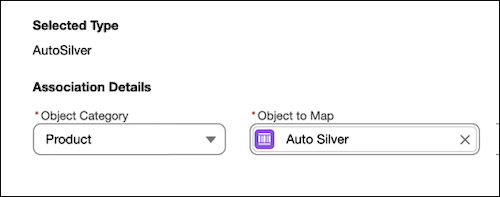
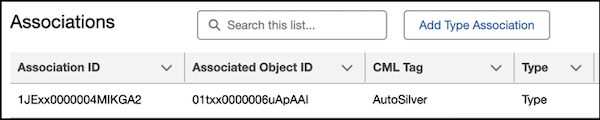
To create a type association, in the Add Type Association window, select the object category (product, product classification, or product component group), and then select the product record that you want to connect to the type. After you create the type association, the type association data table displays the ID for the type and the associated product record.
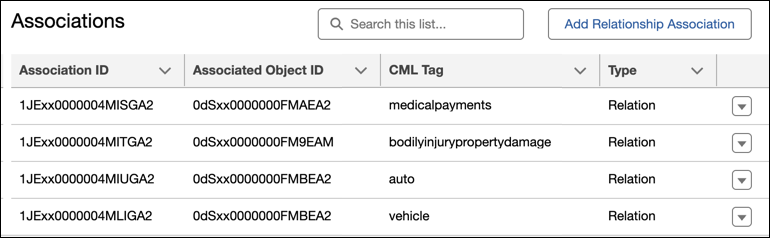
With relationship associations, you can connect a relationship of the type you’re modifying to a product or product classification within a bundle in the catalog. In the Add Relationship Association window, select the type relationship (one of the types that has a relationship with the type you're modifying). Then, select a product or product classification from the bundle for the type you’re modifying. After you create a relationship association, the relationship association data table displays the ID for the type relationship and the associated product records.