
You are here:
Configure Editable Context Fields for Product Option Cards
Enable sales reps to edit context fields directly from the product option cards during bundle configurations. Context fields are derived from the configured context definition and differ from product attribute fields.
Required Editions
| Available in: Lightning Experience |
| Available in: Enterprise, Unlimited, and Developer Editions of Revenue Management (formerly Revenue Cloud) with the Revenue Cloud Growth license or the Revenue Cloud Advanced license |
| User Permissions Needed | |
|---|---|
| To create and edit a product configuration flow: | Product Configurator |
Before you select the context fields to be shown on the product option cards, verify that these fields are mapped to an object field and that the object field is editable. Only the context fields that meet this criteria are editable in Product Configurator.
Verify Object Mapping for Editable Context Fields
- From Setup, in the Quick Find box, enter Context Service, and then select Context Definitions.
- Open the extended SalesTransactionContext context definition that's configured for your default pricing procedure, and go to the Map Data tab.
- From the quick action menu of QuoteEntitiesMapping, select Edit SObject Mapping, and then click Map.
- Make sure that you are on the Object Mapping tab, and then select the SalesTransactionItem node.
- From the list of mapped attributes, search for the attribute that you want to add to the product option cards and check if it’s mapped to an object field.
-
Go to the object management settings for the mapped field’s object and verify that the field is
editable.
To make a context field non-editable on the option card, you can revoke edit access for the mapped field.

Note If a context field is mapped to an object field with a different data type, Configurator
ignores the data type of the object field that's defined in the Object Manager. Instead,
Configurator uses the data type defined for the context field in the context definition.
Select a Context Definition and Add Context Fields
- From Setup, in the Quick Find box, enter Flow, and then select Flows.
- Open your product configurator flow.
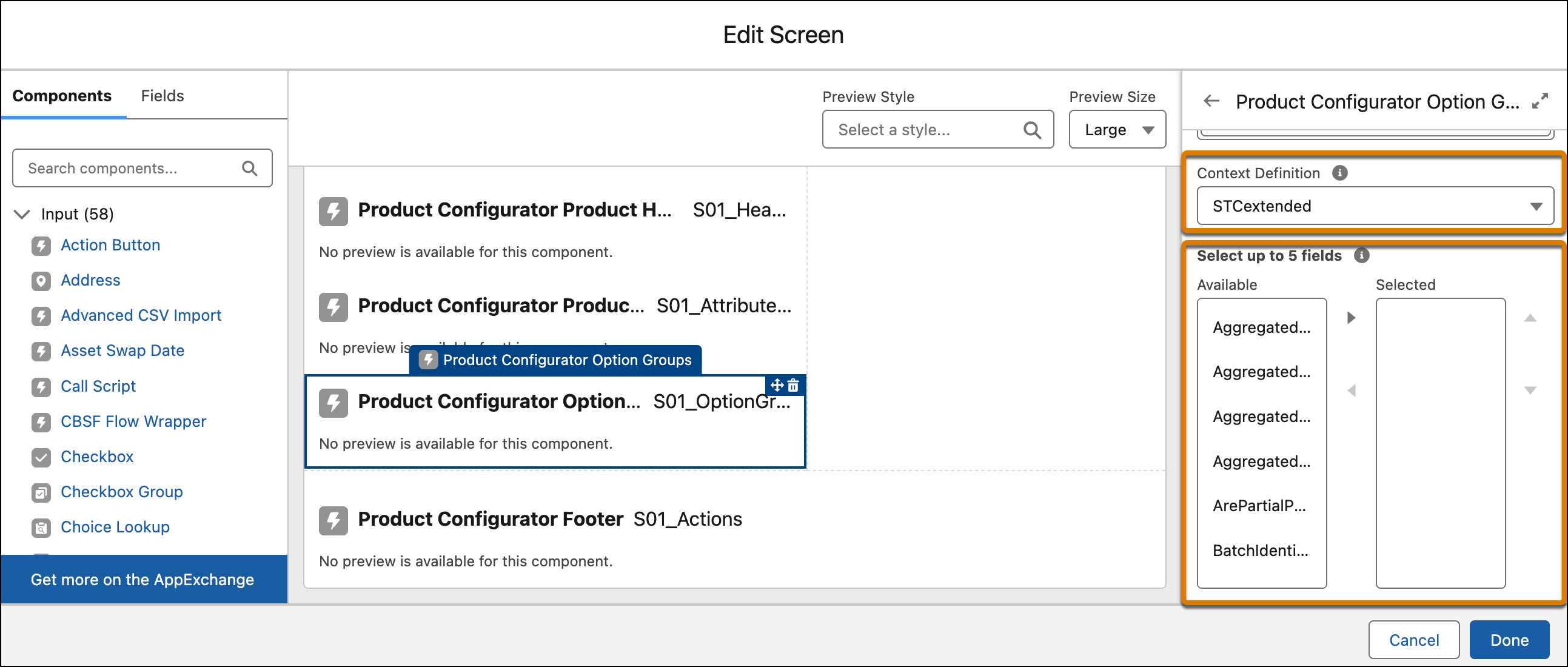
- Edit the screen element and select the Product Configurator Option Groups component.
- For the Context Definition attribute, select the extended SalesTransactionContext context definition that's configured for your default pricing procedure.
-
Add the context fields that you want to show on the product option card.
You can add 10 context fields in total.
-
Select up to 5 context fields from the first Available fields section. These fields
appear on the first row of the option card.
- Additionally, you can select 5 more context fields from the second Available fields section. These fields appear on the second row of the product option card.
The Name, Quantity, Product Selling Model, and Price fields have fixed positions and always appear on top of the option card, regardless of the Available fields section from which you add them in the flow setup. Name is a mandatory field and is always displayed. -
Select up to 5 context fields from the first Available fields section. These fields
appear on the first row of the option card.
- Save your changes and activate the flow.
Did this article solve your issue?
Let us know so we can improve!
