
You are here:
Find a Care Provider
Find the right physician or facility for a patient. You can search from an account record or from the Health Cloud console.
Required Editions
Available in: Lightning Experience Available in: Enterprise and Unlimited Editions with Health Cloud |
| User Permissions Needed | |
|---|---|
| To search for providers: | Health Cloud Provider Search or Health Cloud Provider Relationship Management permission set |
Your Salesforce admin customizes the Provider Search experience to suit your business requirements, so your search experience can vary.
-
Search for a provider by specifying a value in at least one search criteria field, for
example in the Provider Name, Facility Name, or Specialty field.
When you select one or more items in a search criteria dropdown list, the search results include providers who meet any of those items, not all of them. For example, if you select Pediatrics and Geriatrics in the Specialty list, search results include pediatricians, geriatric specialists, and providers who offer both specialties.
-
If your Salesforce admin configured Provider Search with grouping, aggregation, and
filters, narrow in on search results and then take action.
The actions available depend on your Provider Search configuration.
-
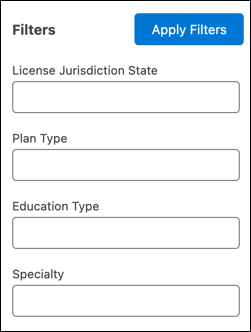
Specify grouping and aggregation values or filter field values. All filters are
optional.
If you select search result records and then apply new search criteria, filters, or sorting options, selected records in a list view are cleared.
-
Sort search results by up to three fields. To sort search results by distance, you
must enter a relative location.
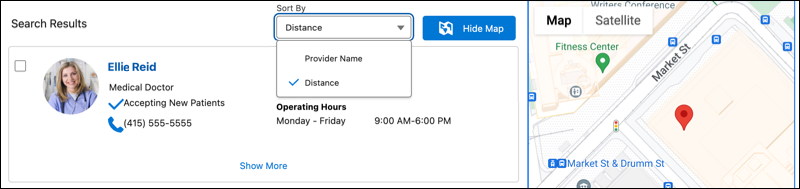
- To show a map of search results, click Show Map. To show essential details about a provider at a location, click a map marker. To switch back to a filter view, click Hide Map.
-
To share search results, select the providers and then click Copy
Records.
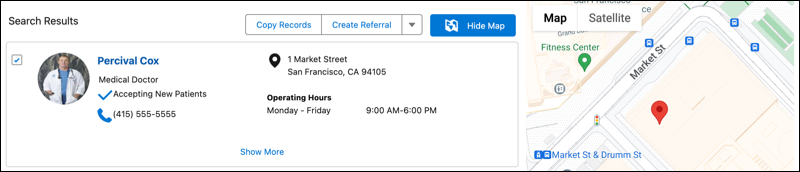
- To save search results, select the providers and then click Create Report. You can find the PDF report in Files and in the Notes & Attachments related list of the associated account or case record.
- To create a referral request, select the providers and then click Create Referral.
-
Specify grouping and aggregation values or filter field values. All filters are
optional.
-
If your Salesforce admin configured Provider Search with search criteria fields, review
the search results and then take action.
-
If your search criteria includes distance criteria, provide the patient's address
to see the distance from their address to each provider's location.
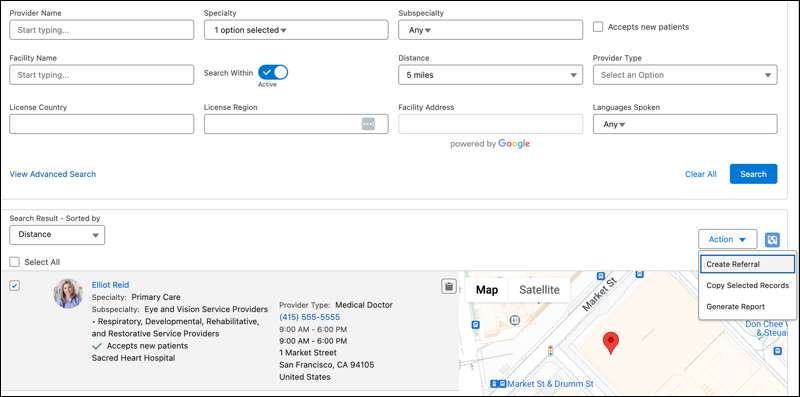
The distance is calculated as a straight line, but is modified using mapping data to show the driving distance. The search results display in order of driving distance rather than straight-line distance. As a result, a provider can appear sorted as further away, even if their straight-line distance is closer.Use the Search Within field to find providers within a specified distance from the patient’s address.If your Salesforce admin configured Provider Search with maps, when you click a provider in your search results, the map that appears alongside your search results highlights the provider location. Zoom in for more detail.
-
To share provider search results, select the providers and then click the
Copy Selected Records action. To copy a single record, click
 .
.
-
To generate a report of provider search results, select up to 50 records and then
click the Generate Report action. You can find the PDF report
in Files. On the account or case record page, find the generated report in the Notes
& Attachments related list of the associated account or case record. Download the
report or share it as needed.
If you run your search from a patient’s account record page, your results also indicate if the provider is in that patient’s insurance network.
-
If your search criteria includes distance criteria, provide the patient's address
to see the distance from their address to each provider's location.
Did this article solve your issue?
Let us know so we can improve!
