
You are here:
View and Assign Permission Sets in Public Sector
Understand permission sets in Public Sector (formerly Public Sector Solutions) and how to assign them to users.
Required Editions
| View supported product editions. |
| User Permissions Needed | |
|---|---|
| To view permission sets: | View Setup and Configuration |
| To assign permission sets: | Assign Permission Sets |
Permission sets give users access to objects and fields, custom metadata, and other app and system settings. Some permission sets include permission set licenses, which extend the functionality of a Salesforce user license and provide access to features and tools. Users need both the appropriate permission sets and permission set licenses to work in Public Sector.
The Salesforce platform, which underlies Public Sector, provides many base permission sets. Public Sector provides additional permission sets. The sets that are available in your org depend on the product solution and add-ons that you purchase. If you have questions about the permission sets in your org, contact your Salesforce account executive.
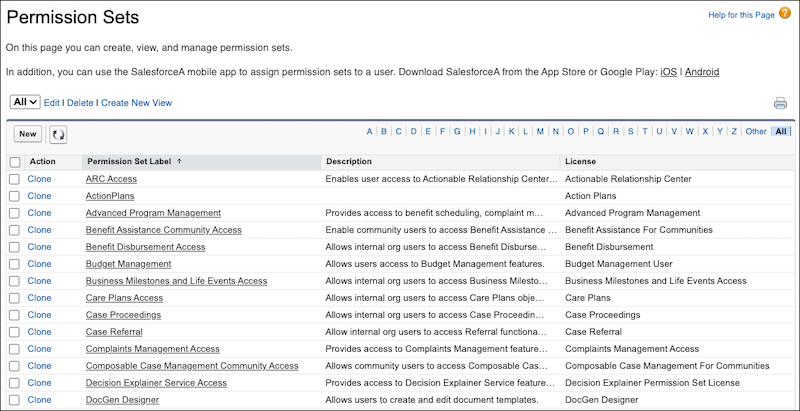
To see the permission sets in your org, from Setup, in the Quick Find box, search for and then select Permission Sets. The included permission set license shows in the right column. Click any permission set label to view the set’s details.
To assign a permission set:
- From Setup, in the Quick Find box, search for and then select Users.
- Select a user.
- In the Permission Set Assignments related list, click Edit Assignments.
- Select the permission set or sets that you want to assign, and then click Add.
- Save your changes.
When you assign a permission set to a user, they’re automatically assigned the included permission set license.

