
You are here:
Configure and Use the Account Page for Service Representatives in Public Sector Solutions
Efficiently resolve constituents' issues with an account Lightning record page that includes useful information and tools for caseworkers and service representatives.
Required Editions
| View supported product editions. |
| User Permissions Needed | |
|---|---|
| To set up the Account page for service representatives: | Customize Application AND Public Sector Service Excellence |
| To edit the Account page for service representatives: | Customize Application AND Public Sector Service Excellence AND Industry Service Excellence AND Interaction Summary |
| To use the Account page for service representatives: | Public Sector Service Excellence AND Industry Service Excellence AND Interaction Summary |
- Learn About the Page
Public Sector (formerly Public Sector Solutions) provides a Lightning record page that's designed to help caseworkers and others stay on top of relevant information and tasks so they can answer questions and resolve issues that constituents bring to their attention. The page, which is included in the Public Sector: License and Permit Management and Public Sector: Inspection Management apps, applies to both business and person accounts. It includes these components. - Enable the Page
Turn on the account Lightning record page that offers useful components for caseworkers and service representatives. - Customize the Page
Edit component properties and reposition, add, and remove components on the account Lightning record page for service representatives.
Learn About the Page
Public Sector (formerly Public Sector Solutions) provides a Lightning record page that's designed to help caseworkers and others stay on top of relevant information and tasks so they can answer questions and resolve issues that constituents bring to their attention. The page, which is included in the Public Sector: License and Permit Management and Public Sector: Inspection Management apps, applies to both business and person accounts. It includes these components.
- The Account card shows the account name, address, and phone number. Person accounts also include age and email (1).
- The Timeline shows related events, including cases, care plans, goal assignments, benefit assignments, and interaction summaries. Select a date range for the items in the Timeline, filter events by type, and change the sort order. To view details, click any item (2).
- Use the Action Launcher to quickly start relevant service actions, such as logging a call, creating a case, or creating a task (3).
- The Alerts component shows a list of pending record alerts for the account, which you can dismiss or snooze (4).
- A tabbed Lightning web component shows complete account details, relevant related lists, and interaction summaries of meetings and conversations (5).
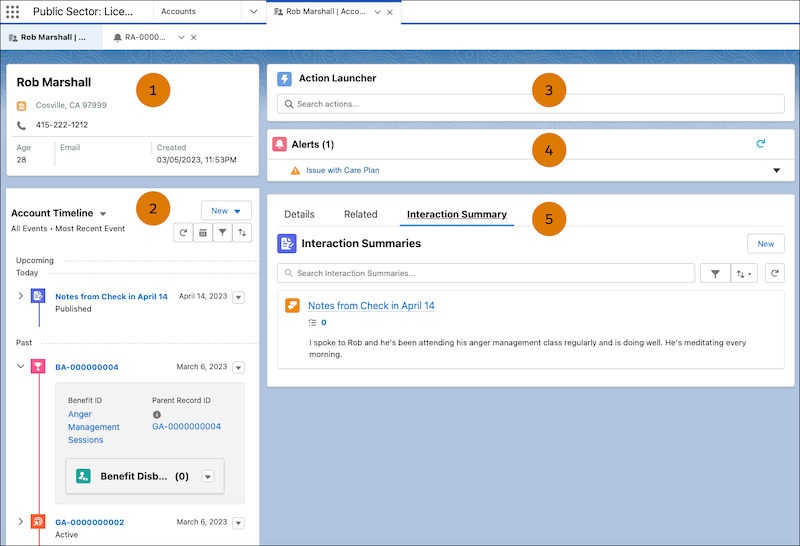
The page is all about taking action. Jot down notes from a call by creating an interaction summary. Create a care plan from the Timeline. Or open a case from the Action Launcher. Customize the properties of the components and which components show on the page to suit your agencies' needs.
Enable the Page
Turn on the account Lightning record page that offers useful components for caseworkers and service representatives.
- From Setup, in the Quick Find box, search for Public Sector and then select Service Excellence Settings.
-
To create and manage service features, click the toggle .
Public Sector enables the account Lightning record page for service representatives and creates a Timeline for it. The page appears by default for all business account records. To show the page by default for person accounts, complete these additional steps.
- From the App Launcher, find and select Accounts. Then, open any person account record.
-
Click
 and
select Edit Page.
and
select Edit Page.
- In the properties panel, rename the page. For example, for Label, enter Account Record Page for Service.
- Save the page and, when prompted, click Activate.
- Click Assign as Org Default and then click Close.
The account Lightning record page for service representatives is now the default for both business and person accounts. Because it's the org default, the page shows for accounts for all Public Sector apps.
Customize the Page
Edit component properties and reposition, add, and remove components on the account Lightning record page for service representatives.

-
On any account record page, click and select Edit
Page.
-
To change which events show in the Timeline, select it on the page canvas and then, in the
properties panel, under Timeline Configuration, click Select. Drag items to add or remove them
from the list.
To customize the Timeline further, edit it in Setup. Deactivate the Timeline, make your changes, and reactivate it. For more information, see Configure and Use Timeline in Public Sector.
- To change the actions that appear in the Action Launcher, select it on the page canvas and then, in the properties panel, select a deployment.
- To change the position of a component on the page, in the page canvas, drag it to a different location.
-
To remove a component, select it and then click
 .
.
- To add a component, select it in the Components panel and drag it to the page canvas.
- Save your changes.
