
You are here:
Create a Path for Application Approvals
Keep reviewers focused and on task by creating a path for application approvals in Public Sector Solutions.
Required Editions
| View supported product editions. |
| User Permissions Needed | |
|---|---|
| To create a path: | Modify All Data OR Customize Application |
| To add a path to a Lightning page: | Customize Application |
A path provides a visual representation of a business process. Create a path based on application statuses and add it to application record pages so that reviewers can see the current stage of the approval process and mark an application status as complete.
- From Setup, in the Quick Find box, enter Path Settings, and then select Path Settings.
- If necessary, click Enable.
- Click New Path.
-
Specify the path details.
- For Path Name, enter a unique name, and then press Tab to automatically populate the API reference name. For example, enter Salon Establishment License.
- For Object, select the object that the path is based on. For example, select Business License Application.
- Select a record type.
- For Picklist, select Application Status.
- Click Next.
-
Select the fields and enter guidance to show for each step of the process.
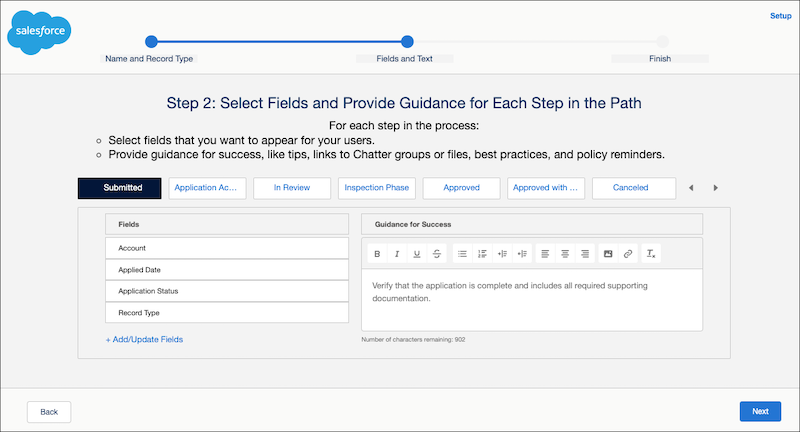
- Click Next.
-
Activate the path, and then click Finish.
Now, add the path to business license application record pages.
- From Setup, in the Quick Find box, enter Lightning, and then select Lightning App Builder.
- Select your business license application record page layout, and then click Edit.
- Drag the Path component to the page canvas just below the highlights panel.
-
Save and activate the page.
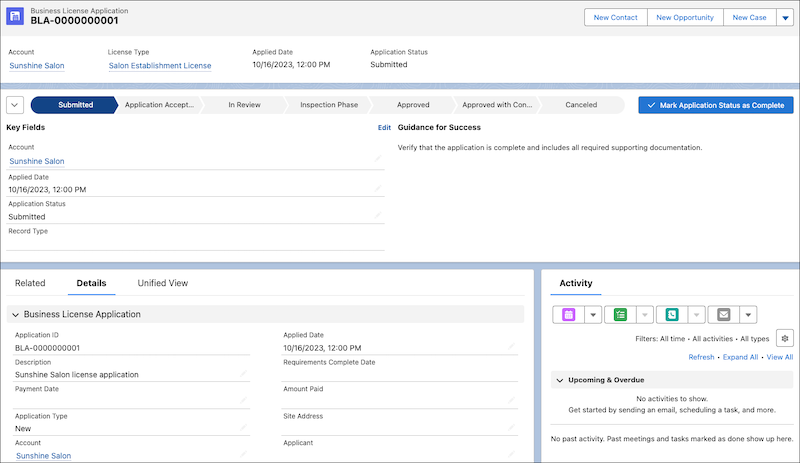
- Optionally, configure paths for the Individual Application, Regulatory Code Violation, and Public Complaint objects.
See Also
Did this article solve your issue?
Let us know so we can improve!
