You are here:
Show License, Permit, Application, and Application Draft Records on Tabs
Show constituents lists of their issued licenses and permits as well as their application records on your Experience Cloud site.
Required Editions
| View supported product editions. |
| User Permissions Needed | |
|---|---|
| To customize or publish an Experience Cloud site: | Be a member of the site AND Create and Set Up Experiences OR Be a member of the site AND an experience admin, publisher, or builder in that site |
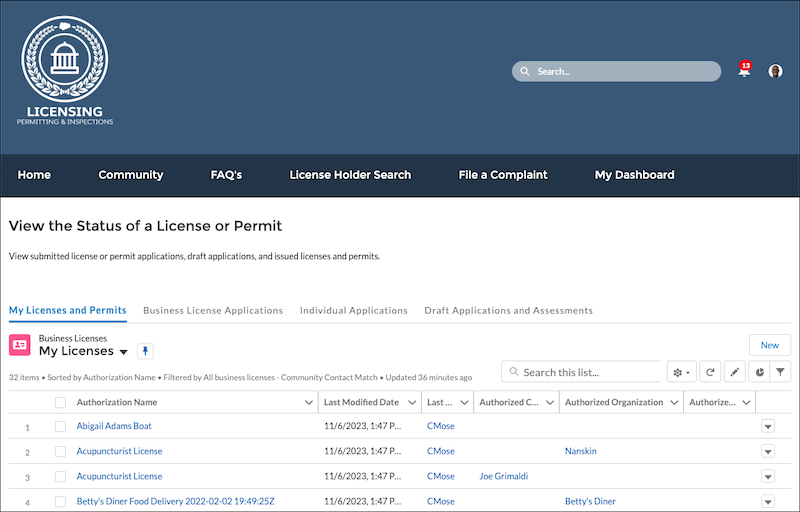
Customize the My Applications and Licenses page in the Licenses And Permits site template to include tabs that show constituents their issued licenses and permits, their submitted application records, and their draft applications.
The lists of license, permit, and application records on the site are based on list views in your org. Before you configure the record lists on your site, make sure that you have list views in your org that filter records by owner for the Business License, Business License Application, Individual Application, and Preliminary Application Reference objects. See Create or Clone a List View in Lightning Experience.

- In Experience Builder for your licenses and permits site, go to the My Applications and Licenses page.
- Drag the Tabs component to the page.
- Select the first tab and, in the properties panel, rename it My Licenses and Permits.
- Drag the Record List component to the tab.
-
Specify the record list properties.
- For Object Name, select Business License.
- For Layout, select Full.
- For Filter Name, select My Business Licenses.
- Select the second tab and rename it Business Applications.
- Drag the Record List component to the tab.
-
Specify the record list properties.
- For Object Name, select Business License Application.
- To include the Application Status field in the list, for Layout, select Full.
- For Filter Name, select My Business License Applications.
-
Configure the third tab.
- Rename it Individual Applications.
- Add the Record List component to the tab.
- Select the Full layout and the Individual Application object.
- For Filter Name, select My Individual Applications.
-
Configure a fourth tab.
- Name it Draft Applications and Assessments.
- Add the Record List component to the tab.
- Select the Full layout and the Preliminary Application Reference object.
- For Filter Name, select Draft Preliminary Application References.
- Preview your changes and publish them to the site when you're ready.