
You are here:
Manage Approvals in Public Sector
Respond to approval requests and understand how to manage the stages of an approval process.
Required Editions
| View supported product editions. |
Respond to Approval Requests
Open an item to approve, review the application’s details, and approve, reject, or reassign an approval request.
Required Editions
| User Permissions Needed | |
|---|---|
| To respond to an approval request: | Read on the associated record |
| To create visits: | Public Sector Access OR Public Sector Field Access OR Industries Visit |
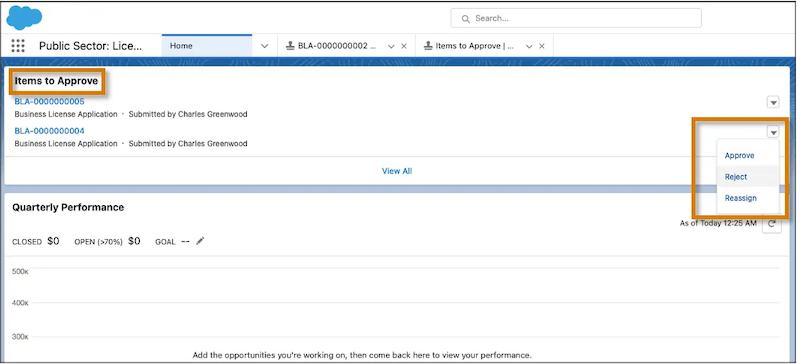
- On the home page, in the Items to Approve component, select a business license application or an individual application.
-
To check the application’s supporting documents, on the application record page, in the
Files related list, click an attached file.
 Note If you don’t see the Files related list—or any of the other tabs or related lists we mention here—ask your admin to add the missing element to the application page layout.
 -
To check application-related records such as visits, regulatory code violations, and
enforcement actions, go to the Unified View tab.
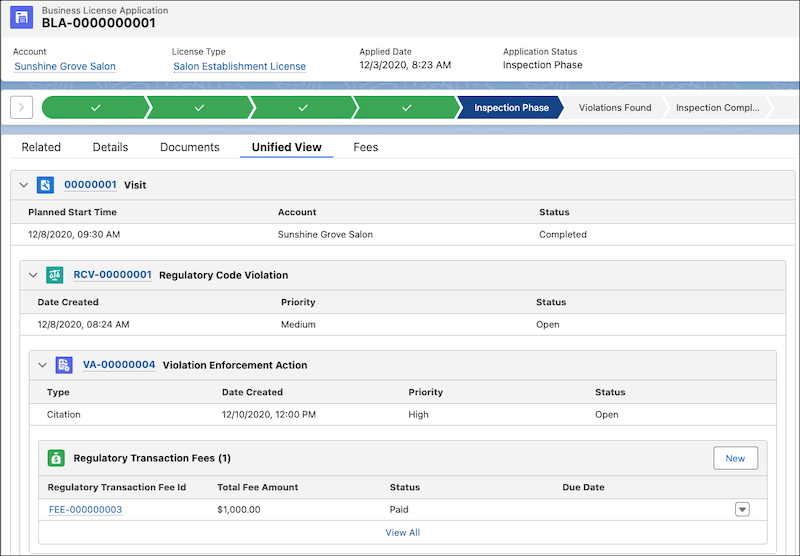
- To create a visit, on the Visits related list, click New. Or, if your admin has configured it, click the Create Visit quick action button.
- To check place or asset details, go to the Authorization Application Places or Authorization Application Assets related list.
-
In the Items to Approve component, use the Approve, Reject, and Reassign quick action
buttons to respond to the approval request.
Understand Approval Process Stages
Application approval processes typically involve multiple stages in which different reviewers each sign off on part of the process. Reviewers can reject an application and give comments explaining reasons for a rejection, which an applicant can use to address and resubmit the application. Use application statuses to move an application through a multistage approval process. For example:
- When a license application is submitted, your admin can configure an automated process that sends the application for approval with Reviewer 1. At this point, the application status is Submitted.
- The first reviewer examines the application for inconsistencies and approves it. The status of the application changes to Intake Complete, and the application is added to the next reviewer’s approval requests.
- The second reviewer verifies the supported documents and finds they’re complete. The application status changes to Ready for Inspection, and the application is added to the compliance officer’s approval requests.
- The compliance officer creates an inspection visit and assigns it to an inspector. The inspector visits the business premises and conducts the inspection. When the inspector finishes and approves the application, the application status changes to Approved.
- The approver issues a license and the application status changes to Issued.
Did this article solve your issue?
Let us know so we can improve!
