You are here:
Cancel Assets with the Managed Asset Viewer
To optimize revenue and manage your product lifecycle, use the asset lifecycle cancellation action to terminate purchased products. The Managed Asset viewer on your Account or Contract page helps you to initiate cancellations and make sure that your records accurately reflect your business relationships.
Prerequisites
Before you begin:
- Add the Managed Asset Viewer component to your preferred page layouts, such as the Account page layout.
- Add the Assets related list to the Account or Contracts page to show the Managed Assets list.
- To complete asset cancellations in Managed Assets, add the component to the Contracts page layout.

You can’t initiate a transaction with an earlier start date when an asset that has a future-dated amend, renew, or cancel transaction. If a cancellation quote line item contains a negative delta quantity, the system calculates the total price based on prior asset sale prices. For assets consisting of multiple prior sales transactions, the system computes the total price based on a Last In First Out strategy.
Cancel Assets
- From the App Launcher, find, and select Accounts.
- Click an account name in the Accounts list view.
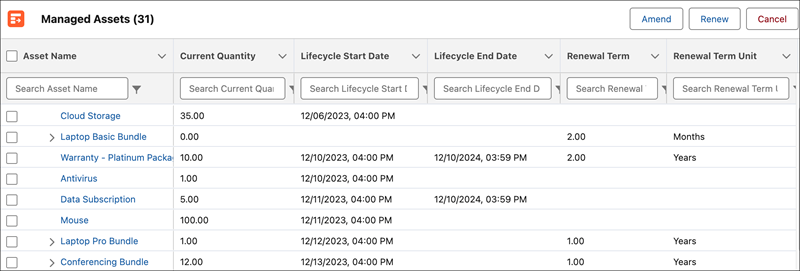
- Under Managed Assets, select the checkbox in the Asset Name column for the asset that you want to update. For bundled assets, select the parent asset instead of the child asset.
- Select Cancel.
-
Select the cancellation date by using the calendar and click Submit.
The system creates a cancellation quote or order.
- Review your cancellation request and save your changes.