
You are here:
Create a Procedure to Get List Prices for Product Discovery
Use the Product Discovery Pricing Procedure template to create a pricing procedure that fits your company's needs. The Pricing Procedure is used to determine and populate pricing information for Product Discovery.
Required Editions
| View supported products and editions. |
| User Permissions Needed | |
|---|---|
| To create, update, and delete pricing procedures: | Salesforce Pricing: Design time user |
| To use pricing procedures: | Salesforce Pricing: Run time user |
For the pricing procedure created by using the template, the ProductDiscoveryContext context definition is set as the context definition by default. If necessary, replace it with your extended ProductDiscoveryContext context definition.
Before you create a pricing procedure for Product discovery, ensure that:
- Salesforce Pricing is enabled in your org. See Salesforce Pricing.
- You have access to the Price Book Entries V2 decision table.
- From the App Launcher, find and select Expression Set Templates.
- Click Product Discovery Pricing Procedure.
- Click Save As.
-
To use a custom context definition or change the name of the pricing procedure, complete
these steps.
- From the App Launcher, find and select Pricing Procedures.
- Open your pricing procedure.
- Click Edit.
- Change the name of the procedure.
-
Select the context definition.
 Note The qualification procedure and pricing procedure for product discovery must use the context definition selected on the Product Discovery Settings page.
 - Save your changes.
- To open your pricing procedure in Expression Set Builder, on the Details tab, in the Pricing Procedure Versions section, click the name of the pricing procedure version.
-
Select the Pricing Setting element and then verify the mapping.
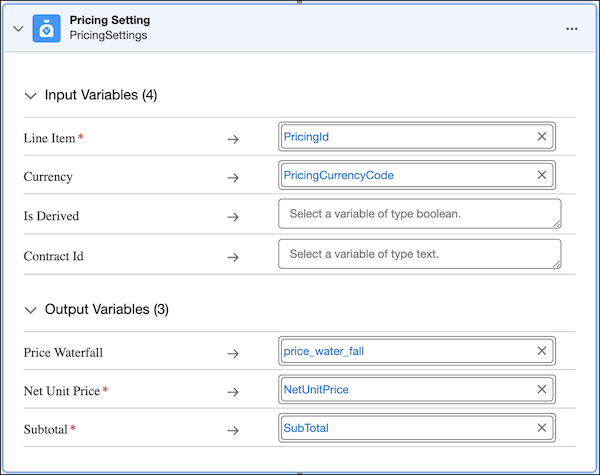
-
Select the List Price element and then verify the mapping.
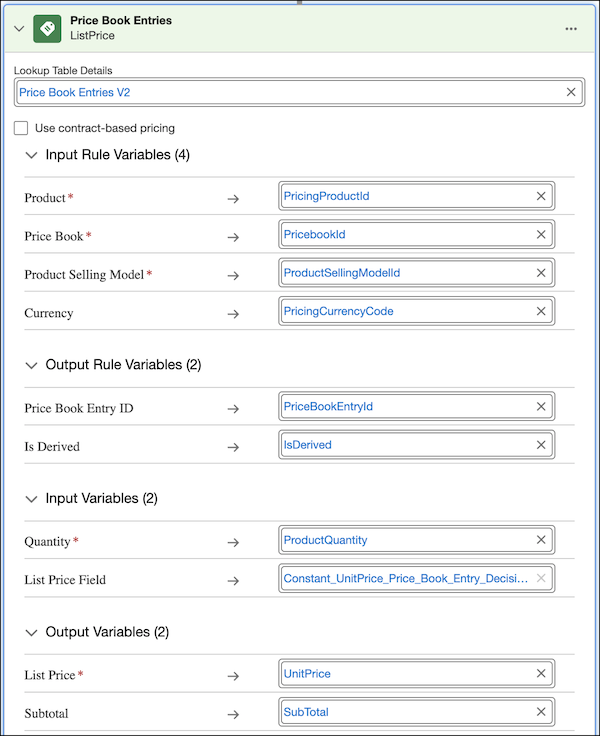
 Important If you enable multicurrency after you create a pricing procedure, add the Currency field, whose API name is CurrencyIsoCode, to the Price Book Entries V2 decision table. Then edit the List Price element in the pricing procedure and map the Currency field to the PricingCurrencyCode attribute of the context definition. Keep in mind that you must deactivate the context definition and pricing procedure before you can edit them.
 -
Click
 , and enter a rank.
- Enter a start date and time that’s later than or the same as the effective from date and time of the context definition.
- If necessary, edit the version name and description.
- If necessary, configure your pricing procedure to add pricing elements. See Configure Your Pricing Procedure and Pricing Elements.
-
For each element, click
 , and ensure that Include in Output is selected.
- Save your changes.
- Simulate and activate the pricing procedure. See Simulate and Activate Your Pricing Procedure.
See Also
Did this article solve your issue?
Let us know so we can improve!
