Manually link assets to a contract to track which products-specific customer agreements
govern. Creating these relationships helps you to review contract details or open related
contracts directly from an asset record.
Required Editions
Available in: Lightning Experience
Available in: Enterprise, Unlimited, and Developer Editions
of Revenue Management(formerly Revenue Cloud) where Transaction Management is enabled
User Permissions
Needed
To create an asset contract relationship:
Sales Operations Rep permission set
Important Verify that the asset and the contract belong to the same account. Make
sure that your Salesforce admin has added the Asset Contract Relationship component to your
Asset and Contract page layouts.
If an order is linked to a contract with a Revenue Management application usage assignment, the
system automatically creates asset contract relationships. This automation occurs when the
Create or Update Asset from Order API or Order Product API runs. These automated records
default the start and end dates to match the parent asset's lifecycle dates, though the
relationship end date can’t exceed the contract's end date.
In the App Launcher, find and select Assets or
Contracts.
Select an asset name or contract number.
On the Related tab, locate Asset Contract Relationships, and click
New.
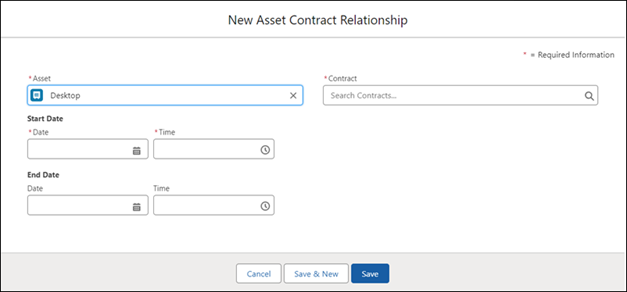
Starting from an asset defaults to the Asset field.
Starting from a contract defaults to the Contract field.
Search for and select the corresponding asset or contract.
Select a start date and time.
End Date and Time are optional.
If the parent asset has a lifecycle end date in the past, you can't set an asset
contract relationship end date in the past.
Save your changes.
After linking your assets, use the Managed Assets Viewer on the contract record to
perform lifecycle actions like amending, renewing, or canceling assets.
We use three kinds of cookies on our websites: required, functional, and advertising. You can choose whether functional and advertising cookies apply. Click on the different cookie categories to find out more about each category and to change the default settings.
Privacy Statement
Required Cookies
Always Active
Required cookies are necessary for basic website functionality. Some examples include: session cookies needed to transmit the website, authentication cookies, and security cookies.
Functional Cookies
Functional cookies enhance functions, performance, and services on the website. Some examples include: cookies used to analyze site traffic, cookies used for market research, and cookies used to display advertising that is not directed to a particular individual.
Advertising Cookies
Advertising cookies track activity across websites in order to understand a viewer’s interests, and direct them specific marketing. Some examples include: cookies used for remarketing, or interest-based advertising.