
You are here:
Renew Assets with the Managed Asset Viewer
To optimize revenue and manage products efficiently, use the asset lifecycle renewal action. The Managed Asset viewer on your Account or Contract page initiates these renewals directly within the asset lifecycle.
Required Editions
| Available in: Lightning Experience |
| Available in: Enterprise, Unlimited, and Developer Editions of Revenue Management (formerly Revenue Cloud) where Transaction Management is enabled |
| User Permissions Needed | |
|---|---|
| To renew assets: | InitiateRenewal API permission set AND Sales Rep persona permissions |
Prerequisites
Before you begin:
- Add the Managed Asset Viewer component to your preferred page layouts, such as the Account page layout.
- Add the Assets related list to the Account page for the Managed Assets list to appear.
- To complete asset renewals in Managed Assets, add the component to the Contract page layout.

Note When the Create Quotes Without a Related Opportunity setting is true, select whether
to create a related opportunity. If the setting is false or undefined, the system creates
an opportunity for the renewal quote. However, when you use the Contract page layout, the
system adds the contract number to the renewal quote or order automatically. See Enable Quote Creation Without a Related Opportunity.
Renew Assets
- From the App Launcher, find, and select Accounts.
- Click an account name in the Accounts list view.
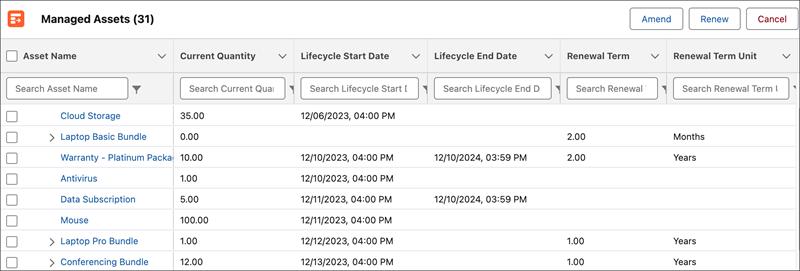
- Under Managed Assets, select the checkbox in the Asset Name column for the asset that you want to update. For bundled assets, select the parent asset instead of the child asset.
-
Select Renew and confirm the renewal if prompted.
The quote or order inherits the renewal term and unit from the asset or the associated contract. Defining these values prevents errors.
-
Transaction Management copies the asset attribute values to line item attribute
values.
Deactivating a product attribute in the catalog doesn’t affect existing attributes.
- Update the fields for renewal.
- Add assets to the renewal quote if needed.
- Review your renewal request and save your changes.
Asset Renewal Scenarios and Requirements
Review how the system handles renewal data based on the original purchase method to avoid validation errors during the renewal process.
-
Asset created without a contract
When the system creates an asset from a New Sale order without a contract, it copies the renewal term and unit from the order item’s pricing fields. If these values are present, the system marks the asset as renewal-ready, but if they’re missing, it creates the asset without renewal details. During a later renewal attempt via the Contract or Account Asset Viewer, the system verifies these values. If they’re missing, it blocks the renewal and shows an error. To resolve this issue, update the asset with the required values in the viewer and resubmit the renewal.
-
Asset created with a contract
For assets created from a New Sale order with a contract header, the system leaves the asset's renewal fields blank to derive them from the contract instead. When you initiate a renewal from the Contract Asset Viewer, the system reads values directly from the associated contract and proceeds if they’re valid. However, if both the asset and the contract lack these values, or if you initiate renewal from the Account Asset Viewer where no contract is passed, the system returns a validation error. In these cases, update the asset record with the required information to unblock the renewal.
-
Future-date assets
Future-dated assets on a contract include an Asset Contract Relationship (ACR), and Salesforce blocks renewals if it can’t find a current ACR to copy. To resolve this error, update the Renewal Term and Renewal Term Unit in the Managed Asset Viewer on the Account page. After you provide these values, you can proceed with the renewal. After completing the renewal, delete related opportunity line items to improve forecasting accuracy, unless your admin has automated renewals via a renewal opportunity flow.
Did this article solve your issue?
Let us know so we can improve!
