
Remove Pricing Condition Records
Delete old pricing condition records with incorrect IDs from complex pricing condition tables. This step is required only if the you have a trial or an IDO org.
Required Editions
Available in: Lightning Experience Available in: Enterprise, and Unlimited Editions that have Consumer Goods Cloud enabled |
| User Permissions Needed | |
|---|---|
| To remove pricing condition records: | CGCloud Business Admin OR CGCloud Retail Business Admin |
- Log in to Salesforce Data Loader with your username and password.
- Click Export.
- Find and select the Salesforce object cgcloud_dev__CP_Pricing_Condition_c.
-
In Choose a target for extraction, type extract.csv.
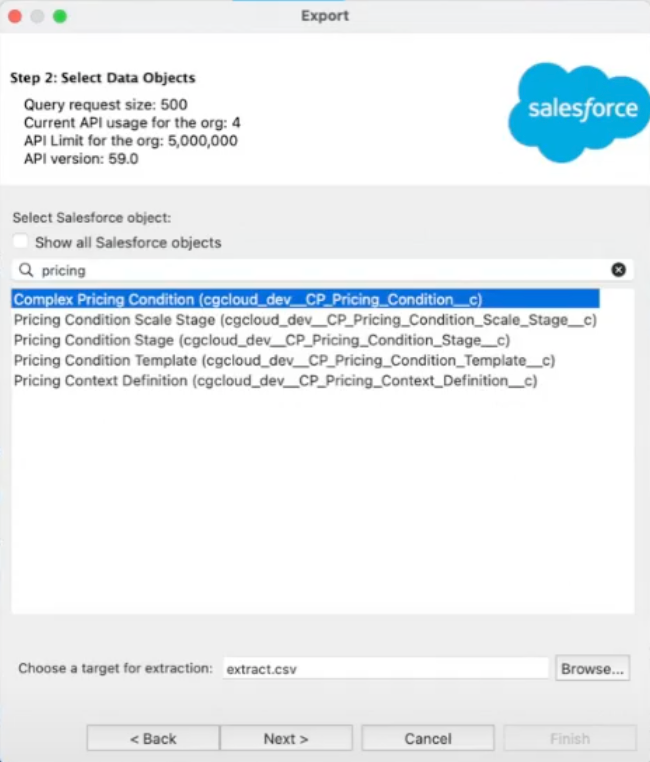
- Click Browse to select a location in your local drive and then click Next.
-
In Choose the query fields below, select Id.
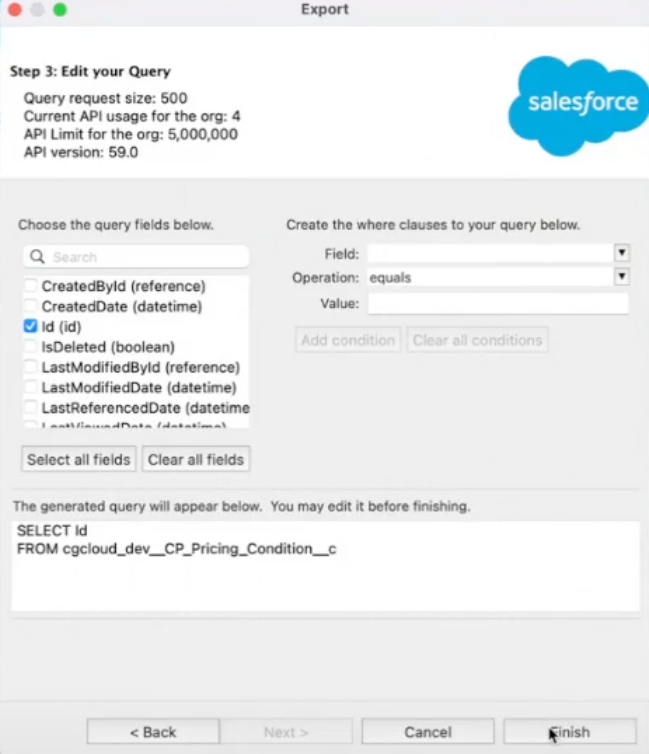
- Click Finish and then click Yes.
- Click OK. The extract.csv file shows pricing condition tables.
- In the Salesforce Data Loader home page, click Delete.
- Find and select the Salesforce object cgcloud_dev__CP_Pricing_Condition_c.
-
In Choose CSV file, click Browse and select the file
extract.csv.
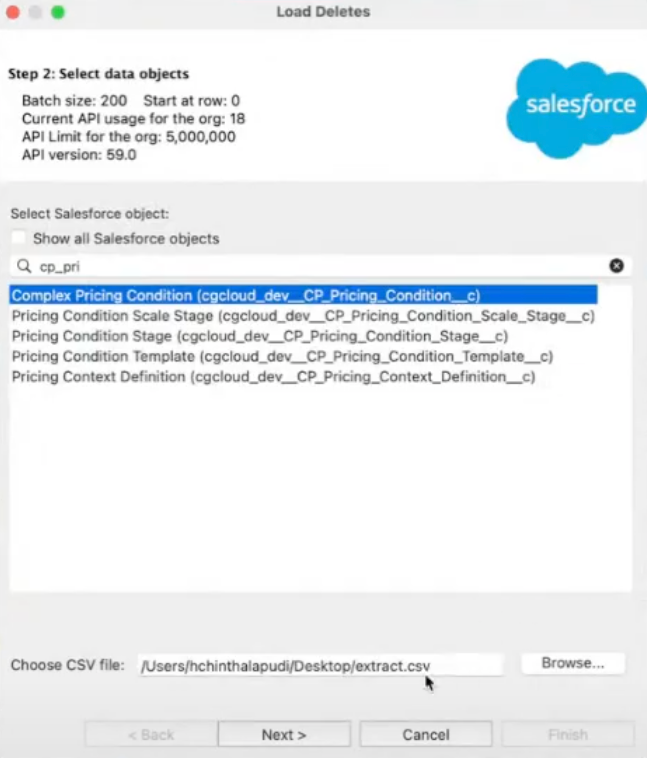
- Click Next and then click OK.
-
Click Create or Edit a Map to map the CSV column header with the
Salesforce object field name.
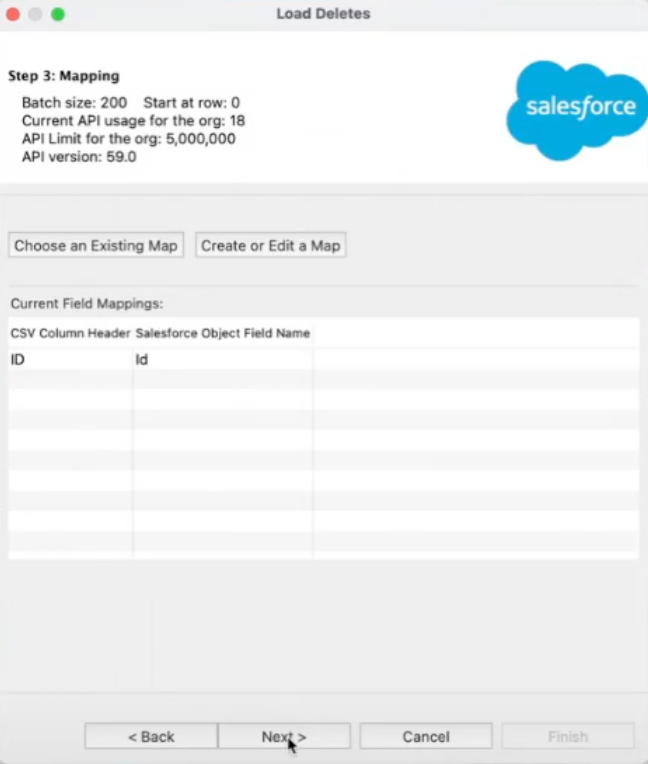
- Map the ID, click OK, and then click Next.
- Select a location on your local drive, click Finish, and then click Yes.
- Click OK.
- In the Data Loader home page, click Export.
- Find and select the Salesforce object cgcloud_dev__CP_Pricing_Condition_c.
-
In Choose a target for extraction, type extract1.csv.
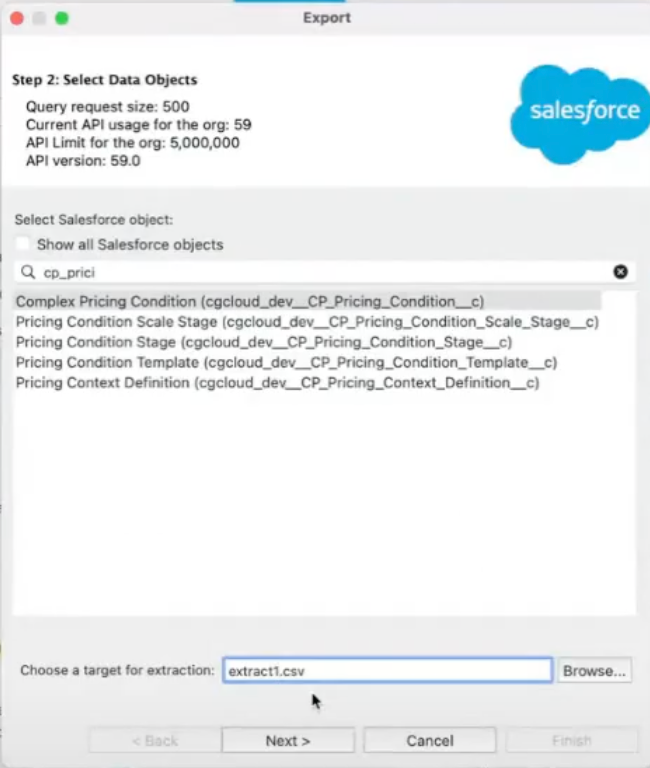
- Click Browse to select a location on your local drive and then click Next.
- In Choose the query fields below, select Id.
- Click Finish and then click Yes.
- Click OK. The extract1.csv file is empty.
Did this article solve your issue?
Let us know so we can improve!
