
You are here:
Configure Your Pricing Procedure for Promotions in Revenue Management (Beta)
Add the Promotion Execution element to your default transaction pricing procedure to apply promotion-related discounts during price calculations.
Required Editions
| Available in: Lightning Experience |
| Available in: Enterprise, Unlimited, and Developer Editions of Revenue Management (formerly Revenue Cloud) with the Revenue Cloud Advanced license, and the Global Promotions Management Basic Add-On license or Loyalty Management - Growth or Advanced license. |
| User Permissions Needed | |
|---|---|
| To update pricing procedures: | Salesforce Pricing Design Time User |

Important You can’t use derived pricing and promotions together in the same pricing
procedure.
If you’re using the default pricing procedure, perform these steps to add the Promotion Execution element.
- From the App Launcher, enter Pricing Procedures, and then select Pricing Procedures.
- Open the pricing procedure for quotes and orders.
-
After the “Apply bundle-based adjustments” container that has the Bundle-Based Price
element, click
 and select List Group.
-
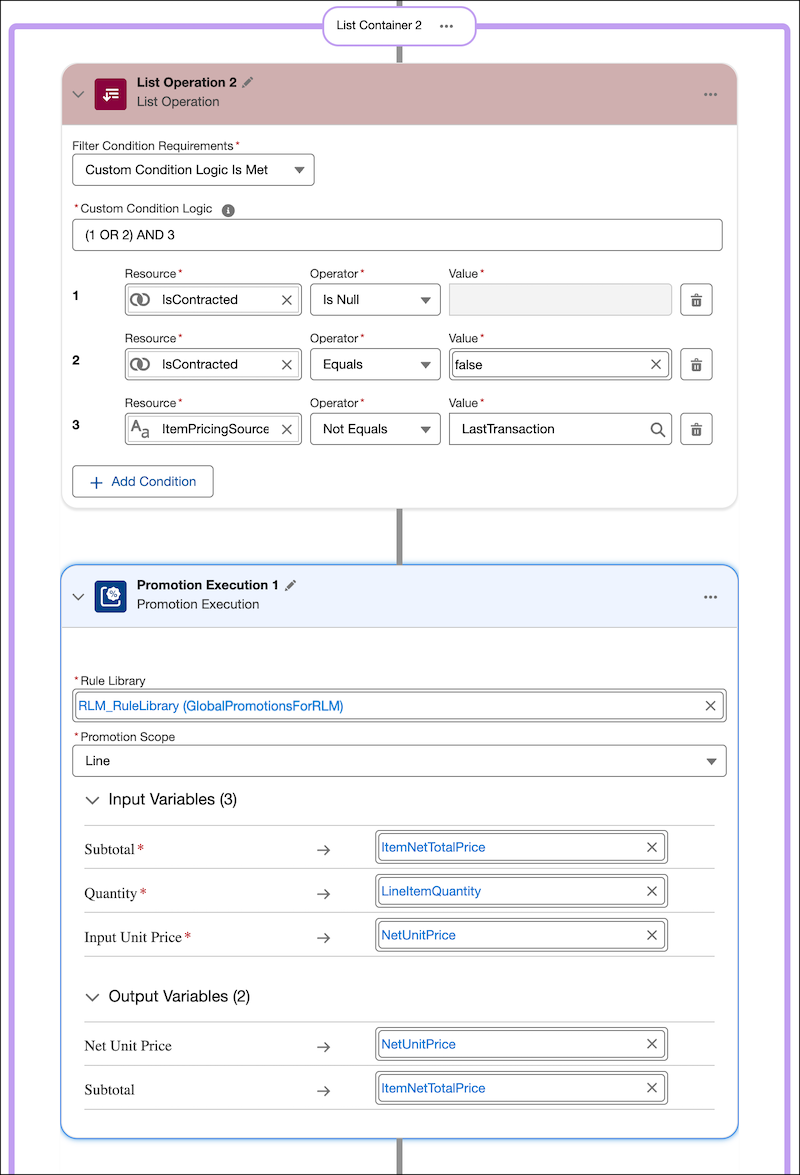
Modify the List Operation element.
- For Filter Condition Requirements, select Custom Condition Logic is Met.
- For Resource, enter IsContracted; and For Operator, select Is Null.
- Click Add Condition.
- For Resource, enter IsContracted; for Operator, select Equals; and for Value, enter false.
- Click Add Condition.
- For Resource, enter ItemPricingSource; for Operator, select Not Equals; and for Value, enter LastTransaction.
- For Custom Condition Logic, enter (1 OR 2) AND 3.
-
In List Group, after List Operation, click and select Promotion Execution.
- Select your rule library.
- For Promotion Scope, select Line.
-
Map these input variables.
- Subtotal: ItemNetTotalPrice
- Quantity: LineItemQuantity
- Input Unit Price: NetUnitPrice
-
Map these output variables.
- Net Unit Price: NetUnitPrice
- Subtotal: ItemNetTotalPrice
-
Delete the Derived Price element. Click
 on the element, and then select Delete.
-
Click
 , and enter a rank.
- Save your pricing procedure.
- Activate your pricing procedure.
Did this article solve your issue?
Let us know so we can improve!
