
You are here:
Map the Custom Field in Sales Transaction Context Definition
To show promotions based on channels from product configurator and Transaction Line Editor, map the custom field to your sales transaction context definition.
Add an Attribute
- From Setup, find and select Context Definitions.
- On the Custom Definitions tab, click your extended SalesTransactionContext context definition, and then click Edit.
- Click Next until you reach the Edit Attributes page.
-
On the Edit Attributes page, add the ChannelId__c attribute to the SalesTransaction
node.
- Click SalesTransaction.
- Click Add Attributes.
- Enter the name as ChannelId__c.
- For Type, select Input.
- For Data Type, select String.
- Click Next.
- On the Edit Attribute Tags page, click Generate All Tags, and then click Retain and Regenerate.
- Save your changes.
Map the Attribute
-
Open QuoteEntitiesMapping.
-
Click
 next to QuoteEntitiesMapping, and then select Edit SObject
Mapping.
next to QuoteEntitiesMapping, and then select Edit SObject
Mapping.
- Select Mark as Default, and then click Map.
- If you see the “The New Context Mapping UI Is Here!” window, click Proceed.
-
Click
-
Map the ChannelId attribute depending on whether you’ve turned on the Create Quotes Without a Related Opportunity setting on the
Quote Settings page.
If you’ve turned on the setting, map ChannelId__C in SalesTransaction to Quote > QuoteAccount > Engagement_Channel_Type__c > Id.
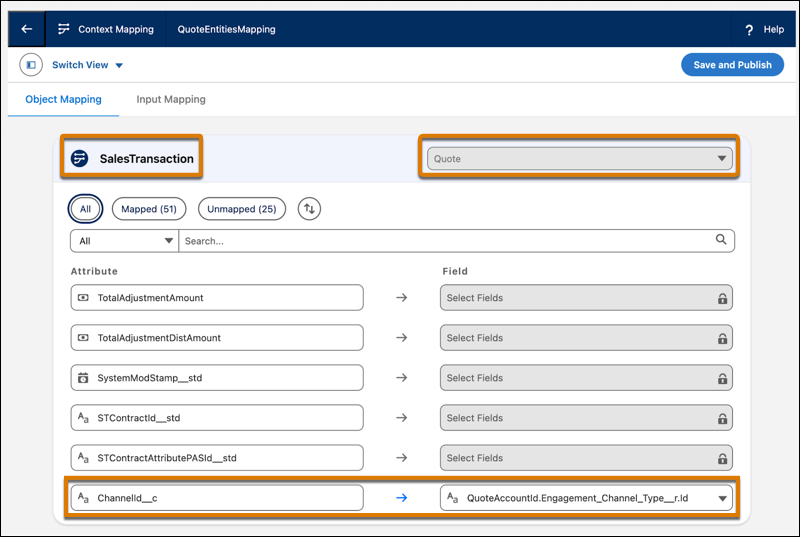
 Note To learn how to use fields that have a lookup relationship, see Add Context Mapping.
-
If you haven’t turned on the setting, map ChannelId__C in SalesTransaction to Quote > Account > Engagement_Channel_Type__c > Id.
- Save your changes.
-
Click
 to return to the context definition page.
-
Open OrderEntitiesMapping.
-
Click next to OrderEntitiesMapping, and then select Edit SObject
Mapping.
- Click Map.
- If you see the “The New Context Mapping UI Is Here!” window, click Proceed.
-
Click
- Map the ChannelId__C attribute in SalesTransaction to Order > Account > Engagement_Channel_Type__c > Id.
- Save your changes.
- Activate the context definition.
Did this article solve your issue?
Let us know so we can improve!
