
You are here:
Assignment
Use the Assignment element to set and change the context tag values of variables.
Required Editions
| Available in: Lightning Experience |
| Available in: Enterprise, Unlimited, and Developer Editions with the Revenue Cloud Advanced license |
| User Permissions Needed | |
|---|---|
| To create, update, and delete rating procedures: | Rate Management Design Time |

Important The Assignment element needs the outputs of the preceding rating
elements. This requirement doesn’t apply to the Rating Setting, Rounding Values, and Stop
Rating elements.
Input variable provides data to your Assignment element. Identify which variables you want to use as inputs. Similarly, identify output elements that form the results.
- From the App Launcher, find and select Rating Procedures.
- To open the rating procedure record, click the procedure name.
- To open the rating procedure in the Rating Procedure builder, click the rating procedure version.
- Define the Rating Setting element.
- Add an element whose output value you want to assign to another variable by using the Assignment element.
-
Click
 and add the Assignment element.
- Modify the tag values of the input and output variables based on how you want the variable values to be consumed.
- Save, simulate, and activate your rating procedure.

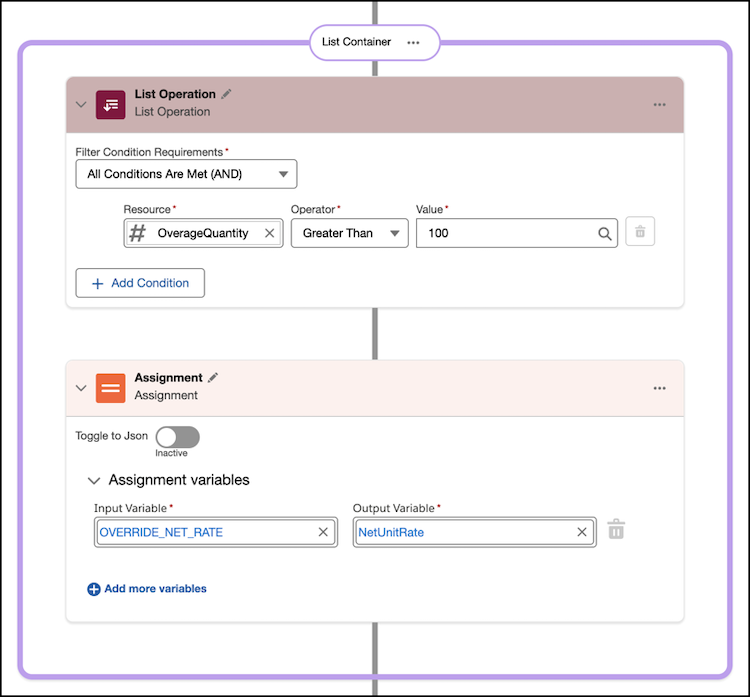
Example Override the calculated net unit rate when the quantity consumed is over a specific
limit. Let’s assume the customer was granted 100 SMS with the mobile plan. By the end of the
month, the user consumed 250 SMS. In this scenario, you want to override the net unit rate for
the SMS consumed beyond 100 SMS.
To override the net unit rate, use the List Operation element and create a condition to verify whether the value in the OverageQuantity context tag is greater than 100. When the condition is met, the assignment element copies the OVERRIDE_NET_RATE constant value and assigns it to the NetUnitRate variable.
Did this article solve your issue?
Let us know so we can improve!
