You are here:
Manage Error Records for Sales Agreement Mass Updates
When a mass update on a sales agreement fails to process, the system log containing the exact failure details is stored within the underlying Batch Management framework. However, because direct access to the RecordFile field on the BatchJobPart entity is restricted by default, administrators and users cannot natively view these failure details. Follow these methods to configure custom components and access paths that restore tracking visibility and help users troubleshoot failed records.
Required Editions
| Available in: Lightning Experience |
| Available in: Enterprise, Unlimited, and Developer Editions |
Option 1: Access File Data Directly via the Record Page (Recommended)
This approach allows administrators to build an Apex service and an Aura component so that business users can fetch and review bulk update errors directly from the Lightning UI.
-
Create the Apex Service Class in the Developer Console.
- Open the Developer Console.
-
Create the following Apex class in the Developer Console to fetch the file data
directly.
public class BatchJobService {
    @AuraEnabled(cacheable=false)
    public static String getBatchJobParts(String batchJobPartId) {
        try {
            // Query the targeted BatchJobPart record
            BatchJobPart record = [
                SELECT RecordFileBody, RecordFileName
                FROM BatchJobPart
                WHERE Id = :batchJobPartId
                LIMIT 1
            ];

            // Decode the Blob into a readable UTF-8 String
            Blob decodedBlob = record.RecordFileBody;
            String fileData = decodedBlob != null ? decodedBlob.toString() :
 'No file data found.';

            System.debug(fileData);
            return fileData;
        } catch (Exception e) {
            return 'Error: ' + e.getMessage();
        }
    }
}
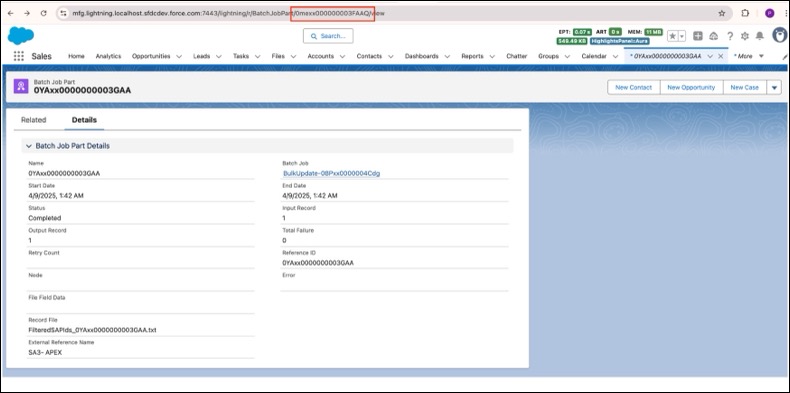
To verify that the class executes cleanly, open the go to Debug > Open Execute Anonymous Window and execute the following code there. Replace the Input to be the batchJobPartID () of the related BatchJob you want to query file data from.
-
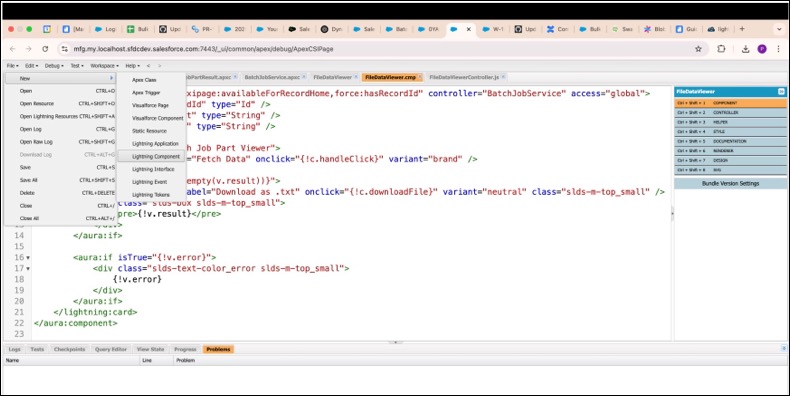
Create an Aura Component
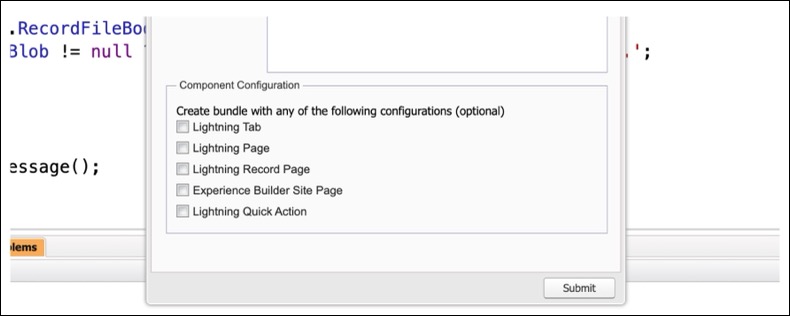
Create a new component (name: FileDataViewer) to display the data to the user. This will generate standard files visible in the right panel (in blue). In the component configuration, mark it as available only for Lightning Record Pages (as shown in the screenshot below).
-
In the Developer Console, create a new Aura Component Bundle named
FileDataViewer.
<aura:component implements="flexipage:availableForRecordHome,force:hasRecordId"
                controller="BatchJobService"
                access="global">

    <aura:attribute name="recordId" type="Id" />
    <aura:attribute name="result" type="String" />
    <aura:attribute name="error" type="String" />

    <lightning:card title="" class="slds-m-around_medium">
        <div class="slds-m-bottom_medium">
            <lightning:button label="Fetch File Data"
                              onclick="{!c.handleClick}"
                              variant="brand" />
            <lightning:button label="Download as .txt"
                              onclick="{!c.downloadFile}"
                              variant="neutral"
                              class="slds-m-left_small"
                              disabled="{!empty(v.result)}" />
        </div>

        <aura:if isTrue="{!not(empty(v.result))}">
            <div class="slds-box slds-box_xx-small slds-theme_default slds-scrollable_y"
                 style="max-height: 300px;">
                <pre>{!v.result}</pre>
            </div>
        </aura:if>

        <aura:if isTrue="{!v.error}">
            <div class="slds-text-color_error slds-m-top_medium">
                {!v.error}
            </div>
        </aura:if>
    </lightning:card>
</aura:component>
Create the helper file as follows.
({
    handleClick: function(component, event, helper) {
        var action = component.get("c.getBatchJobParts");
        action.setParams({ batchJobPartId: component.get("v.recordId") });

        action.setCallback(this, function(response) {
            var state = response.getState();
            if (state === "SUCCESS") {
                component.set("v.result", response.getReturnValue());
                component.set("v.error", null);
            } else {
                var errors = response.getError();
                component.set("v.error", errors && errors[0] ?
errors[0].message : "Unknown error");
            }
        });
        $A.enqueueAction(action);
    },

    downloadFile: function(component, event, helper) {
        var data = component.get("v.result");
        var element = document.createElement('a');
        var file = new Blob([data], { type: 'text/plain' });

        element.href = URL.createObjectURL(file);
        element.download = 'BatchJobPart.txt';
        document.body.appendChild(element);
        element.click();
        document.body.removeChild(element);
    }
})
-
In the Developer Console, create a new Aura Component Bundle named
FileDataViewer.
-
Attach the new component to Record Page of Batch Job Part
- Navigate to the Batch Job Part detail record page.
- Click the gear icon and select Edit Page to open the Lightning App Builder.
- Drag your custom FileDataViewer component onto the main page canvas layout.
- Save and Activate the updated lightning layout page.
-
View and Extract Log Data
- Navigate to your target record page.
- Click Fetch File Data to preview the file contents and verify errors inline on the screen.
- Click Download as .txt to store the text error log on your local file system for filtering and historical auditing.

Option 2: Access Log Data via Workbench (Admin Only)
If you require immediate verification without deploying custom component layouts, administrators can extract the RecordFile payload on an ad-hoc basis directly through Salesforce Workbench.
- Log in to your environment's Workbench instance.
- Navigate to the Utilities tab and open the Apex Execute panel.
-
Use the code given below (Ensure you replace the Id with the actual batch job part
entity Id):
try { BatchJobPart record = [ SELECT RecordFileBody, RecordFileName FROM BatchJobPart WHERE Id = '0meXR0000000EZFYA2' LIMIT 1 ]; Blob decodedBlob = record.RecordFileBody; String fileData = decodedBlob != null ? decodedBlob.toString() : 'No file data found.'; System.debug('Decoded File Data: ' + fileData); } catch (Exception e) { System.debug('Error: ' + e.getMessage()); } - Click Execute.
- Review your processed output text directly via the USER DEBUG tag in the output.