You are here:
Extract Contract Details and Clauses with Contracts AI
Use Contracts AI to identify and extract contract details and clauses from a PDF. You can initiate multiple extractions simultaneously. The in-app notification shows the success or failure of the contract extraction and when an extracted clause is added to the clause library.
Prerequisites
- You’ve configured a contract extraction template.
- Your context definition is active.
- You’ve pulled the user-defined fields to the contract layout so that the values extracted from the document are visible in the corresponding extracted fields. The field-level security for each of these fields is set to visible for the user profile.
- You’ve completed the extraction single document or bulk extraction setup.
- If the Contract Document Extraction setting was already enabled in your Salesforce org, disable and re-enable the setting for creating the default contract extraction template. Without this step, the default contract extraction template won't appear in the extraction template list.
| REQUIRED EDITIONS |
|---|
| Available in: Lightning Experience |
| Available in: Enterprise, Unlimited, Professional, and Developer Editions |
| USER PERMISSIONS NEEDED | |
|---|---|
| To extract contract and clause details from PDFs | Contracts AI User AND Prompt Template User AND NLP Service AND Scoring Framework Admin |
You can access the extracted field values from the Extracted Values link. These extracted values correspond to the attributes defined in the context definition. For example, if you’ve configured a user-defined field named Region in the context definition. The generative AI extracts data for the Region field from the document. However, the app doesn’t show this data in the Fields Extracted pane if the Region field isn’t configured in the contract’s page layout.

- From the App Launcher, find and select Contracts.
-
Click Extract Contract Details.
The Contract Extract Results list view opens. You can view the extractions with their respective statuses and extraction details such as content document, and created by.
- To select a PDF file to extract contract and clause details, click Get Started with Extraction.
-
Select a file from the list or upload a file from your system.
By default, the uploaded file isn’t automatically selected. Select the uploaded file that you want to extract.
-
Click Extract from File.
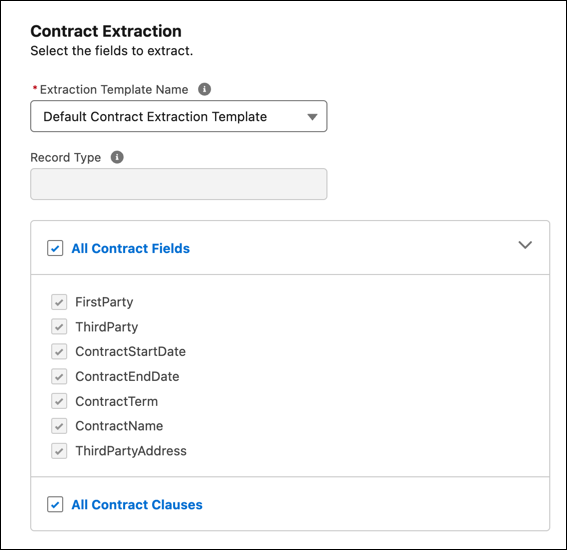 The default contract extraction template is selected.
 -
Complete one of these actions.
- Use the default extraction template to extract predefined contract fields from the file.
- Select an extraction template that you’ve created.
The record type field is populated based on the extraction template settings. By default, all contract fields are selected for extraction in the Contract Extraction section. You can deselect the user-defined fields that you don’t want to extract. - To extract the clauses within the PDF file, select All Contract Clauses.
-
Wait for the previewer to load, and then click Upload for Extraction.
The Contract Extraction Results page opens with the status Extraction in Progress. To start reviewing the extracted contact, wait for the status to change to Review Not Started.
-
To review the extracted contract details, select the View dropdown.
The view option is available only when the status is Review Not Started or Review In Progress.
-
Go to the Extracted Contract Fields tabs.
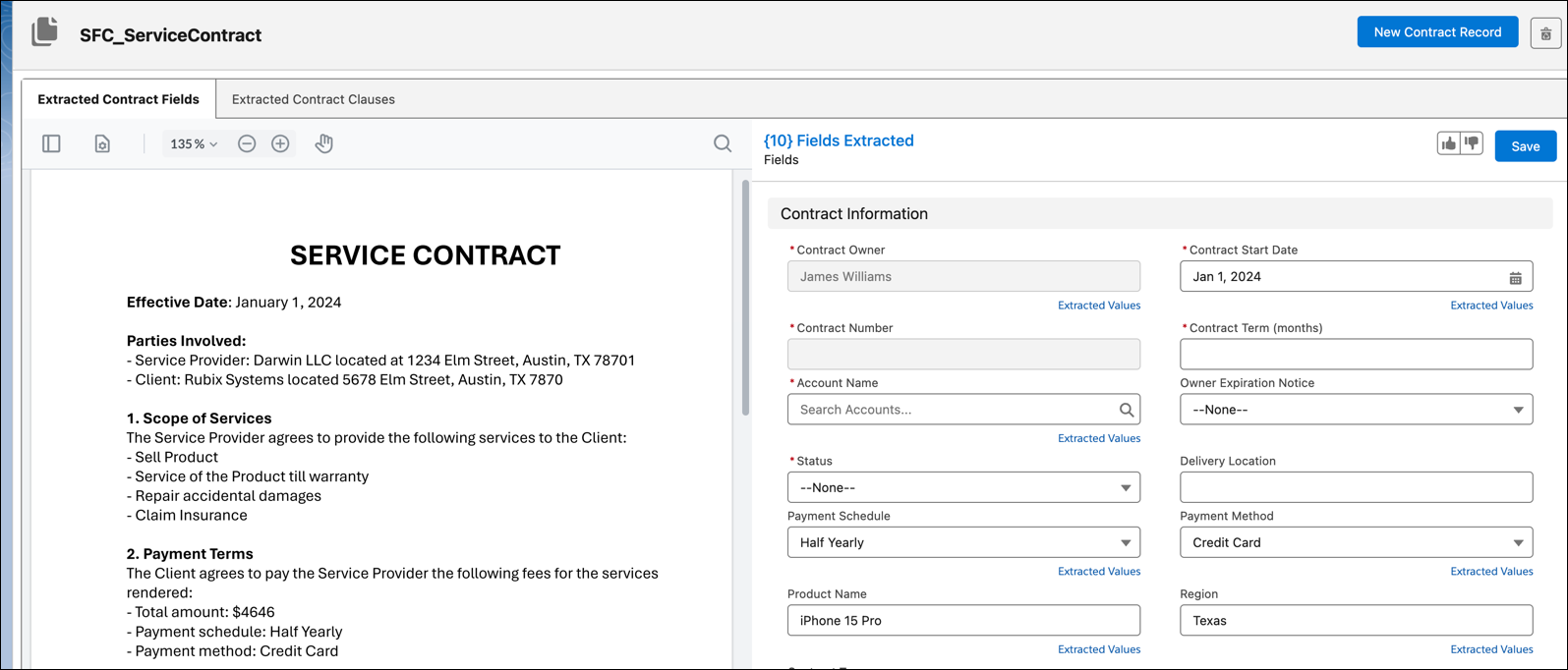 The extracted contract data appears in a layout that’s consistent with the contract’s record type associated with the extraction template.
 -
Review the extracted contract field values.
- To view the extracted values corresponding to each field, click Extract Values under the specific field.
- Select the corresponding check icon to select a value.
- Modify the extracted contract field values if required. For example, update the contract term and the contract start date.
- To create a contract record, ensure all the required contract fields are populated.
-
Save your changes.
This action temporarily saves the updates in the Contract Extraction Result object and the status of the extracted result changes to Review in Progress.
-
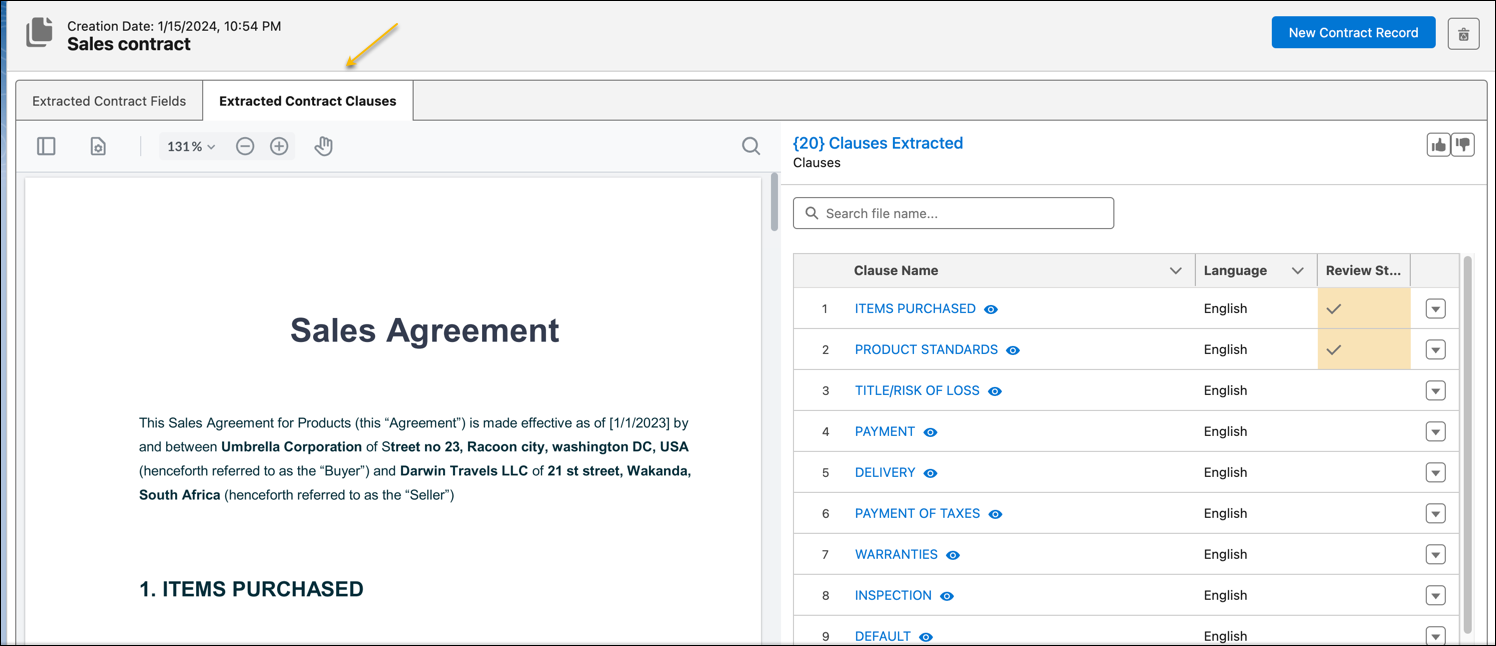
Go to the Extracted Contract Clauses tab.
-
To preview the extracted clause content, click
 .
.
- Use the dropdown actions to edit or delete the extracted clause.
-
To preview the extracted clause content, click
