You are here:
Add Clauses to Draft State or Clause Library
After you are satisfied with the clause drafted by Contracts AI, you can move the clause to the draft state and save the clause to the clause library.
| REQUIRED EDITIONS |
|---|
| Available in: Lightning Experience |
| Available in: Enterprise, Unlimited, Professional, and Developer Editions |
| USER PERMISSIONS NEEDED | |
|---|---|
| To create and edit document clauses | Contracts AI Clause Designer AND Contracts AI User AND Prompt Template User AND NLP Service AND Scoring Framework Admin |
| To add clauses to the clause library | Clause Designer User |
-
Click + to add the clause as a draft.
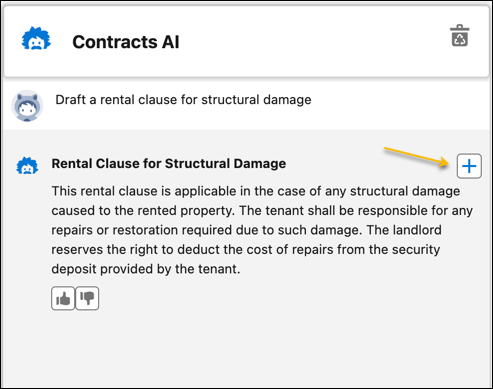 The selected clause moves to the clause draft state. This action doesn't add the clause to the clause library.
 -
Review the draft clause.
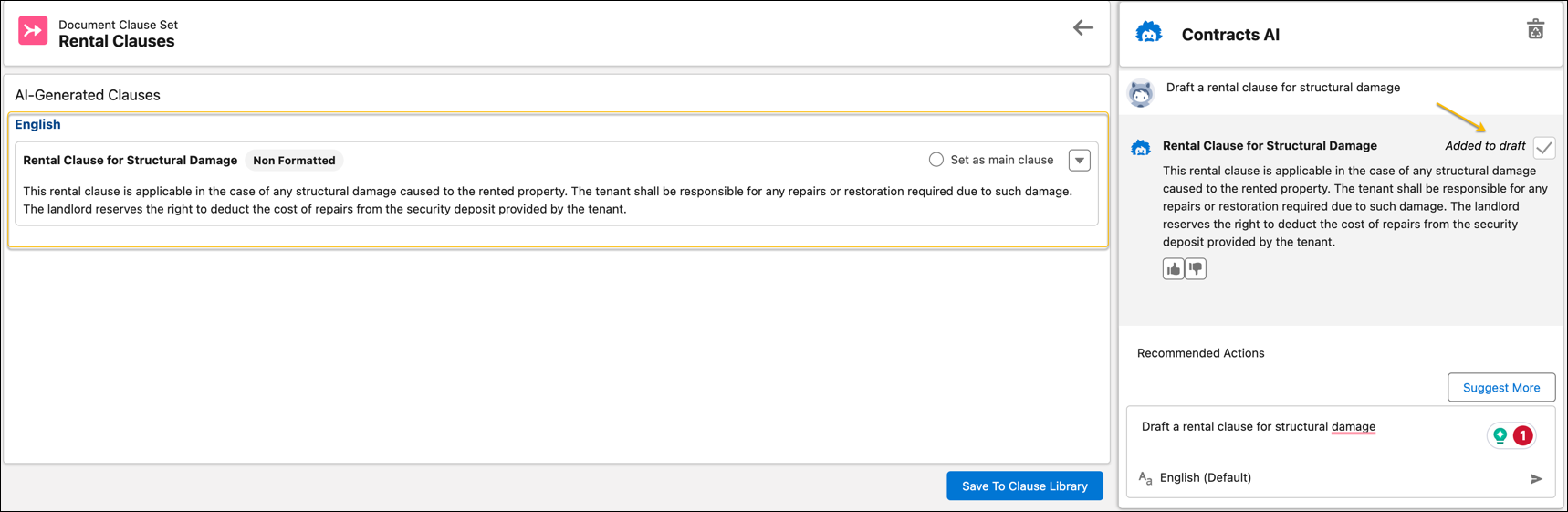 Use generative AI to draft multiple clauses and move them to the draft state. By doing so, you can integrate multiple draft variations of a clause into one clause set, simplifying the process of creating a comprehensive range of clause variations. With one click, you can then populate the entire clause set with these diverse variations in your clause library.
 - After adding several clauses into the clause draft state, saving the draft requires designating one clause as the main clause, with the remaining clauses automatically categorized as alternate clauses.
-
You can perform any of these actions.
- Edit the clause.
- Delete the clause.
- Add the clause to the clause library.
- To add the clause directly to the library, click Save to Clause Library.
-
Click Save.
To view the recently added clause, find and select the Document Clauses from the App Launcher.
See Also
Did this article solve your issue?
Let us know so we can improve!
