You are here:
Create a Document Template by Using Clauses
From the clause library, add preapproved clauses to the document template.
| REQUIRED EDITIONS |
|---|
| Available in: Lightning Experience |
| Available in: Enterprise, Unlimited, Professional, and Developer Editions |
-
Initiate the creation of a document template. See
Create Templates by Using Microsoft 365 Word in Document Template Designer.
The document opens in a new tab in the Microsoft 365 editor.
-
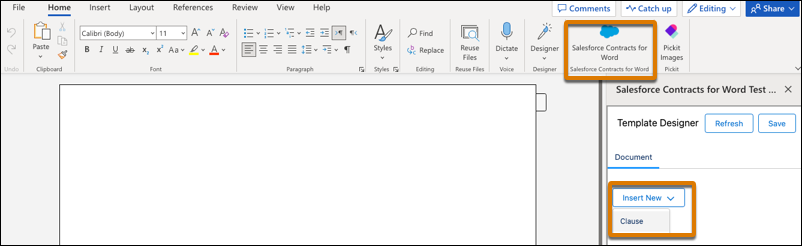
On the home tab, click the Salesforce Contracts for
Word add-in.
To insert a clause, from Insert New, select Clause.
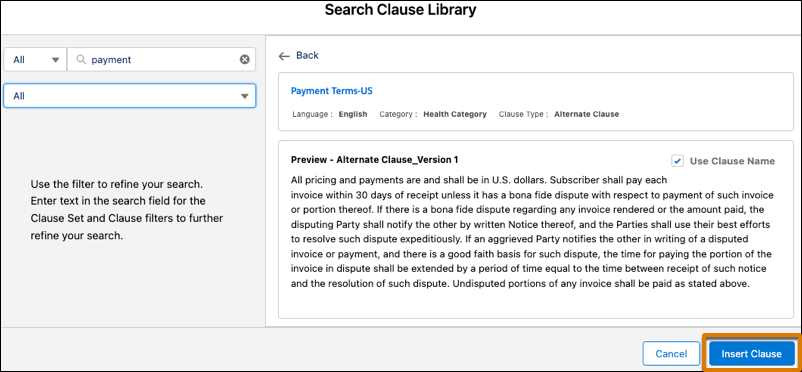
- Select a filter to search in the clause library from these options: All, Document Clauses, or Document Clause Sets. You can also search with clause category. Enter the text in the search filter to narrow down the results. See Search for Standard Clauses in Clause Library.
-
To insert a clause into the document, select the clause, and
then click Insert Clause.
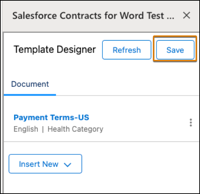
 The add-in panel shows the added clause. You can
also select the clause in the add-in panel to locate the
content in the document. Alternatively, you can link to a
clause instead of inserting a static copy. Copy a clause
token, such as {{CL_ClauseSetName_ClauseName_en_US}},
directly into the document from the Latest Clause Template
Identifier or Clause Template Version Identifier field on
your clause record. See Tokens for Document Clauses and Document
Templates.
The add-in panel shows the added clause. You can
also select the clause in the add-in panel to locate the
content in the document. Alternatively, you can link to a
clause instead of inserting a static copy. Copy a clause
token, such as {{CL_ClauseSetName_ClauseName_en_US}},
directly into the document from the Latest Clause Template
Identifier or Clause Template Version Identifier field on
your clause record. See Tokens for Document Clauses and Document
Templates. - After adding the clauses and document content, save your changes.
 This uploads the document to the template designer.
Did this article solve your issue?
Let us know so we can improve!
