You are here:
Create New Contract Document Versions
When a contract document has already been generated, you can generate a new contract document, using the same template or a different template.
You select Generate Contract or Import Contract or Create Contract in Microsoft 365 to generate the first version of a contract document. The new generated contract document reflects changes to the contract data and template. To regenerate the contract document for another version, select Check Out from the Action dropdown. A new version of the contract document is generated and locks it, so other users cannot modify the document version at the same time.
You can preview the contract document in HTML format for any version of the document.
- On the Contract record detail page, from Action, select Check Out .
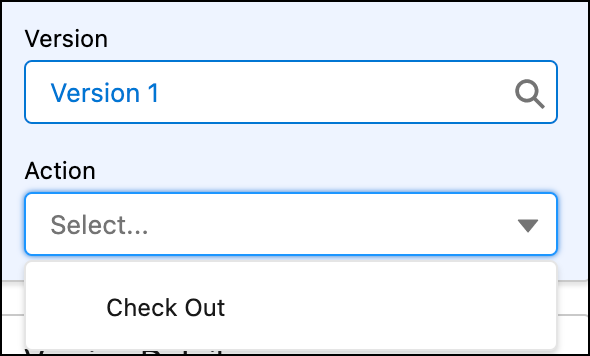 A new window opens providing you options to create a new document version.
 - You can create a new version of the document by selecting an existing template, modifying the document using Microsoft 365 editor, or importing an existing document.
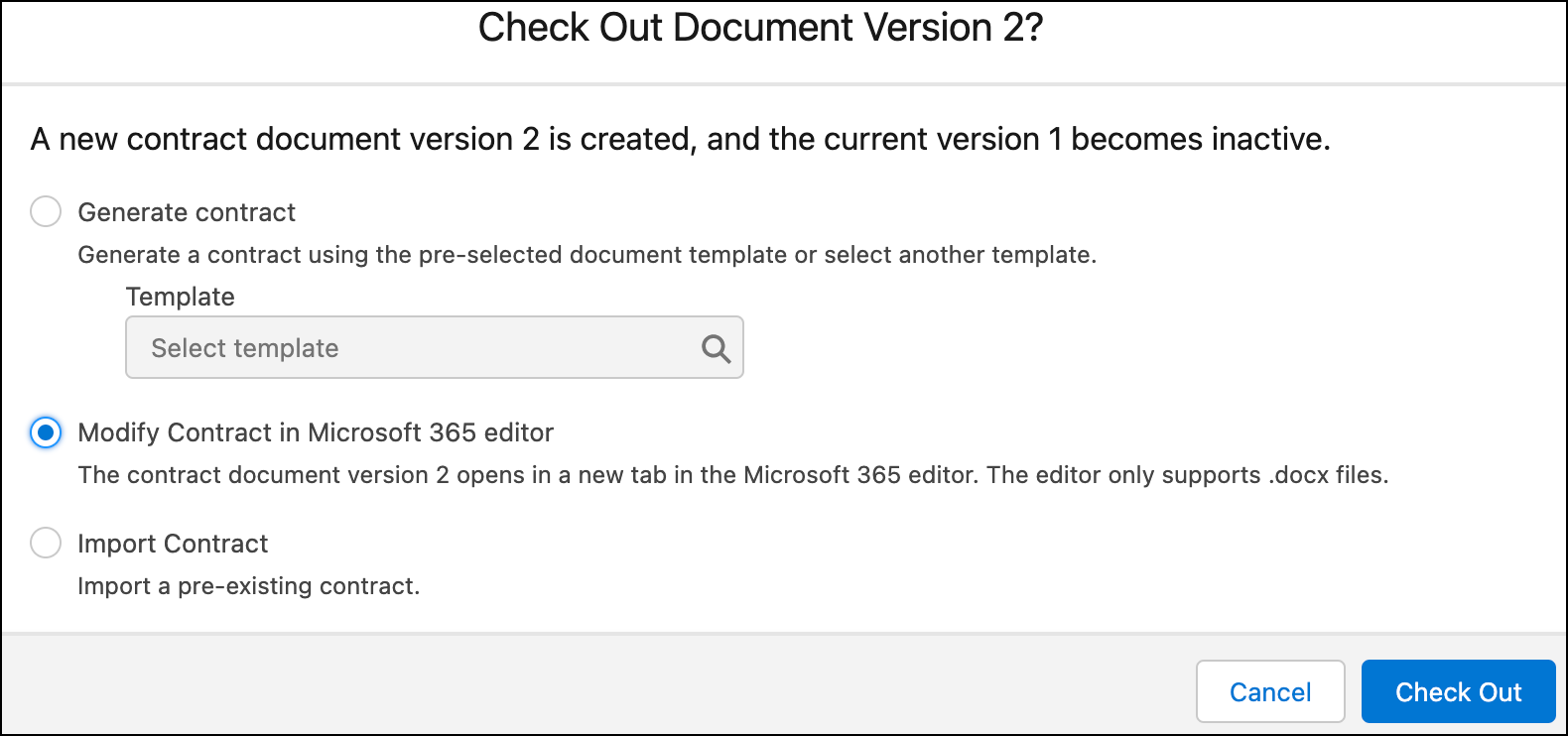
- Click Check Out to convert the document to Microsoft Word, PDF, or both, and attach the contract document to the latest version.
Create new version using Generate Contract
You can create a new version of the contract document by selecting an existing template.
- Select Generate contract in new version.
- From the Select template dropdown, select an existing template to generate the document.You can select an active document template from which to generate the contract document. A new version of the contract document is generated and locked. Contract document sections are generated by applying conditional logic to the selected template and substituting variables.
- Select Check Out to convert the document to Microsoft Word, PDF, or both, and attach the contract document to the latest version.
A new contract document with a new version is generated and the current version becomes inactive.
