You are here:
Create Section in Contract Document
Contract authors can define sections within a document to structure and organize the content more effectively.
- Initiate contract document creation from an order, opportunity, or quote or from a standard or custom object.
- To generate the contract document, select Create Contract in Microsoft 365.The document opens on a new tab within the Microsoft 365 editor.
- Click the Salesforce Contracts for Word add-in on the Home tab.
- Create a section.
- Click .
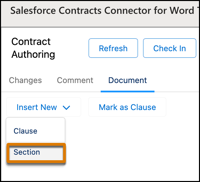
- Enter a unique name for the section.
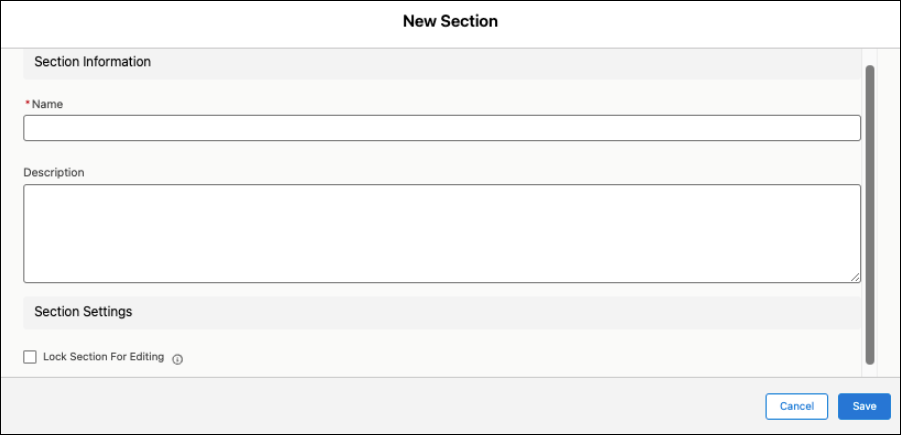
- Enter a description for the section.
- Save your changes.
- Click .
The section appears on the Sections tab. Contract authors can quickly navigate to specific sections and include the appropriate clauses, tables, and contract text within each section.
Did this article solve your issue?
Let us know so we can improve!
