You are here:
Salesforce Contracts End To End Flow
Salesforce Contracts automates and streamlines every stage of the contracting process.
B2B contracts move through several stages during their lifecycle. In the authoring stage, documents are drafted. During negotiation, all parties agree on the contract’s language, duration, terms, and conditions, and internal stakeholders approve the contract. The contract then enters the execution stage, where each party electronically signs the agreement. After all parties sign, the contract is activated and obligations are tracked through the compliance stage.
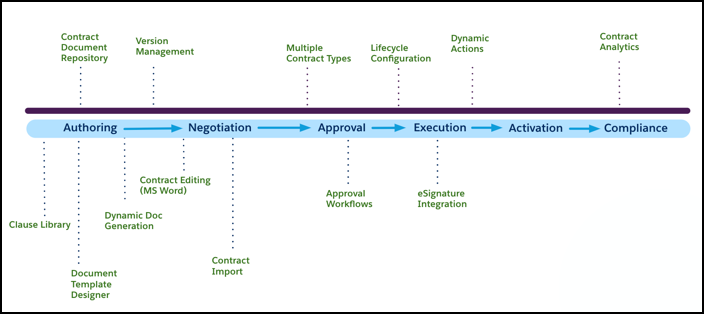
This walkthrough shows how a sales executive creates a contract from a quote, negotiates the terms, and signs the contract document.
-
Authoring: Generate contract documents by using Document Template Designer to create contract document templates, or use dynamic document generation to apply pre-configured templates.
-
Initiate the creation of a contract document from an order, opportunity, or quote, or from a standard or custom object. See Create a Contract from an Opportunity, Order, or Quote or Create a Contract from a Standard or Custom Object. For example, select Create Contract from the quote object to create a contract.
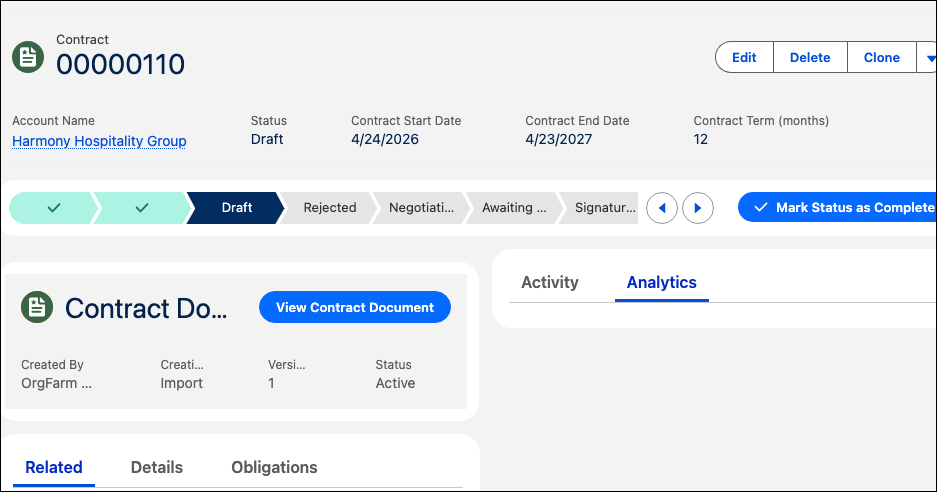
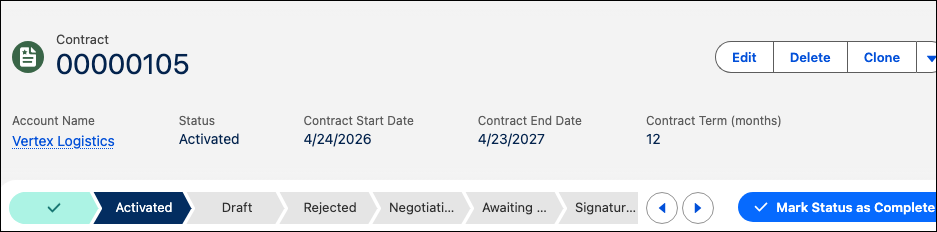
The contract page displays the contract header with the account name, current contract status, start and end dates, and contract term.
The Contract Status values represent the states that the contract moves through during its lifecycle. The contract document section shows the current document version and status.
The three tabs — Related, Details, and Obligations — show related records, contract fields, and obligation tracking.
-
Create a new document by selecting a document template, importing an existing document, or creating a document in Microsoft 365. See Generate Contract Document Versions. To generate a contract document, select a pre-configured template from the list under Generate Contract. View the generated PDF and DOCX document to verify the content.
-
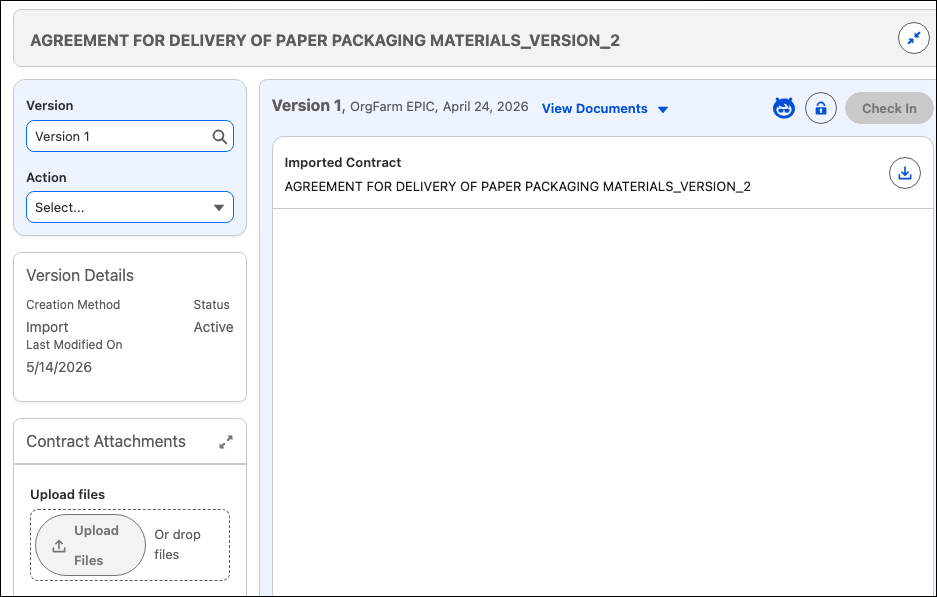
Create Version 1 of the contract document by selecting Check In.
-
-
Negotiation: Share the contract document offline with the counterparties. The customer makes adjustments to the document and returns it for review. See Create New Contract Document Versions.
-
Download and share the DOCX version of the contract document with the counterparties. Accept or reject the updates and save the DOCX file. See Contract Review in Microsoft 365.
-
Upload the updated DOCX file by using Import Contract. Importing generates a new contract document version for internal approval.
-
Select Check In to create Version 2 of the contract document.
-
-
Approval: Configure approvers and approval criteria by using the Salesforce approval workflow. The contract moves through the approval process based on the workflow configuration.
-
Select Submit for Approval to send the contract document for internal approval. After the contract is approved, the status updates to reflect the next stage in the configured state model.
-
-
Execution: Salesforce Contracts includes built-in integration with DocuSign. Send documents to recipients for e-signature. After all recipients sign the document, the signed version syncs back to the contract record. See Submit a Contract for E-Signature.
-
Select Send for Signature to send the contract document for e-signature.
-
The Document E-Signature page opens, where you add recipient details, the email subject and message, and the documents to attach.
-
After you complete all fields, select Send. DocuSign sends a notification email to the recipient, who then accesses, reviews, and signs the document. The contract status updates to Awaiting Signature.
-
To verify that the e-signature envelope was signed, update the envelope status by selecting Update Envelope Status.
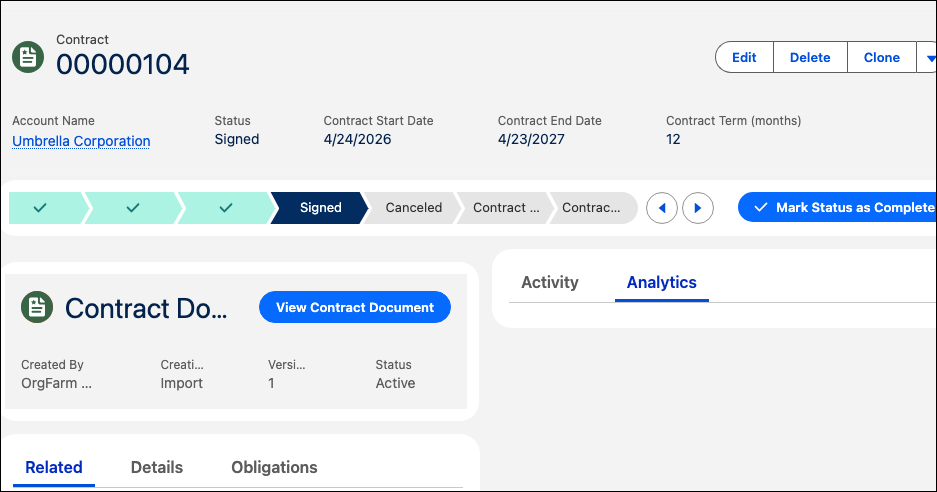
The contract status updates to Signed and Salesforce generates a PDF version of the signed document with the prefix "signed".
-
-
Activation: From the contract actions menu, select Activate. The contract status updates to Activated.
-
Compliance: After a contract is activated, track contractual commitments by creating obligations. Assign each obligation to an owner and monitor its compliance status — Compliant, Non-Compliant, or At Risk. Automated alerts notify owners when deadlines approach. See Obligation Management.
Use Salesforce Contracts Analytics dashboards to monitor contract status, track renewal timelines, and identify compliance risks across your contract portfolio. See Salesforce Contracts Analytics.
