You are here:
Electronic Signature Configuration for Salesforce Contracts
Using the Electronic Signature Configuration setup, the system admin must define the required configurations to support the e-signature APIs and UI.
The settings include configurations such as enabling the e-signature vendor DocuSign, location in the document for signing and adding the required values to support multiple signers.
Create Electronic Signature Configuration
The system admin must create and define four mandatory config type settings for the electronic signature configuration. It includes anchor string, signer roles, callout named credential, and eSign vendor account id.
For information, see Electronic Signature Configuration.
- From Setup, in the Quick Find box, enter Electronic Signature Configuration.
- Click Electronic Signature Configuration.
- Click New.
- Enter these details:
- Vendor: DocuSign
- Group Type: Anchor Tab Setting
- Description: <optional, add a description for the configuration setting.>
- Config Type: Signer Roles
- Config Value: Signer1, Signer2, Signer3, Signer4, Signer5.
- Click Create.
- Repeat the steps for the other settings..
List of Electronic Signature Configurations
The system admin must create and define four mandatory config type settings for the electronic signature configuration. It includes anchor string, signer roles, callout named credential, and eSign vendor account id.
These configurations connect Salesforce to your DocuSign account and define how signature placement works in your documents. You must create all four mandatory settings before the e-signature feature is functional.

| Config Group | Config Type | Config Value | Description |
|---|---|---|---|
| Anchor Tab Setting | Anchor String | For example, signHereTabs:sfSignHere,dateSignedTabs:sfSignDate, initialHereTabs:sfInitialHere |
Stores the tabs and their anchor information which is used in identifying the locations on the document where the recipients must sign. |
| Callout Configuration Setup | Callout Named Credential | DocuSignAuthProvider | Stores the name of your Named Credential for DocuSign. It is used to call the DocuSign REST APIs. |
| Envelope | Envelope Last Poll Date | This field is auto populated. | Stores the date and time of the last poll for envelope update. The scheduling job updates the status of envelopes submitted as part of the e-signature process. |
| eSign Vendor Account | eSign Vendor Account Id | The API AccountId from DocuSign account. | Stores the Id of the DocuSign Vendor account. You can fetch this from the Apps and Keys page of your DocuSign account. |
| Anchor Tab Setting | Signer Roles | For example, Signer1, Signer2, Signer3, Signer4, Signer5 | Defines the signing order. If your envelope has more than one recipient, you can choose to set a signing order. The signing order lets you control the order in which your recipients receive and sign your documents. |
| Custom Class Setting | Recipients Custom Class | Custom APEX Class Name | Custom recipient list can be configured using an APEX class. This class must be added to the org. |
| Custom Class Setting | Documents Custom Class | Custom APEX Class Name | Custom document list can be configured using an APEX class. This class must be added to the org. |
Edit Electronic Signature Configurations
You can edit the config type settings for the electronic signature configuration such as anchor string, signer roles, callout named credential, and eSign vendor account id.
- From Setup, in the Quick Find box, enter Electronic Signature Configuration.
- Click Electronic Signature Configuration.
- Click the dropdown arrow next to the configuration that you want to edit and click Edit.
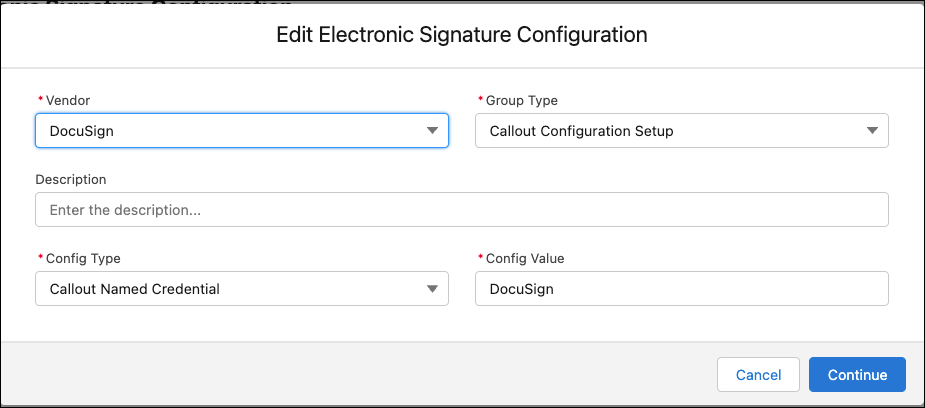
- Edit the required details.
- Click Continue.
- Repeat the steps for the other signature settings.For more information, see Default Contract Type Config Settings for E-Signature.
