You are here:
Initiate Internal Review
Internal review enables authorized team members to analyze and verify contract information, ensuring accuracy and completeness. Contract authors can initiate an internal review from Salesforce only if the contract version is created by using the Create Contract in Microsoft 365 option.
Create the Internal Review Required contract type config and set its value to yes.
| REQUIRED EDITIONS |
|---|
| Available in: Lightning Experience |
| Available in: Professional, Enterprise, Unlimited, and Developer Editions |
| USER PERMISSIONS NEEDED | |
|---|---|
| To initiate an internal review: | CLM Admin |
To initiate an internal review, check out the document and create a version by using the Modify Contract in the Microsoft 365 editor option. Then, check in the document from the Microsoft 365 add-in. You can see the initiate internal review option.
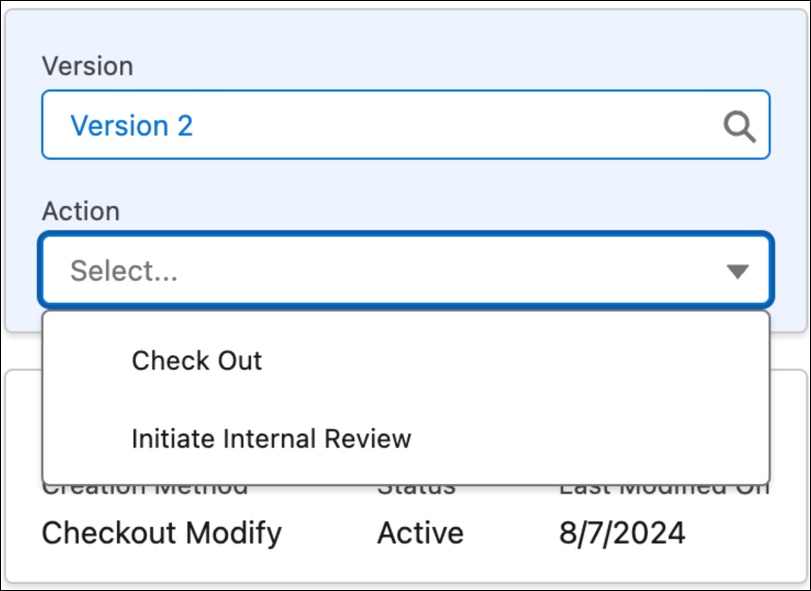
When you create a contract document version, such as version 1, by using Create Contract in Microsoft 365 and check in the document from the add-in, the Check Out and Initiate Internal Review options are available. When you initiate an internal review, Salesforce generates version 2 of the document, and the Open in Microsoft 365 Editor option becomes available. Use these steps to initiate the review for version 2 of your document.
-
On the contract document page, select Initiate Internal Review
from the Action dropdown.
The internal review action is available only if the contract status is draft, and the contract document version is active.
-
Click Initiate Review.
The active contract document version is automatically checked out, and a new contract document version with the status In Review is created.
- Click Open in Microsoft 365 editor.
- From the Home tab, open the Salesforce Contracts for Word add-in.
-
Click Add Internal Reviewers.
You can add users with Azure credentials as reviewers directly in Microsoft 365.
-
Select how you want to add internal reviewers.
- The user-based option helps you add any internal users for parallel review.
- The profile-based option limits participation to users from a selected profile. For example, selecting the Legal profile limits participation and edits to Legal team members.
 Note The view access type grants read-only access to the added reviewers, while the edit access type allows the reviewers to modify the document, and edit and delete the comments.
 -
To select user-based users:
- Select User-Based.
- In Reviewer, search for users by name or email address, and select the reviewers.
- Select an access type, such as edit or view.
- Click Add.
-
To select profile-based users:
- Select Profile-Based.
- From Select Reviewer Profile, select a profile.
- In Reviewer, search for users by name or email address, and select the reviewers.
- Select an access type, such as edit or view.
- Click Add.
- To start the review process, click Send Email.
