You are here:
Manage Notification Delivery Settings for Obligations
The CLM admin can enable or disable obligation email and in-app notifications from Notification Delivery Settings. The notification is sent for all obligation status changes.
You need the ObligationManagement platform license to see the Contractual Obligations and Obligation Alerts settings in Salesforce.

Note By default, in-app and email notifications are enabled for both Contractual and Obligation alerts.
| REQUIRED EDITIONS |
|---|
| Available in: Lightning Experience |
| Available in: Enterprise, Unlimited, Professional, and Developer Editions |
| USER PERMISSIONS NEEDED | |
To create and define obligation notification settings: |
CLM Admin User |
-
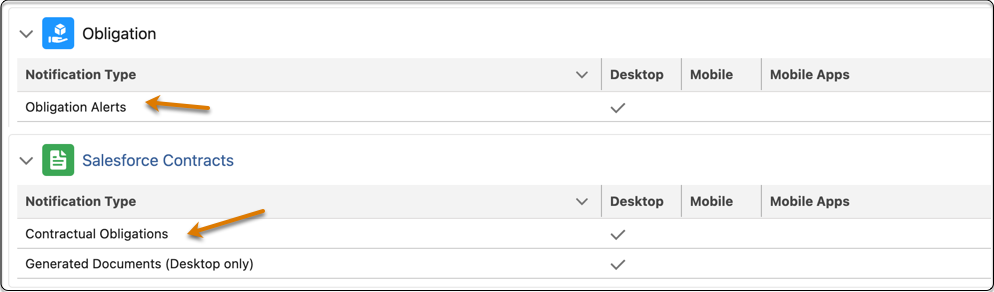
From Setup, in the Quick Find box, enter Notification, and then select Notification Delivery Settings.
-
To send notifications when the state of obligations associated with a contract is updated due to a change in the contract’s status:
-
In Salesforce Contracts, select the Contractual Obligations notification type, and select Edit from the dropdown.
Notification Delivery Settings shows you only the notification types available for your org.
-
Select the channels for your notification type to enable notifications, and then save your changes.
To disable notifications, deselect the channels for your notification type, and then save your changes.Notification is sent to both the obligation manager and assignees with the details of the contract and the associated obligations that were impacted.
-
In Salesforce Contracts, select the Contractual Obligations notification type, and select Edit from the dropdown.
-
To send notifications when an action is performed on the obligation such as create, delete, and update:
-
In Obligation, select the Obligation Alerts notification type, and select Edit from the dropdown.
Notification Delivery Settings shows you only the notification types available for your org.
-
Select the channels for your notification type to enable notifications, then save your changes.
The obligation manager receives notifications only when the obligation status changes.To disable notifications, deselect the channels for your notification type, and then save your changes.
-
In Obligation, select the Obligation Alerts notification type, and select Edit from the dropdown.
Did this article solve your issue?
Let us know so we can improve!
