You are here:
Limitations of Field Values Extraction Using Contracts AI
This topic outlines the limitations of the Contracts Extraction feature, detailing various field types and their specific challenges. Each limitation requires specific manual adjustments after extraction to ensure data accuracy and integrity.
Composite Field
When you’re extracting and mapping fields from a document to contract fields in Salesforce:
-
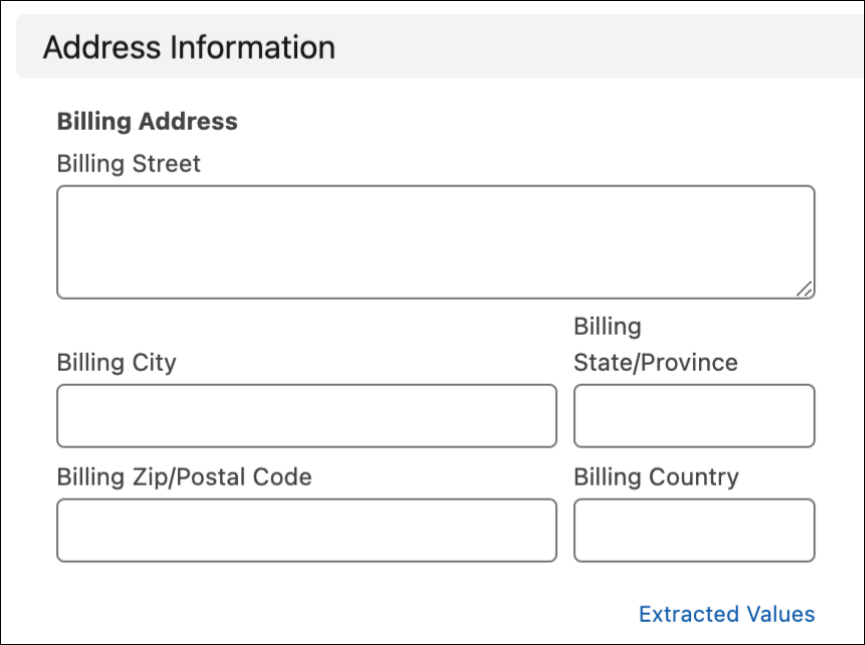
If you intend to map composite fields, you must create individual attributes in the persistence mapping for each subfield associated with the composite field. For example, for a composite field such as Billing Address, which consists of five subfields (Billing City, Billing Country, Billing Zip/Postal Code, Billing State/Province, and Billing Street), you must create an attribute for each of the subfields. Then, create a corresponding mapping with the relevant contract fields.
-
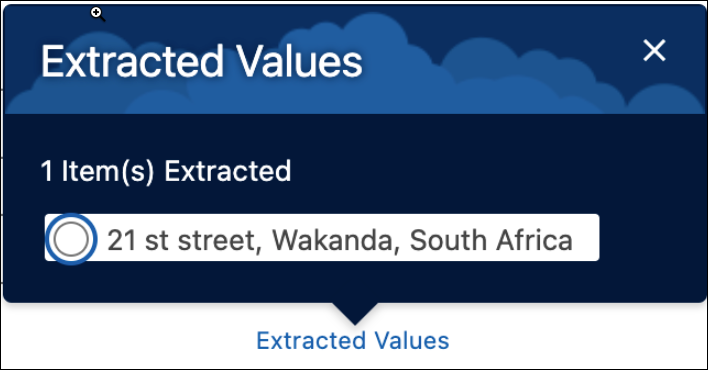
After the field values are extracted for each of the subfields, the results are available via an Extracted Values hyperlink. You must manually add the results under each of the subfields. For example, enter the billing city name in the Billing City field.After the field values are extracted for each of the subfields, the results are available via an Extracted Values hyperlink. You must manually add the results under each of the subfields. For example, enter the billing city name in the Billing City field.
Formula Field
By default, the formula fields derive their value from a formula expression you define. The formula field updates whenever any of the source fields change. The rule applies to any field that uses a formula in the back end. After the contract extraction, you must review the extracted values and populate the field as per the formula defined in the document. For example, let’s say you’ve defined the Price Type based on the Billing Country, such as setting the Price Type to Special Price when the Billing Country is the USA. After extraction, you must manually enter the formula value.
Picklist (Multi-Select) Field
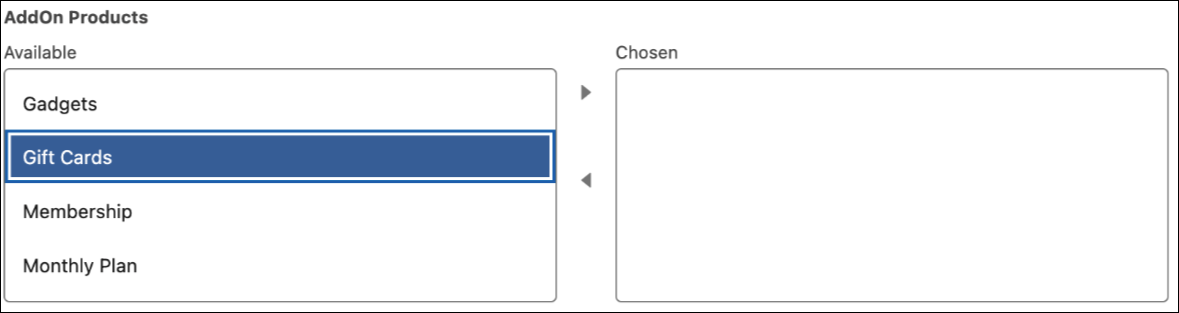
The picklist (multi-select) field allows you to define multiple values for a field. After the contract extraction, you must review the extracted values and make appropriate selections based on the document. For example, let’s say you’ve defined multiple AddOn products such as gift cards, monthly plans, and memberships. Then, after extraction, you must select and move the items from the Available field to the Chosen field.
Text Area (Rich) Field
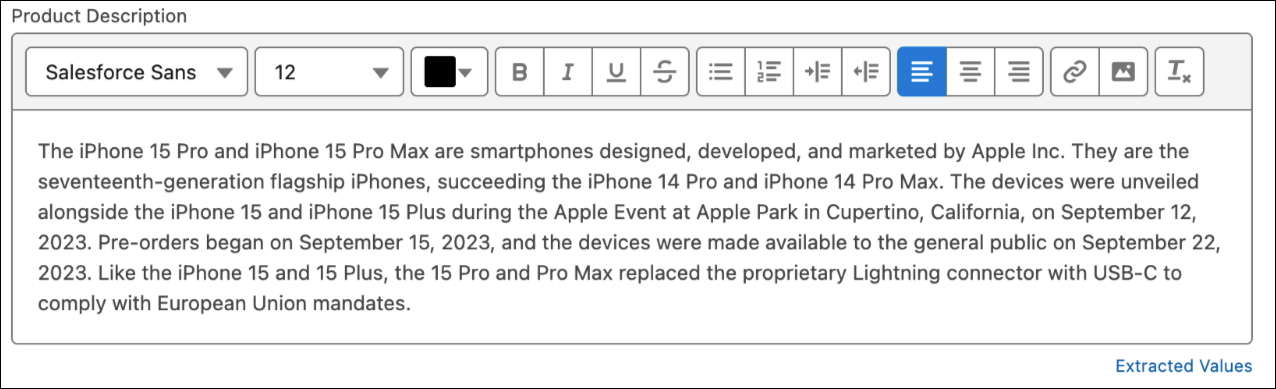
The text area (rich) field allows you to enter formatted text, add images, and links. The contract extraction feature doesn’t retain the original text formatting from the document. You must reformat the content in the text area (rich) field before saving the content. For example, let’s say you’ve formatting within the product description field, such as bold and bullets. Then you must manually define the formatting after extraction.
Percent Field
The percent field allows you to enter a percentage, for example, 22, and automatically adds the percent sign to the number. However, if the contract extraction feature extracts the percent and the percent sign, you can’t select the radio button. You must enter the percent number and the percent sign is automatically added.
Currency Field
The currency field allows you to enter a dollar or other currency amount and automatically formats the field as a currency amount. However, if the contract extraction feature extracts the currency amount and the currency symbol, you can’t select the radio button. You must enter the currency number, and the currency symbol is automatically appended when you create a contract record based on the local currency set in your Salesforce org. In the extraction field, the currency symbol isn’t visible.
Checkbox Field
The contract extraction feature automatically selects all checkboxes, so you must manually deselect the non-applicable checkboxes.
Picklist Field
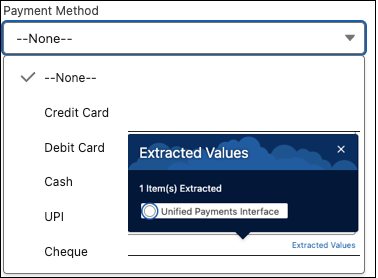
The contract extraction feature extracts the value from the document. However, if the extracted value doesn’t match the predefined picklist values, it doesn’t populate the field when you select the radio button. You must manually add the extracted value. For example, if the extracted payment method is Unified Payments Interface and the predefined list has only Credit Card, Debit Card, Cash, and UPI, you must enter the extracted value in the Payment Method field.