You are here:
Configure a Microsoft Azure App Manually Through Minimum Privilege Setup
Configure a Microsoft Azure app to establish a connection between Salesforce and Microsoft.
Required Editions

Note To use a guided setup to integrate Microsoft 365 and Azure, see
Set Up Microsoft 365 and Azure Integration Using Guided
Setup.
| Available in: Lightning Experience |
| Available in: Professional, Enterprise, Unlimited, and Developer Editions |
| User Permissions Needed | |
|---|---|
| To configure a Microsoft Azure App: | User without admin privileges in Azure |
- Open Microsoft Azure.
- Log in to your Microsoft Azure account.
- To go to App registrations, search for Azure AD B2C, click Manage, and select App registrations.
- Click New Registrations.
-
Enter the details.
-
Enter a name for the app.
For example, MicrosoftApp.
- For supported account types, select Accounts in this organizational directory only (Salesforce -SFDC-CLM only - Single tenant).
-
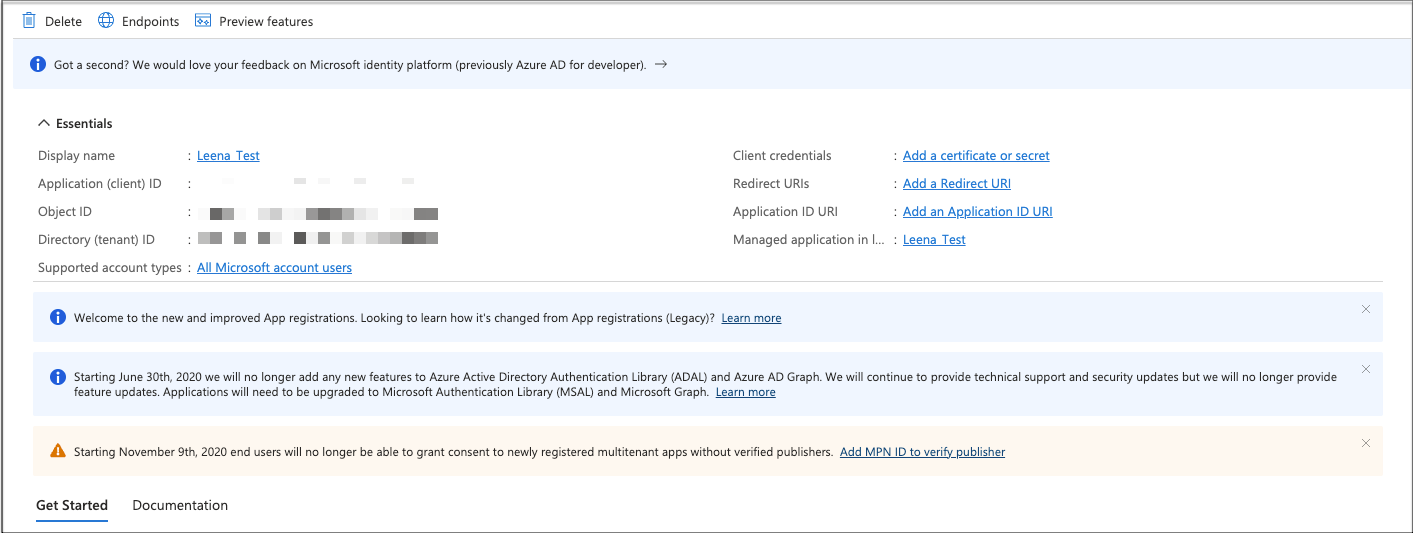
Click Register.
-
Enter a name for the app.
- Note the Application (client) ID.
-
Add permissions.
- Click API permissions.
- Click Add a permission | Microsoft Graph Delegated permissions.
- In Select permissions, enter Sites.Selected.
- Select Sites.Selected permission, and click Add permissions.
-
Similarly, add these permissions.
- openId
- Offline_access
- User.Read
- User.Read Basic.All
-
Request your Global Administrator to grant consent for the permissions you added,
by clicking Grant admin consent for {TenantName}.
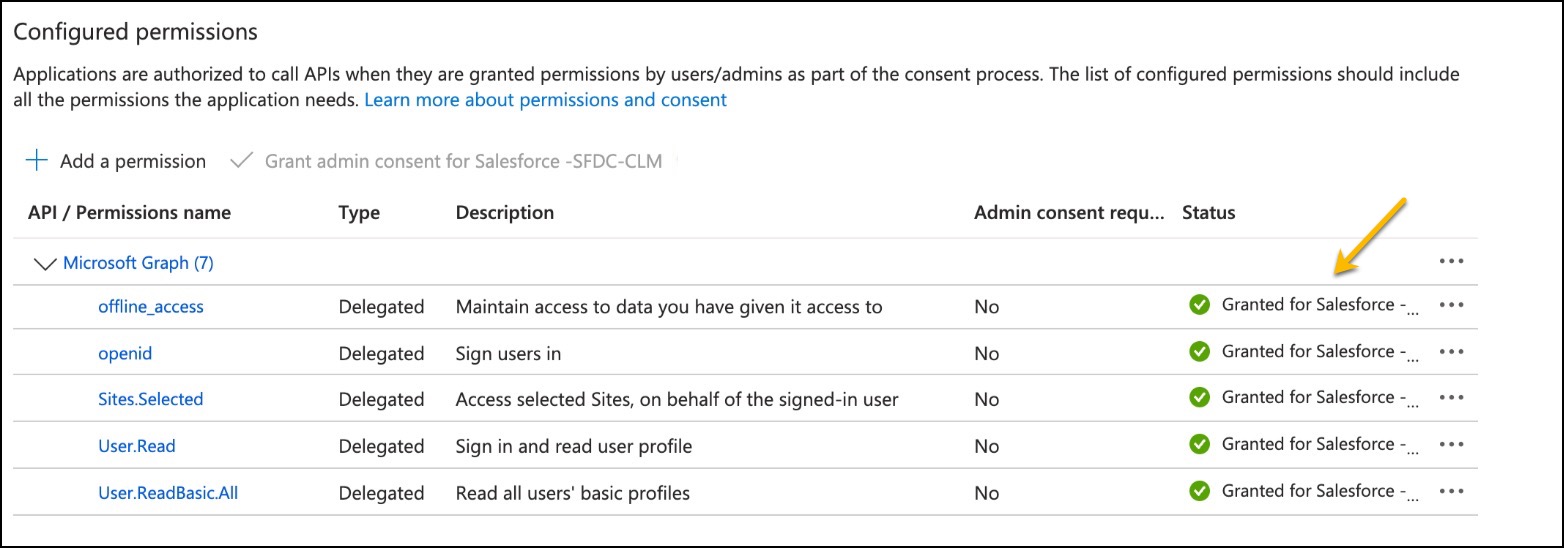
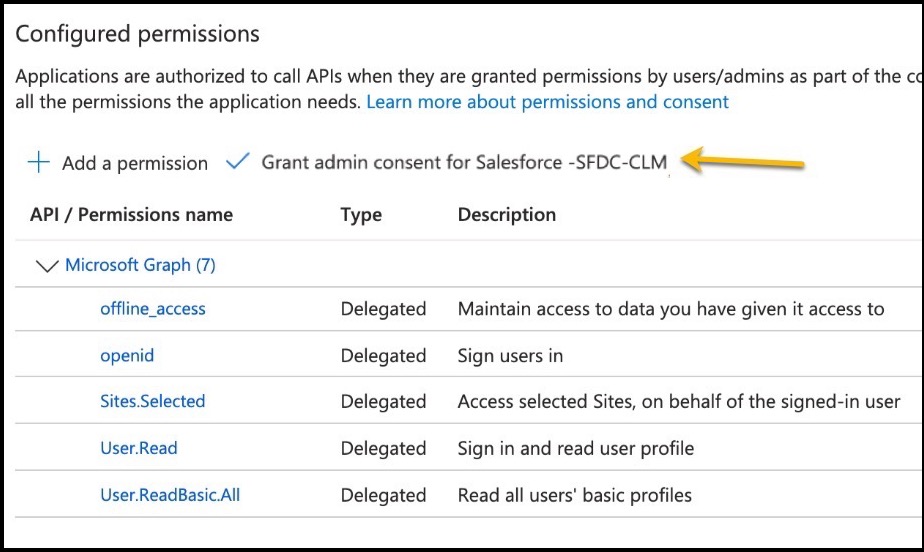 When the Global Administrator clicks Yes, the status changes to Granted for Salesforce - {TenantName} for all permissions.
 -
Verify that the status has changed to Granted for Salesforce - {TenantName} for all
permissions.
-
Add the new client secret.
- Click Certificates & secrets.
-
Click New client secret.
The Add a client secret window opens.
-
Enter a description for the client secret.
For example, MicrosoftApp.
- Specify an expiration timeframe.
-
Click Add.
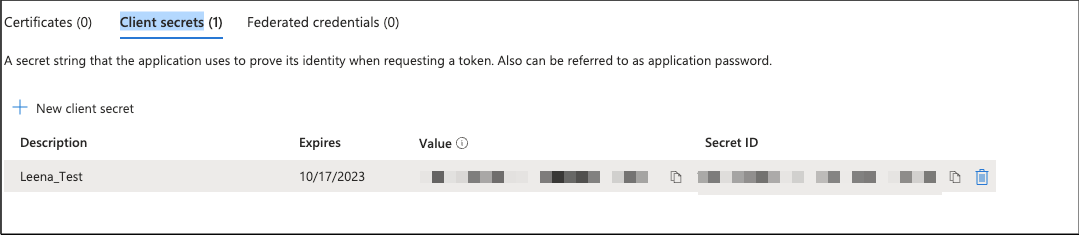
A client secret value gets created.
-
Immediately copy and save the Client Secret value.
If you don't save the client secret value immediately, you need to create a new value. You need this copied client secret value while configuring Auth. Provider. Automatic encryption prevents retrieval of the client secret value.
Did this article solve your issue?
Let us know so we can improve!
