You are here:
Sample Salesforce Contracts API Sequence
Here’s a sample sequence of Salesforce Contracts API calls, which covers an optimal path for an end-to-end contract lifecycle. The lifecycle starts when you create a contract and the contract is in the draft state to contract activation.
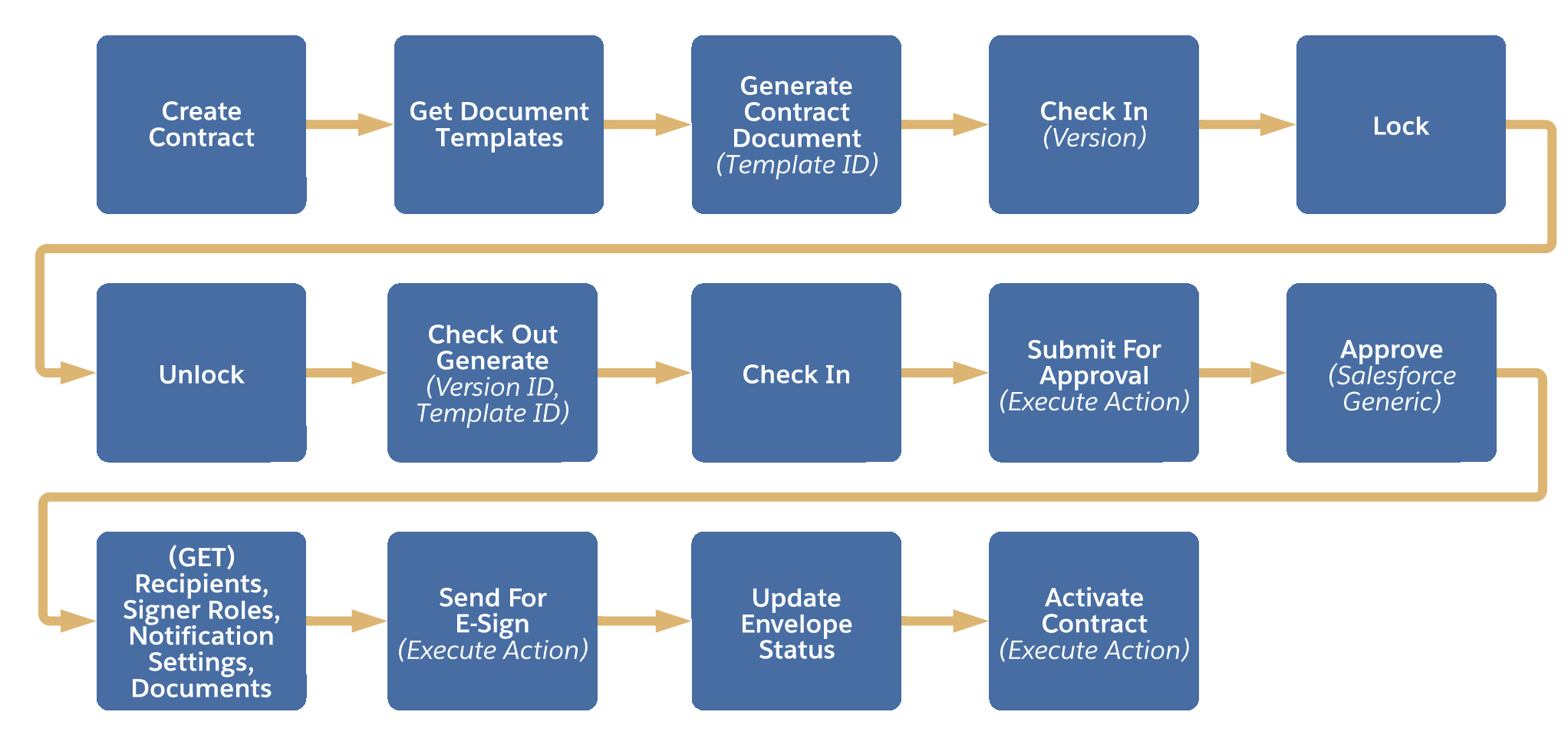
| API Sequence | Scenario | Method Type | API Path | Description |
|---|---|---|---|---|
| 1 | Create Contract | POST | <your domain URL>/services/data/{API version}/connect/clm/contract | To create a contract from opportunity, quote, order, or any other standard or custom object. After a contract is created, it is in draft status. request body: If Auto Generate Document On Contract Creation config type is set to true, the application automatically generates a contract document version when a contract is created. |
| 2 | Get Document Templates | GET | <your domain URL>/services/data/{API version}/connect/clm/document-template?usageType=Contract_LifeCycle_Management&isActive=true&type=MicrosoftWord | Lists all the active document templates. By default, the templates fulfilling these criteria are listed: Type = ‘Microsoftword’, UsageType = ‘Contract_Lifecycle_Management’, IsActive = true For information on custom filtering, see Use Custom Document Template Filtering for Salesforce Contracts. |
| 3 | Generate Contract Document | PATCH | <your domain URL>/services/data/{API version}/connect/clm/contract/{ContractId}/contract-document-version | To generate a new contract document version. The contract status must be in the draft state to generate a new contract document version. request body: |
| 4 | Check In | PATCH | <your domain URL>/services/data/{API version}/connect/clm/contract-document-version/${contract document version ID}/checkin | To check in the latest contract document version that is both inactive and locked.Note: Only the user who generated the document can perform Check in. |
| 5 | Lock | PATCH | <your domain URL>/services/data/{API version}/connect/clm/contract-document-version/${contract document version ID}/lock | To lock the current contract document version. You can only lock a contract document version when the contract is in a draft state and the contract document version is active or checked in. |
| 6 | Unlock | PATCH | <your domain URL>/services/data/{API version}/connect/clm/contract-document-version/${contract document version ID}/unlock | To unlock the current contract document version. Only the user who locked the contract document version or a system admin can unlock a locked contract document version. |
| 7 | Check Out Generate | PATCH | <your domain URL>/services/data/{API version}/connect/clm/contract-document-version/{$contract document version id}/checkout | To generate a new contract document version using the same or different template using check out generate action. request body: After Check Out, you must run the Check In API. |
| 8 | Submit for Approval (Execute Action) | PATCH | <your domain URL>/services/data/{API version}/connect/clm/contract/${contractid} | To call the submit for approval action using Execute Action API. The endpoint remains the same; however, each API has different request parameters. Approval Process must be configured. |
| 9 | Approve | N/A | N/A | This is a generic Salesforce Approval API. For more information, see https://developer.salesforce.com/docs/atlas.en-us.api_rest.meta/api_rest/dome_process_approvals_approve.htm. |
| 10 | Get Documents for eSign with contract | GET | <your domain URL>/services/data/{API version}/connect/e-sign/documents?sourceObjectId=${contractId} | To view the list of documents that are associated with a contract that you want to send for e-signature. The document details are mandatory to send for e-signature. You can customize the document list using a custom Apex class. The apex class details must be added in the Electronic Signature Configuration. |
| 11 | Get Recipients | GET | <your domain URL>/services/data/{API version}/connect/e-sign/recipients?recipientSelector=ESignContactList&sourceObjectId={$contractId} | To view a list of document recipients. The recipient details are mandatory to send for e-signature. You can customize the recipient list using a custom Apex class. The apex class details must be added in the Electronic Signature Configuration. |
| 12 | Get Notification settings | GET | <your domain URL>/services/data/{API version}/connect/e-sign/notification-settings?sourceObjectId={$contractId} | To view reminder and expiration notification settings.Note: The notification details are mandatory to send for e-signature. |
| 13 | Get Signer Roles | GET | <your domain URL>/services/data/{API version}/connect/e-sign/signer-roles | To view the list of signers who signs and adds data to form fields on the documents in the envelope. The signer details are mandatory to send for e-signature. |
| 14 | Send For E-Sign (Execute Action) | PATCH | <your domain URL>/services/data/{API version}/connect/clm/contract/${contractid} | To enable a new DocuSign transaction using Send Envelope API. The action api must cover the following parameters: Sample Request Body. You must convert JSON details to String and add it in the above request body. actionData is a stringified JSON containing document, recipeint, signer roler, and notification settings. |
| 15 | Update Envelope Status | PATCH | <your domain URL>/services/data/{API version}/connect/clm/contract/${contractid} | To send an ad hoc request to DocuSign to update the envelope status. Once the signer has signed the document, you can call the Update Envelope API. |
| 16 | Activate Contract (Execute Action) |
PATCH | <your domain URL>/services/data/{API version}/connect/clm/contract/${contractid} | To activate the contract. Use the API to activate the contract. |
| 17 | Terminate Contract | PATCH | <your org details>/services/data/{API version}/connect/clm/contract/${contractid} | To terminate the contract. |
Additional APIs
| Scenario | Method Type | API Path | Description |
|---|---|---|---|
| Get List of Contract Document Versions | GET | <your domain URL>/services/data/{API version}/connect/clm/contract/<contractid>/contract-document-version | To view the list of contract document version that are already available in the contract. |
| Get SpecificContract Document Version | GET | <your domain URL>/services/data/{API version}/connect/clm/contract/{ContractId}/contract-document-version?contractDocumentVersionId={ContractDocumentVersionId} | To view a specific contract document version that is already available in the contract. |
