You are here:
Search for Standard Clauses in Clause Library
The Salesforce Contracts for Word add-in enables you to search for clauses and clause sets in Clause Library while editing contract documents in the Microsoft 365. The search results show only the active clauses or clause sets based on the search query.
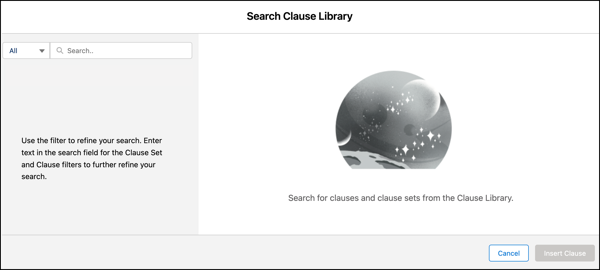
Below is the table highlighting various search capabilities.
To add the clause to the document, select the clause and click Insert Clause.
| Search Type | Example |
|---|---|
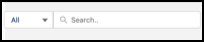
| Search for document clause sets or document clauses or both by the clause set name, clause name, or clause content keywords. |
|
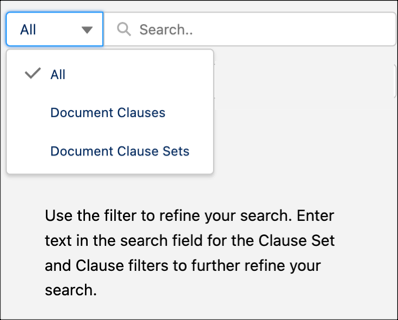
| Choose the entity to search within, such as document clause sets, document clauses, or both (All). |
|
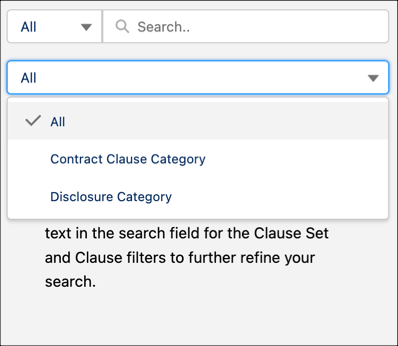
| Search for clauses on the basis of clause category. Only Template Designers have this option. |
|
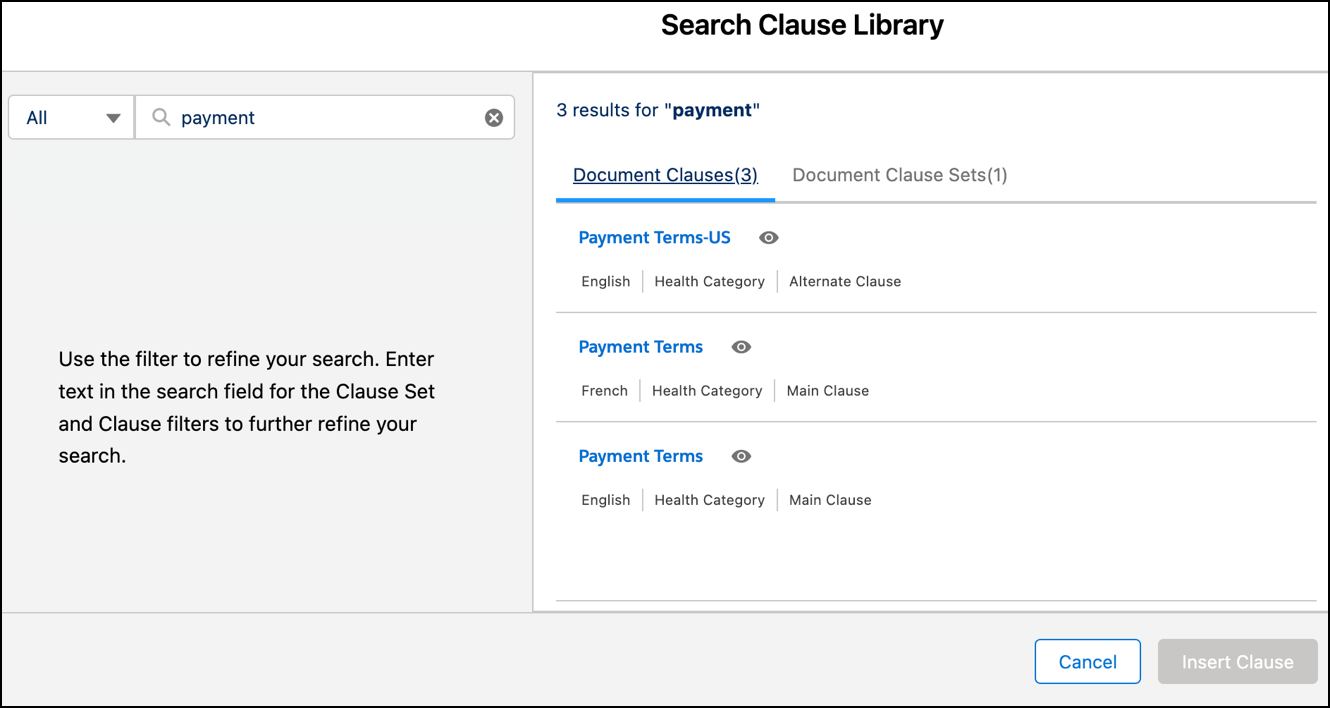
| Type in keywords in the search box and press Enter to initiate the search. The search results are shown on the right pane of the page, along with the number of matching records found. The results are specific to clause set or document clause. |
|
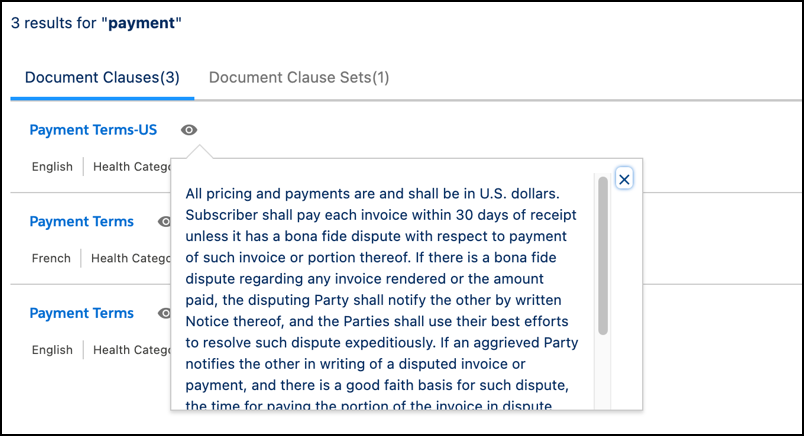
| Select either tab to view the result details with three fields: name, is alternate, and preview. On the Document Clauses tab, hover over the eye icon next to the clause name to obtain a quick preview of the clause content. |
|
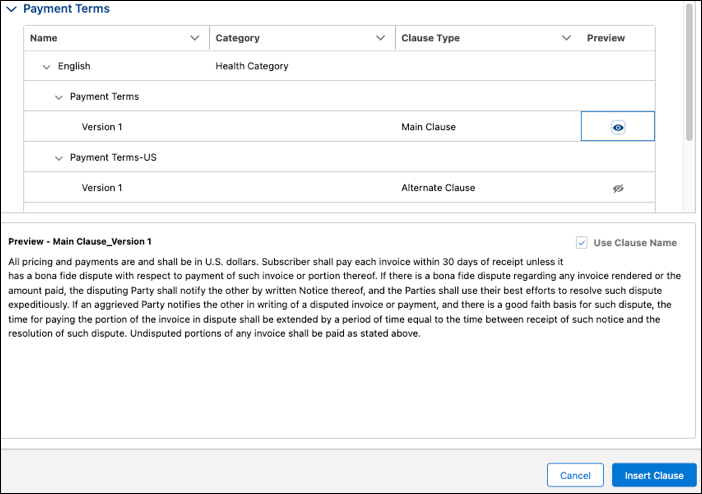
| Expand the document clause set to view both the main and alternate clauses. To view the content of a specific clause, click the eye icon next to the clause name. |
|
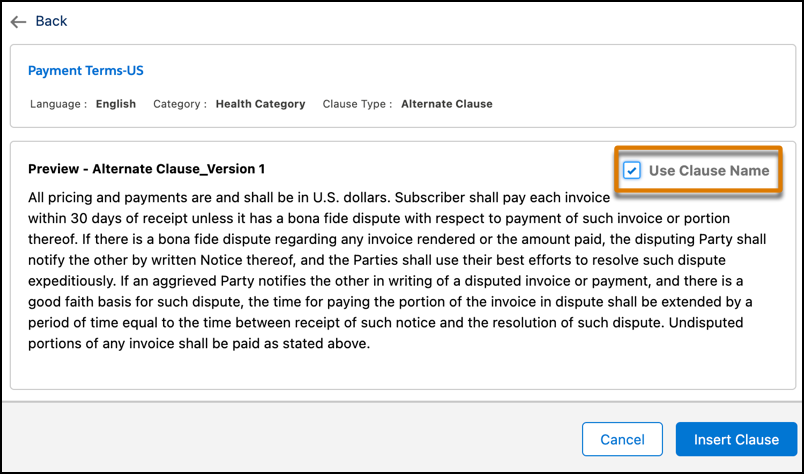
| Use Clause Name, selected by default, enables users to see the clause name in both the document and the panel. If deselected, the clause name is visible only in the panel. This simplifies the process of identifying and managing the clauses within a document. |
|
Did this article solve your issue?
Let us know so we can improve!
