You are here:
Set Up Approval Process Detail Page For Contracts
After you create a contract approval process, define at least one approval step before you can activate it. The approval step specifies who receives the approval request and how the contract status changes on approval, rejection, or recall.
This procedure continues from Define a Contract Approval Process. You configure an approval step, then define field updates for each outcome (approved, rejected, recalled) so that the contract status automatically reflects the result.
- From Setup, in the Quick Find box, enter Approval Processes.
- Click Approval Processes.
- In the Manage Approval Processes For dropdown, select Contract.
- Click the approval process that you created.
- In the Approval Steps section, click Add Approval Step.
-
In Step 1 (Enter Name and Description), enter these details:
- Name: Enter a name for the step. For example, Step1.
- Unique Name: Enter a unique API name. For example, Step1.
- Description: Enter a description of the step.
- Step Number: Enter 1.
- Click Next.
-
In Step 2 (Specify Entry Criteria), select All records should enter this step and click Next.
This ensures every contract submitted for approval goes through this step. You can add filter conditions later to route specific contracts to different approval steps.
-
In Step 3 (Select Assigned Approver), configure the approver and rejection behavior:
-
In the Assign Approver section, select Automatically assign to approver(s).
This option routes the request to a designated approver without requiring the submitter to choose. Alternatively, select Let the submitter choose the approver manually if your process requires the contract owner to select the reviewer at submission time.
 Note If you select manual approver assignment, submitters must use the Submit for Approval option in the dropdown menu next to the New Note button. Do not use the Submit for Approval button on the Documents tab of the contract record.
 - Optionally, select The approver's delegate may also approve this request.
-
In the Reject Behavior section, select a rejection option:
- Perform all rejection actions for this step AND all final rejection actions. (Final Rejection) — Use this option if a rejection at any step should immediately reject the contract.
- Perform ONLY the rejection actions for this step and send the approval request back to the most recent approver. (Go Back 1 Step) — Use this option if you want to allow the previous approver to reconsider before a final rejection.
For most implementations, select Final Rejection to keep the process simple.
-
In the Assign Approver section, select Automatically assign to approver(s).
- Click Save.
- Select No, I'll do this later. Take me to the approval process detail page to review what I've just created and click Go.
- In the Final Approval Actions section, click Add New and select Field Update.
-
Enter these details in the New Field Update window:
- Name: Negotiating
- Unique Name: Negotiating
-
Description: Add a description.
The default object is Contract.
- Field to Update: Status
- For A specific value, select Negotiating.
- Save your changes.
- In the Final Rejection Actions section, click Add New and select Field Update.
-
Enter these details in the New Field Update window:
- Name: Rejected
- Unique Name: Rejected
-
Description: Add a description.
The default object is Contract.
- Field to Update: Status
- For A specific value, select Rejected.
- Save your changes.
- In the Recall Actions section, click Add New and select Field Update.
-
Enter these details in the New Field Update window:
- Name: Draft
- Unique Name: Draft
-
Description: Add a description.
The default object is Contract.
- Field to Update: Status
- For A specific value, select Draft.
-
Save your changes.
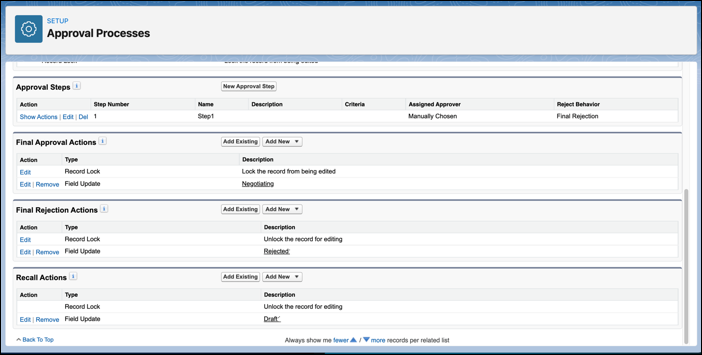
-
Activate the approval process:
- From Setup, in the Quick Find box, enter Approval Processes.
- Click Approval Processes.
- Click Activate next to the contract approval process you created.
