Loading
The online Trailblazer Community becomes read-only Oct 30, 2026Read More
Important Advisory: iOS Update Impacting CG Mobile ApplicationRead More
Set Up External Document Storage for Salesforce Contracts Using Guided Setup

Set Up External Document Storage for Salesforce Contracts Using Guided Setup

Set up external document storage for Salesforce contract records and templates, which is used for online editing in Microsoft 365. Specify the target object and record type to determine which records use external storage. Doing this ensures proper organization and access to the documents. A target object and record type combination must be unique and can’t be repeated.

Required Editions

Available in: Lightning Experience
Available in: Enterprise, Unlimited, and Performance editions.
User Permissions Needed
To access the Microsoft 365 and Azure Integration guided setup CLM Admin User
Note
Note When you use external document storage with Microsoft 365 and a minimum-privilege access model, only the docgen designer who creates a Microsoft 365 document can edit the document by default. To enable shared editing when multiple designers work in the same org, create a dedicated folder in Microsoft SharePoint, grant access to the required designers, and configure a separate external document storage configuration in Salesforce that points to this folder. Thus, preserving the minimum-privilege security model while supporting collaboration.
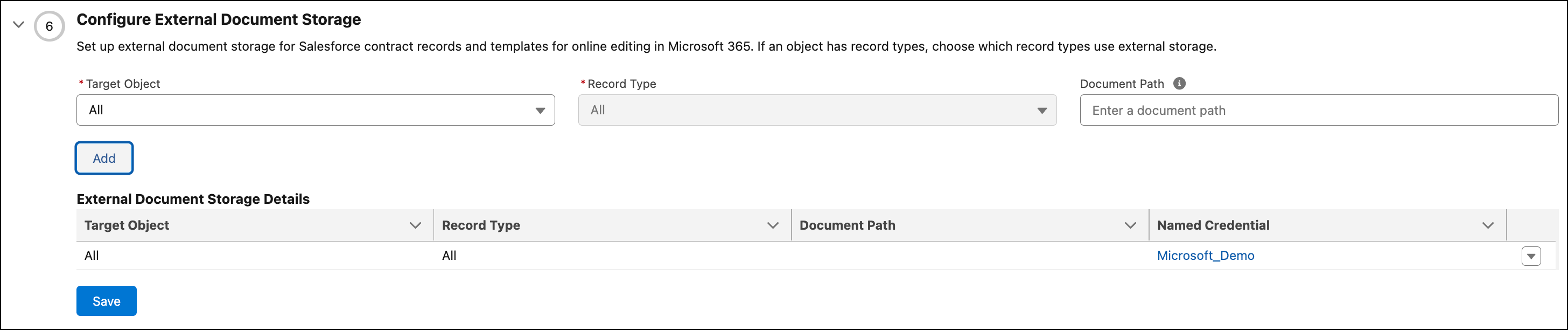
  1. In the guided setup, click Set Up External Document Storage to expand the step.
    Configuring external document storage
  2. Select a target object, and then select a corresponding record type.
  3. In the Document Path field, enter the storage path starting from the root directory (for example, salesforce/contracts). If the field is left blank, the root directory is considered as the storage path.
  4. Click Add and save your changes.
 
Loading
Salesforce Help | Article
