You are here:
Modify the Clauses in Contract Documents
Modify contract documents by adding, removing, and updating clauses.
Select Check Out from the Action dropdown and then select Modify Contract in Microsoft 365 editor.
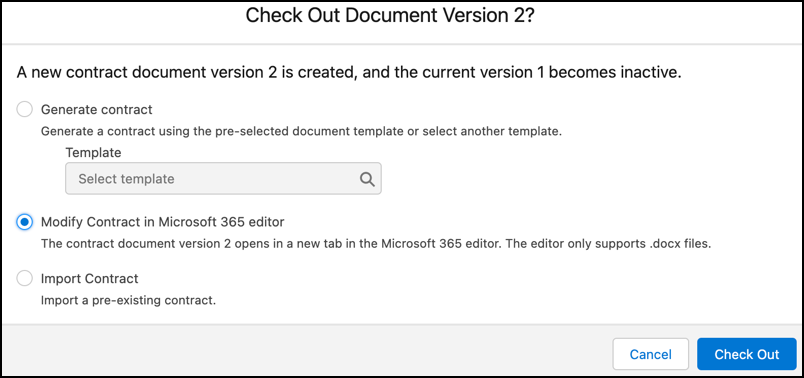
A new contract document version opens in Microsoft 365 editor.
Select the Salesforce Contracts for Word add-in on the Home tab. The Edit, Replace, and Delete options are available in the add-in pane for a clause.
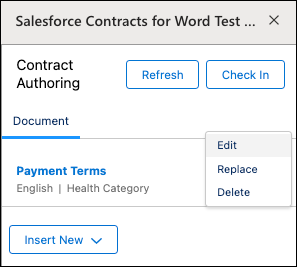
Replace: Select Replace from the dropdown menu next to the clause that you want to replace. Search for and select the desired clause or clause set from the clause library, and click Replace Clause. The add-in pane replaces the existing clause with the selected clause and updates the clause details accordingly in the add-in pane.
Delete: Select Delete from the dropdown menu next to the clause that you want to remove from the document.
Edit: Select Edit from the dropdown menu next to the clause that you want to update, and make the changes. A modified clause is no longer regarded as a document clause and is converted to plain text, unless you made only formatting changes. The clause reference is also removed from the add-in pane. Select Refresh to view the updated data in the panel.
Add: To insert a clause, from Insert New, select Clause.
After updating the clauses and content, click Check In. The updated contract document version is checked in Salesforce. Click Refresh to view the updated clauses in the pane.
Refresh the contract page in Salesforce to preview the updated version of the contract document.
