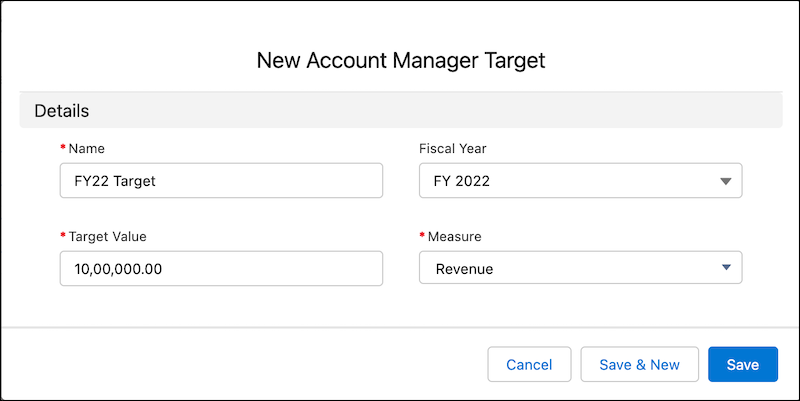
Create an account manager target to help your organization achieve business demands.
Account manager targets can be used to manage the sales targets for your organization. You can
create targets for yourself or assign targets to your team members.
Required Editions
Available in: Enterprise, Unlimited, and Developer
Editions
User Permissions Needed
To modify account manager targets:
View Setup and Configuration
Read, Edit permissions on Account Manager Target
From the App Launcher, find and select Account Manager
Targets.
Click New.
Enter a name for the account manager target.
Select a fiscal year.
You can select the current fiscal year, the next fiscal year, or the fiscal year after
the next one. The current fiscal year is selected by default. Fiscal year is based on the
fiscal year set up in your Salesforce org.
Note
Account manager targets are only
supported for standard fiscal year and not for custom fiscal year.
Select a measure.
Your Salesforce admin can create custom measures for creating targets of currency or
non-currency type. You can create targets with various measures for your organization, such as
customer satisfaction, net promoter score, product quantity, and more. The revenue measure is
provided by default.
Note After creating an account manager target, you can change the measure
only until it hasn’t been assigned.
Enter a target value for the account manager target.
If the target is of Currency measure type, the target value is in the currency of your
Salesforce org. If the target is of the Non-Currency measure type, the target value is
in units.
Note Only the creator (owner) of the Account Manager Target record can edit the Target
Value. Managers or other users higher in the organizational hierarchy cannot edit
the Target Value of a record they do not own.
Save your work.
You must distribute and assign the targets among your team members.
We use three kinds of cookies on our websites: required, functional, and advertising. You can choose whether functional and advertising cookies apply. Click on the different cookie categories to find out more about each category and to change the default settings.
Privacy Statement
Required Cookies
Always Active
Required cookies are necessary for basic website functionality. Some examples include: session cookies needed to transmit the website, authentication cookies, and security cookies.
Functional Cookies
Functional cookies enhance functions, performance, and services on the website. Some examples include: cookies used to analyze site traffic, cookies used for market research, and cookies used to display advertising that is not directed to a particular individual.
Advertising Cookies
Advertising cookies track activity across websites in order to understand a viewer’s interests, and direct them specific marketing. Some examples include: cookies used for remarketing, or interest-based advertising.