You are here:
Distribute Account Manager Targets
You can distribute target assignments by accounts and products. You can also distribute an overall target by time period, or a target assignment for a product or an account by time period.
Required Editions
| Available in: Enterprise, Unlimited, and Developer Editions |
| User Permissions Needed | |
|---|---|
| To modify account manager targets: | Read, Edit permissions on Account Manager Target |
Distribute Account Manager Targets by Account and Product
Distribute your account manager targets and target assignments by account and product. You can distribute each target assignment for specific accounts and products.
- On an account manager target’s record, go to the Assignments tab.
-
In the Distribute By column of the Team Assignments section, click Account and
Product in a team member’s assignment row.
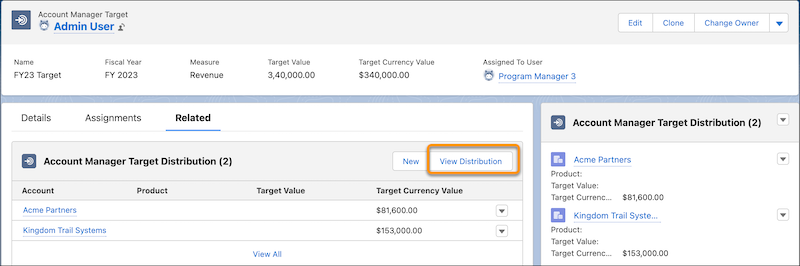
You can also distribute a target by navigating to the Account Manager Target Distribution related list in the target’s record page, and then clicking View Distribution.
-
Distribute the assignment by account.
- In the Account tab of the Distribute target assignment window, click Add Row.
- Search and select the account that you want to distribute this target assignment by.
-
Specify either the target percentage or target currency value. The target percentage is
the percentage of the target assignment value.
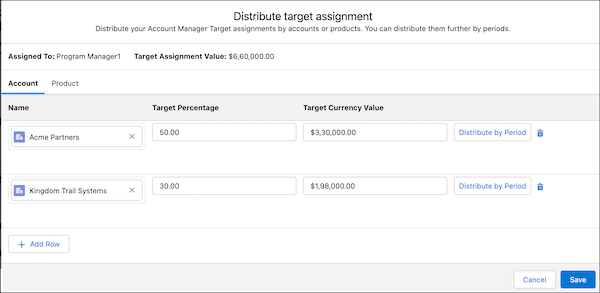
When you specify the target percentage or the target currency value, the other field is populated automatically. For example, let’s assume that the target assignment value is 1000. You assign 10 percent of this assignment to a particular account. The Target Currency Value field of this account’s distribution is automatically populated as 100. Similarly, if you enter the target currency value as 100, the Target Percentage field of this account’s distribution is automatically populated as 10.
-
Distribute the assignment by product.
- Go to the Product tab of the Distribute target assignment window.
- Click Add Row.
- Search and select the product that you want to distribute this target assignment with.
-
If needed, replace the default price book with another price book.
Your Salesforce admin defines the default price book for distributing targets by product.
-
Enter the list price for the product.
If the product is in the selected price book, the list price of the product is populated automatically.
-
Specify either the target percentage or target currency value. The target percentage is
the percentage of the target assignment value.
When you specify the target percentage or the target currency value, the other field is populated automatically. For example, let’s assume that the target assignment value is 1000. You assign 10 percent of this assignment to a particular product. The Target Currency Value field of this product’s distribution is automatically populated as 100. Similarly, if you enter the target currency value as 100, the Target Percentage field of this product’s distribution is automatically populated as 10.
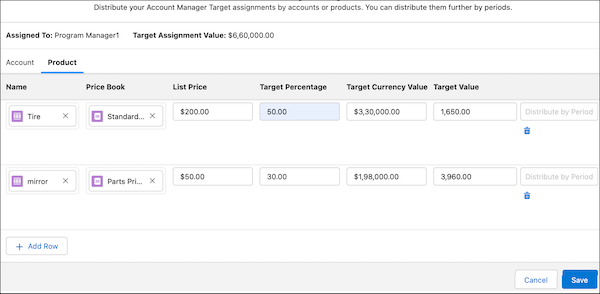
 Note If an account manager target is of non-currency measure type, the Target Currency Value in product distribution rows is a number and not a currency value.
- Save your work.
You must propagate your changes to your assignments to ensure they’re reflected accurately.
You can further distribute a target assignment for a product or an account by time period.
Distribute Account Manager Targets by Time Period
Distribute an account manager’s target value by time period. You can either distribute the overall target assignment in different periods or distribute a target assignment for a product or an account in different time periods. Your Salesforce admin sets the frequency of the time periods by which you can distribute account manager targets.
-
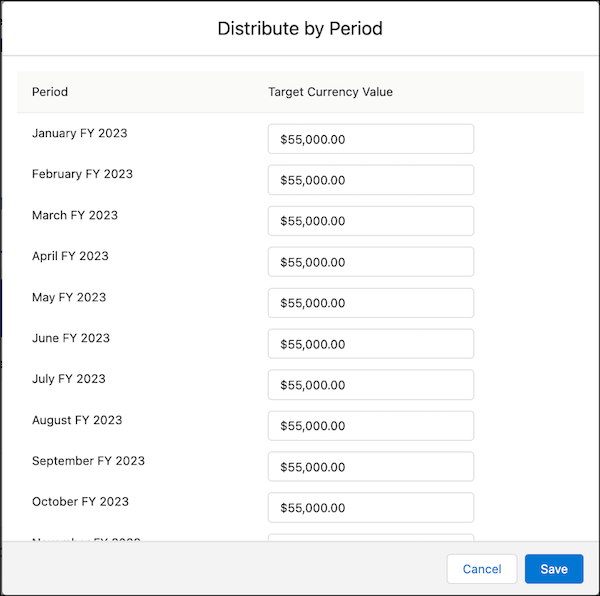
Distribute an overall account manager target assignment by time period.
- On an account manager target’s record, go to the Assignments tab.
- In the Distribute By column of your team assignments, click Period for a team member’s assignment.
-
Change the target values as needed.
- Save your changes.
-
Distribute the account and product distribution of target assignments by time
period.
- Go to the Assignments tab in the record of an account manager target that has assignments distributed by account and product.
-
In the Distribute By column of the Team Assignments section, click Account
and Product in a team member’s assignment row.
The target values already distributed for accounts and products are displayed.
-
Click Distribute by Period in an account distribution or product
distribution row.
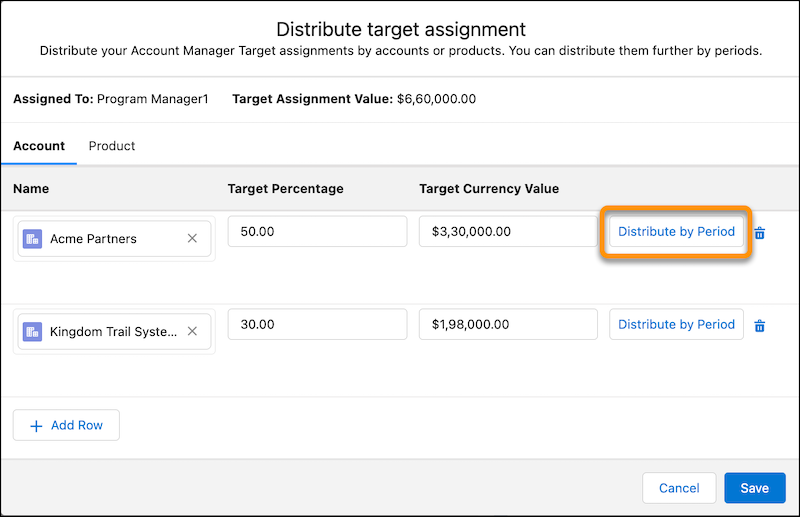 The target currency value of an account or product distribution is distributed equally across all the time periods.
- Change the target values as needed.
- Save your changes.
You receive an in-app notification after the assignment value is distributed.
You must propagate your changes to your assignments.
