Loading
The Trailblazer Community is now read-only Read More
Manage Invalid Account Manager Target Assignments

Manage Invalid Account Manager Target Assignments

Targets can become invalid for various reasons including a team member leaving the organization, updates to the Manager field on a team member's user record (when using Manager Hierarchy), and a new team member with existing targets. Changes in the configuration of the team member hierarchy can also invalidate target assignments. Manage an invalid assignment by reassigning it to another member, moving it to the parent target, changing the assignment’s owner, or deleting it.

Required Editions

Available in: Enterprise, Unlimited, and Developer Editions
User Permissions Needed
To modify account manager targets: Read, Edit permissions on Account Manager Target
To change ownership of account manager target records: Read, Edit, and Modify All Records permissions on Account Manager Target

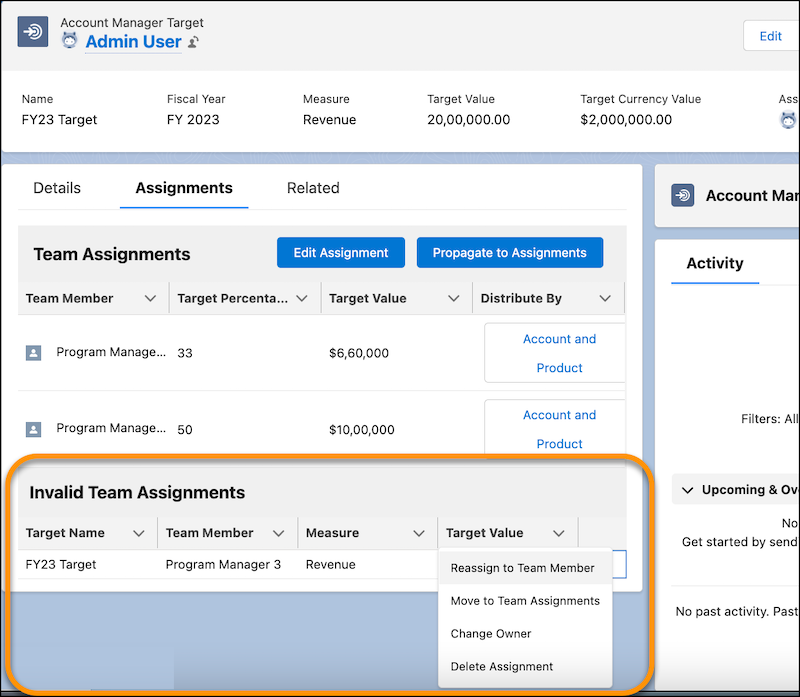
Invalid target assignments are shown in the Invalid Team Assignments section of the Assignments tab in the target’s record. You can view a target in the Invalid Team Assignments section only if you’re the owner of that target. Note that only the owner of an Account Manager Target record can edit its Target Value; managers or other users higher in the organizational hierarchy cannot edit the Target Value of a record they do not own.

  1. On an account manager target’s record, go to the Assignments tab.
  2. In the Invalid Team Assignments section, for an invalid assignment, click Quick Action button.
    Manage invalid assignments
  3. Perform an action.
    Option Description
    Reassign to Team Member To assign the invalid assignment to another team member, click Reassign to Team Member. Enter the team member’s name and save the changes. You can reassign an invalid assignment only to team members who don’t have an existing assignment. A team member can have only one assignment for an account manager target.
    Move to Team Assignment To move the invalid assignment to the Team Assignments section of the account manager target, click Move to Team Assignments. You can move the invalid assignment of a team member only if that team member doesn’t have an existing assignment. In addition, the measure and fiscal year of the invalid assignment must match the measure and fiscal year of the account manager target.
    Change Owner To change the owner of the invalid assignment, click Change Owner. Enter the user’s name and save the changes. You can change the ownership only to those users who are in your organizational hierarchy.
    Delete Assignment To delete the invalid assignment, click Delete Assignment.
    Warning
    Warning Deleting the assignment also deletes the child targets in the target’s hierarchy.
 
Loading
Salesforce Help | Article
