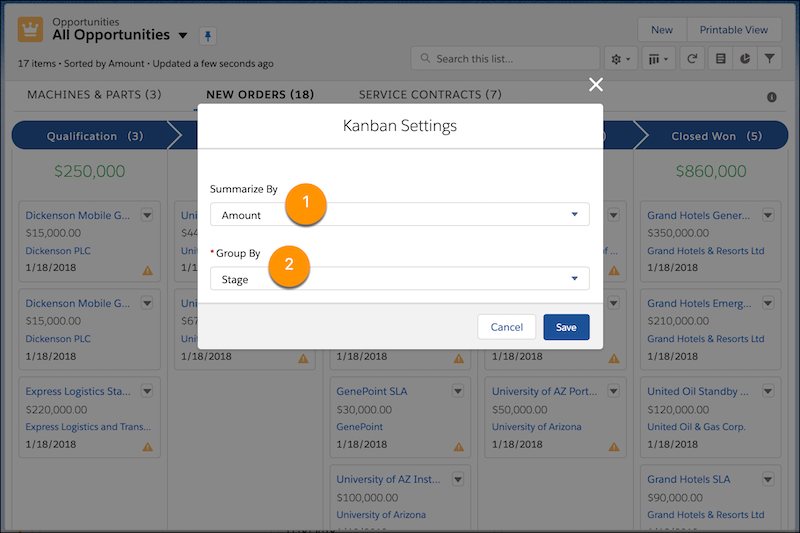
Arrange a kanban view to show a graphical view of records in a list view. Each kanban
view is based on a list view, and kanban view settings are applied separately for each list
view.
Required Editions
Available in: Lightning Experience
Available in: Essentials, Group,
Professional, Enterprise, Performance,
Unlimited, and Developer Editions
User
Permissions Needed
To create list views:
Read on the type of record included in the list AND Create and
Customize List Views
To create, edit, or delete public list views:
Manage Public List Views
To edit Kanban settings:
Edit on the associated list view
In a kanban view, click , and then select Kanban
Settings.
Kanban settings control the amount or number total in each column heading (1)
and the column groupings (2).
Summarize each column by a key number or amount, such as opportunity amount or
expected revenue.
In Summarize By, select a numeric or currency field, or omit column summaries
by selecting None.
Group your records into columns representing the progress you want to
track.
In Group By, select a field such as Stage or Opportunity Owner.
Kanban views don’t show records without a value in the selected Group By
field.
We use three kinds of cookies on our websites: required, functional, and advertising. You can choose whether functional and advertising cookies apply. Click on the different cookie categories to find out more about each category and to change the default settings.
Privacy Statement
Required Cookies
Always Active
Required cookies are necessary for basic website functionality. Some examples include: session cookies needed to transmit the website, authentication cookies, and security cookies.
Functional Cookies
Functional cookies enhance functions, performance, and services on the website. Some examples include: cookies used to analyze site traffic, cookies used for market research, and cookies used to display advertising that is not directed to a particular individual.
Advertising Cookies
Advertising cookies track activity across websites in order to understand a viewer’s interests, and direct them specific marketing. Some examples include: cookies used for remarketing, or interest-based advertising.