Smart links go to the right article and version, even when a new version is published or
the URL name changes. You create smart links in your article’s rich text fields, so rich text
fields must be enabled.
In the rich text editor toolbar, click the Smart Link
icon.
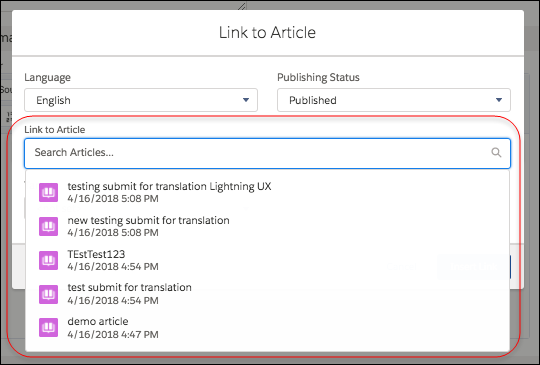
Optional: Choose the publication status and, if your knowledge base has multiple languages, choose
the language.
In the Link to Article list, select an
article.
Optional: To specify how the smart link opens in public sites and Salesforce Classic, select the
target from the dropdown.
Optional: To specify how the link opens in Lightning Experience apps and consoles, select the
Lightning target.
Click Insert Link.
Smart links use more characters than what is displayed in the editor. If you see an error
that you have surpassed the character limit, have your administrator increase the limit.
Target Behavior for Smart Links You can specify how smart links open using the different types of target options. Understand the behavior of each option and how smart links created in Salesforce Classic behave in Lightning Experience.
We use three kinds of cookies on our websites: required, functional, and advertising. You can choose whether functional and advertising cookies apply. Click on the different cookie categories to find out more about each category and to change the default settings.
Privacy Statement
Required Cookies
Always Active
Required cookies are necessary for basic website functionality. Some examples include: session cookies needed to transmit the website, authentication cookies, and security cookies.
Functional Cookies
Functional cookies enhance functions, performance, and services on the website. Some examples include: cookies used to analyze site traffic, cookies used for market research, and cookies used to display advertising that is not directed to a particular individual.
Advertising Cookies
Advertising cookies track activity across websites in order to understand a viewer’s interests, and direct them specific marketing. Some examples include: cookies used for remarketing, or interest-based advertising.