
Create an App Page with the Lightning App Builder
Create a page for an app that you can add directly into Lightning apps and the Salesforce mobile app. Your users can then easily access the objects and items that are most important in that app.
Required Editions
| Lightning App Builder available in: both Salesforce Classic and Lightning Experience |
| Lightning app pages available in: both the Salesforce mobile app and Lightning Experience |
Available in: Group, Essentials, Professional, Enterprise, Performance, Unlimited, and Developer Editions |
| User Permissions Needed | |
|---|---|
| To create and save Lightning pages in the Lightning App Builder: | Customize Application |
Before creating your page, determine which components you want to include and the global actions your users need.
- From Setup, enter App Builder in the Quick Find box, then select Lightning App Builder.
- Click New.
- Select App Page and then click Next.
-
Give your app page a label, and then click Next.
The label can be up to 80 characters.
-
Select a page template and click Done.
If this is a mobile-only page, it doesn't matter which template you pick. If you plan to share this page between mobile and desktop users, choose the template most appropriate for desktop use. On mobile devices, the page responsively collapses into a single column.
-
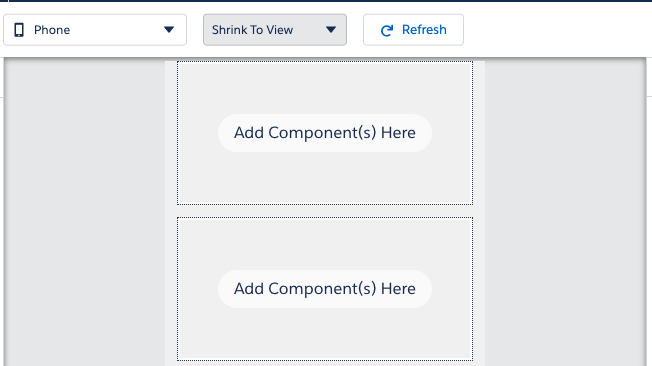
If you're creating this page for mobile use, make sure to view the template preview
using the Phone form factor. The regions on the template are shown in a single-column
layout.
-
Drag the components that you want onto the page.
Drag components up and down to rearrange them. You can also click a component’s top or bottom border to create an insertion point (
 ) for the next component.To increase mobile adoption, we recommend adding the top features that your users use most frequently. For example, the Recent Items component can take them back into the records that they were working with. Also, the List View components can be set to show open tasks to improve productivity in the mobile app.
Remember that screen space and bandwidth are precious on mobile, so try to limit each page to 4 or 5 components at most. If you overload the page with features, it can be slow and harder to use.
See Tips for Creating Mobile App Pages in Lightning App Builder. - Click each component on the page to configure its properties.
-
Click in the empty area of the canvas or on the Page link in the
breadcrumb to configure the page properties.
The Description field is limited to 255 characters. The API Name field is limited to 80 characters, but if you have a namespaced org, we recommend using fewer than 65 characters. When you create a Lightning page, the API name is derived from the first 40 characters of the label that you give the page.
-
In the page properties, click Select to add global actions to
your page.
Global actions help your users perform tasks easily from the app page, like log a call, create a new case or event, and so on.Actions you select appear on the page’s action bar and in the highlights panel at the top of the page in Lightning Experience. An app page is the only type of Lightning page that you can add actions to in this way. Other Lightning pages derive their actions from the object and global page layouts.
- Click Save when you’re done editing your page.
To give your users access to the app page, you must activate it. You can limit the page to mobile users during the page activation process. After activation, you can add the page to any Lightning App in the App Manager for your users to personalize. If your Lightning App is available on both desktop and mobile, you can use the same page across both. Or create a Lightning App specifically for your mobile users, and add it to the navigation there.
