
Create Dynamic Actions in Lightning App Builder
With dynamic actions, you can add flexibility and control to actions on your record pages. Assign dynamic actions in the Lightning App Builder instead of in the page layout editor, and then apply filters to control when and where actions are visible to users.
Required Editions
| Available in: Lightning Experience |
| Available in: Group, Essentials, Professional, Enterprise, Performance, Unlimited, and Developer editions |
| User Permissions Needed | |
|---|---|
| To create actions: | Customize Application |
| To create and save Lightning pages in the Lightning App Builder: | Customize Application |
You can create dynamic actions for standard and custom objects on mobile and desktop. Dynamic actions are supported by default on custom objects on mobile. To enable dynamic actions on standard objects, from Setup, in the Quick find box, enter Mobile, and then select Salesforce Mobile App. Enable Dynamic Actions on Mobile.
Check out this video to see how dynamic actions work on mobile devices.

- From Setup, in the Quick Find box, enter App Builder, and then select Lightning App Builder.
- Edit an existing record page, or click New to create one.
- Add or select the Highlights Panel component on the object’s record page.
-
To enable Dynamic Actions, in the Highlights Panel properties pane, click
Upgrade Now, and either step through the migration assistant to
migrate existing actions or start with new actions.
When you enable Dynamic Actions, it applies only to the record page that you’re currently working on in Lightning App Builder. Users can then see the dynamic actions configured for that page in Lightning App Builder. Users don’t see actions configured in the object’s page layout.
-
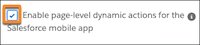
If you want to use a different set of actions for mobile than for desktop, or if you’re
adding dynamic actions to a mobile-only Lightning page, go to the page Properties pane,
and select Enable page-level dynamic actions for the Salesforce mobile
app.
-
In the Properties pane, click Add Action, and then choose an
action from the Actions window.
Note If you migrated actions from a page layout, you can modify them in the Actions window.
-
To add visibility rules based on the record field, device type, or other filters, click
Add Filter.
An eye icon
 next to an action’s name indicates that visibility rules are applied. Visibility
filters support a single value at a time, not comma-separated values. To add more than one
value, add a new filter.
next to an action’s name indicates that visibility rules are applied. Visibility
filters support a single value at a time, not comma-separated values. To add more than one
value, add a new filter. - To save your changes, click Done.
By default, if you configure Dynamic Actions for a record page in a Highlights Panel or Dynamic Highlights Panel component, mobile and desktop users see the same actions. If your desktop page has multiple Highlights Panel components and you add one or more dynamic actions to each of them, the dynamic actions are consolidated into one action bar for that record page on mobile.
When Enable page-level dynamic actions for the Salesforce mobile app is selected, the page-level actions that you configure in the page properties pane take precedence on mobile over all other actions on the page, including those configured in the Dynamic Highlights Panel, the Highlights Panel, or from the page layout.
